

Appearance
Submission list
Open Submissions in UpForm to review responses from your forms. From the list you can search, filter, star items, add notes, and export data.
Submission list
The list shows every saved submission in one place. Each row is one submission.
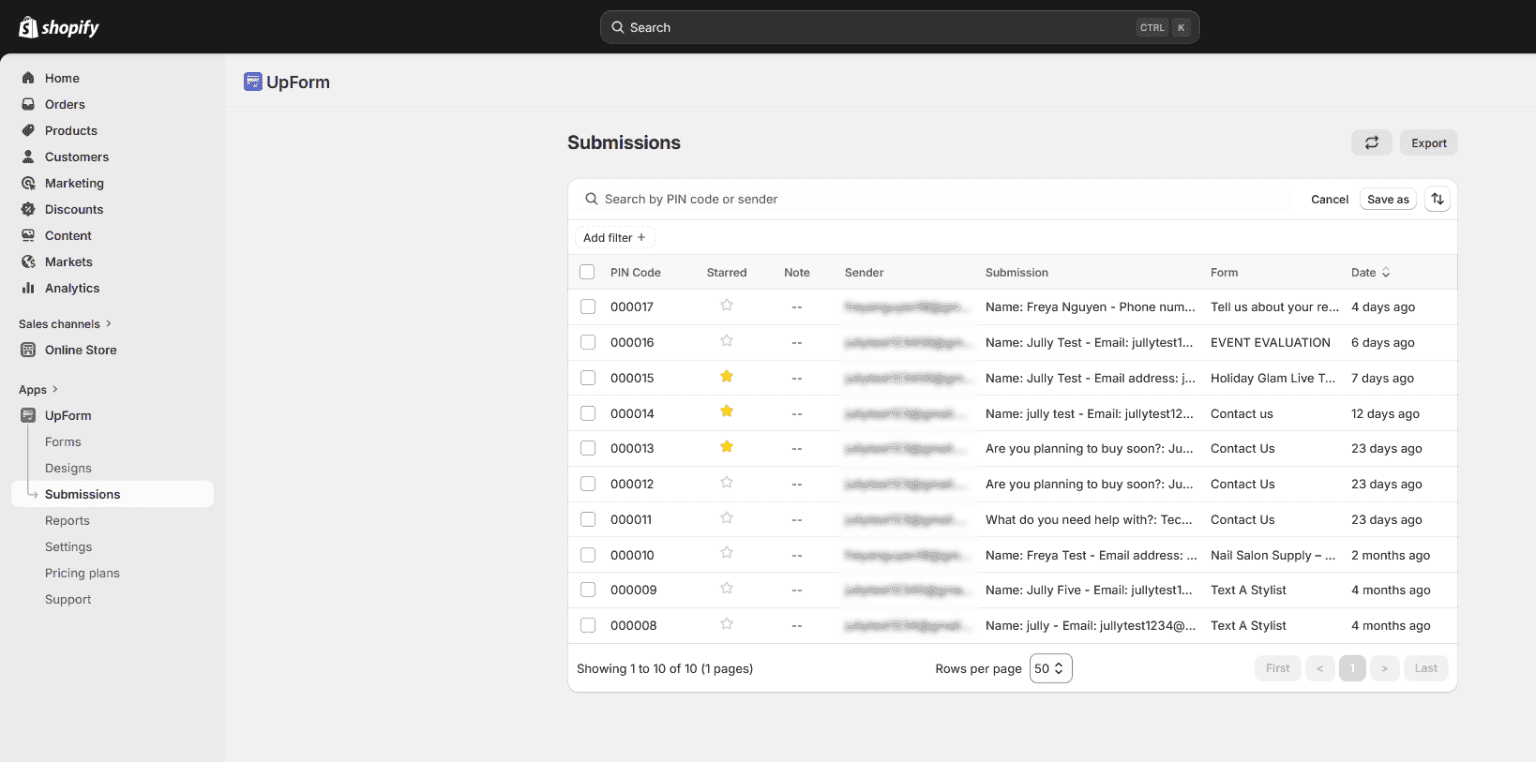
Columns include:
- PIN Code — unique ID for the submission
- Starred — mark important submissions for quick access
- Note — internal notes about the submission
- Sender — email or identifier of the person who submitted
- Submission — preview of the submitted answers
- Form — form that received the submission
- Date — when the submission was received
Open a row to view full details. See Submission details.
Forms only appear here if Save submission data is enabled. See General.
Search and filter
- Click the Search and filter control.
- In the search box, find submissions by PIN code or sender.
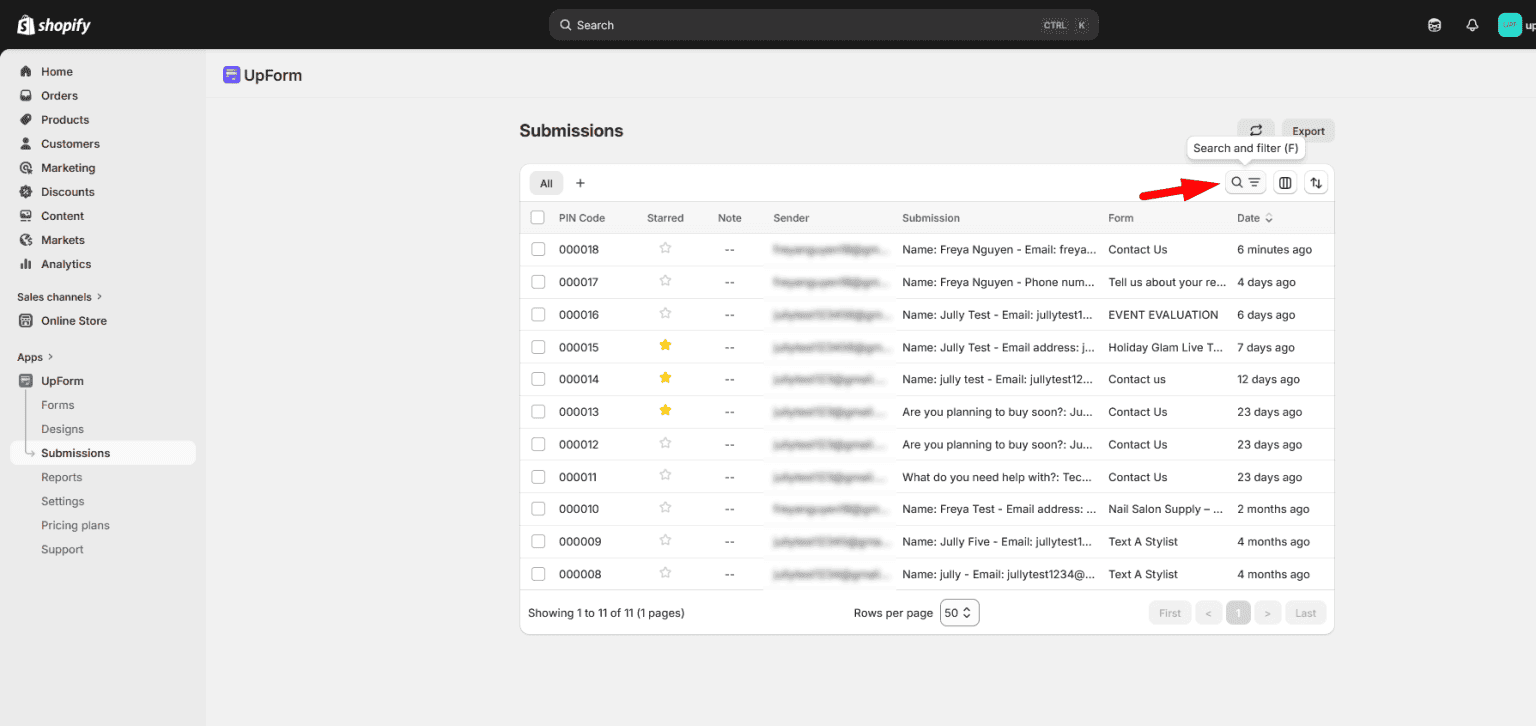
To narrow the list further:
- Click Add filter.
- Choose a filter such as:
- Starred
- Form
- Created (date)
- Tags
- Verified email
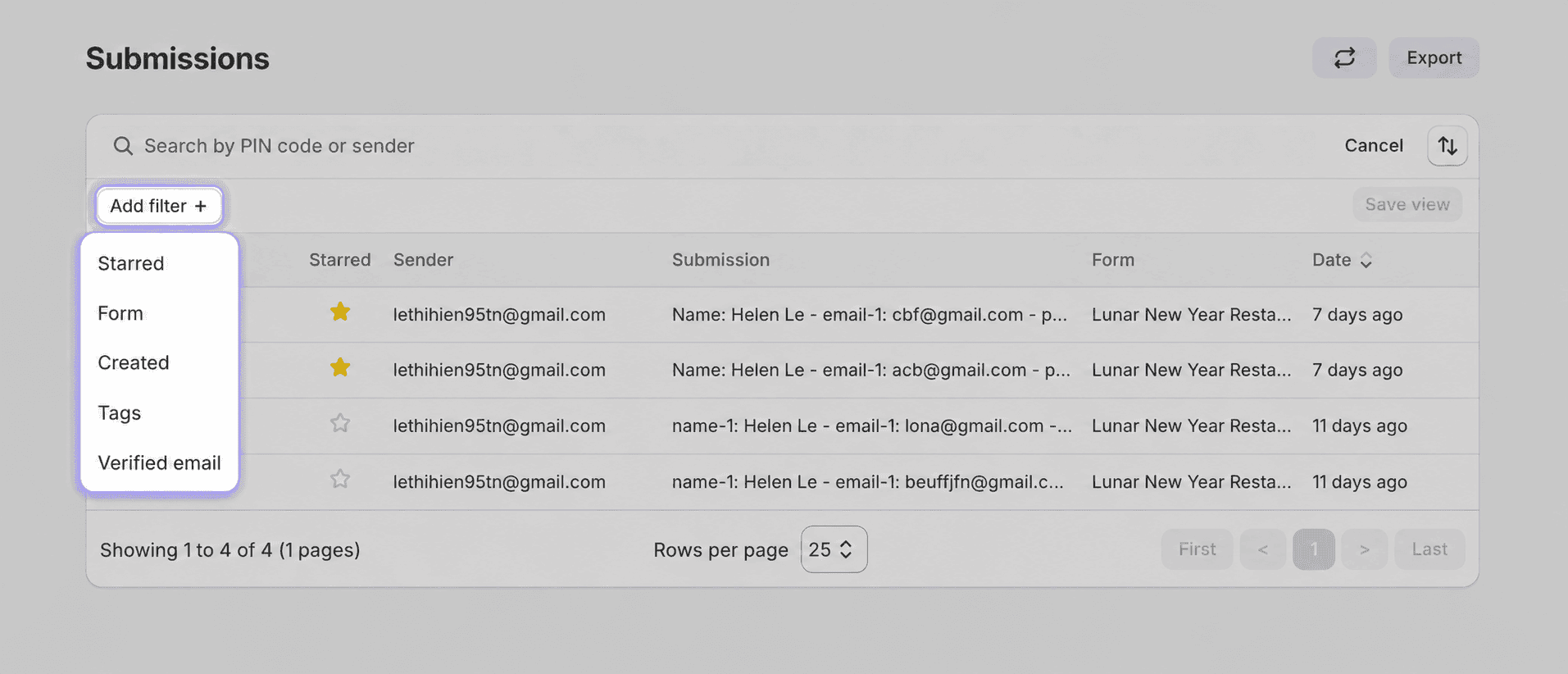
You can add more than one filter and combine them to show only matching submissions.
Save a filter view
After you set filters you want to reuse:
- Click Save as.
- Enter a name for the view, then save it.
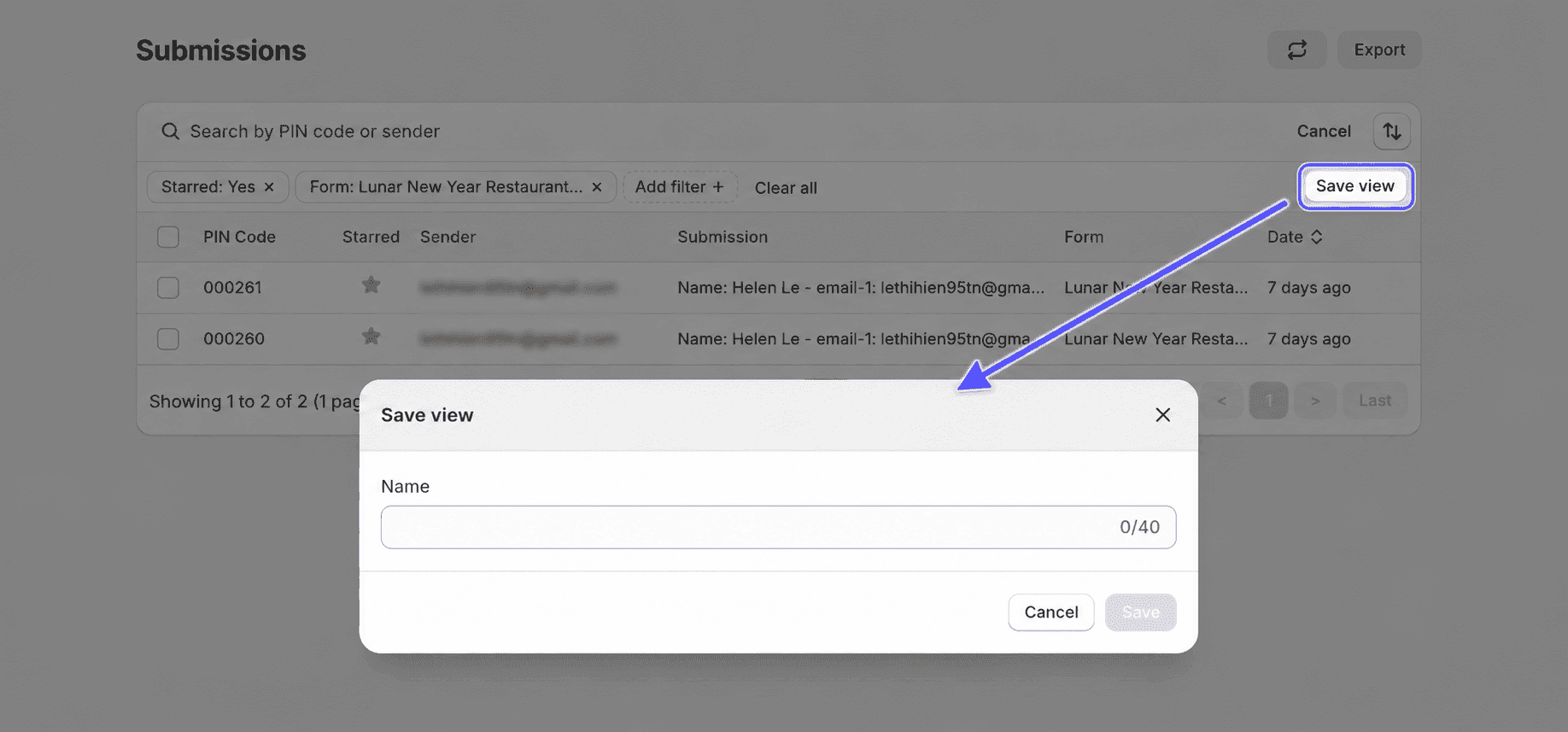 You can create multiple filter views and switch between them later.
Example: submissions from the last 30 days for one form
- Click Search and filter → Add filter → Form, then choose the form (for example, a contact form).
- Click Add filter again → Created → Last 30 days.
- Click Save as and enter a view name.
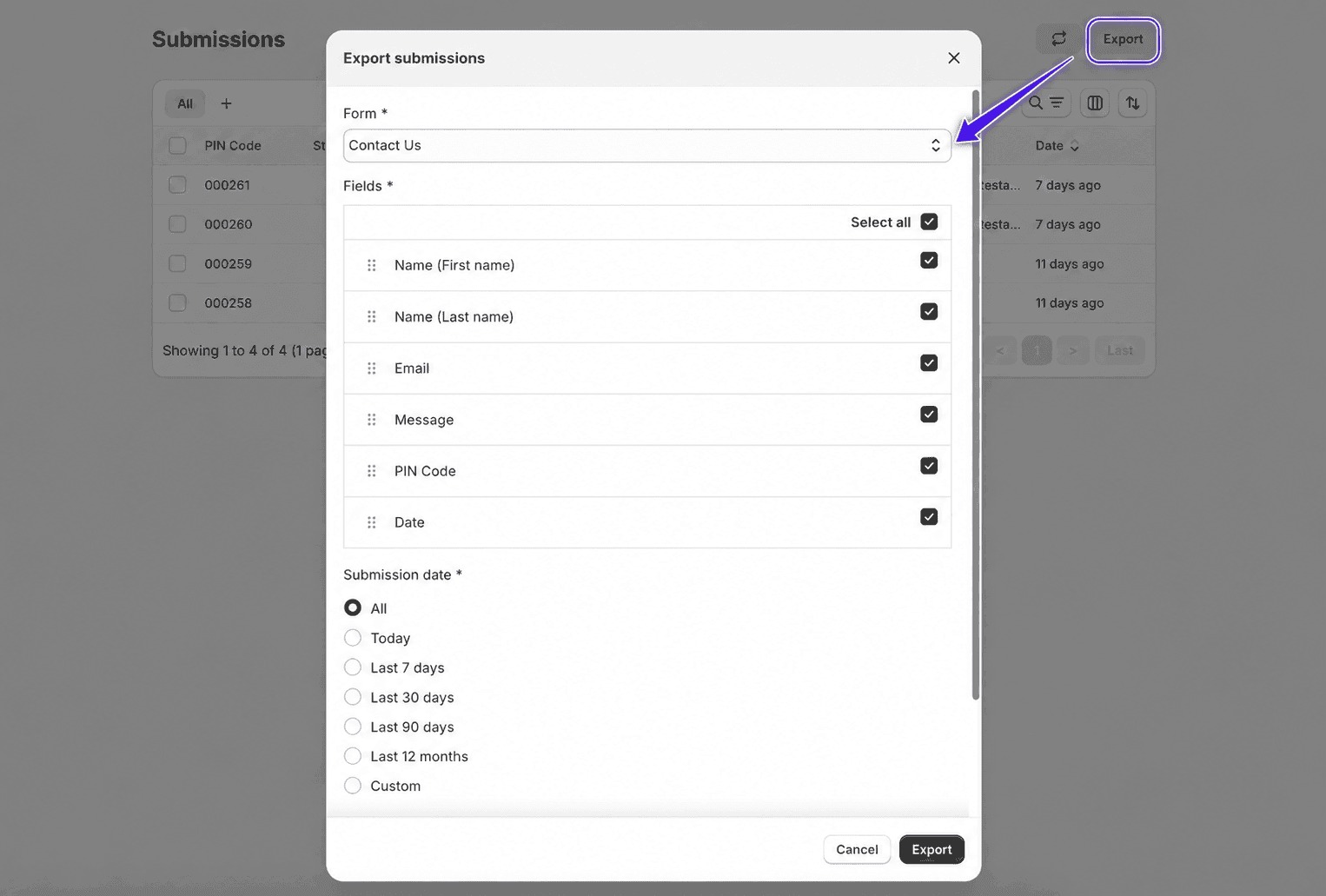
Export submissions
Download submission data as a file for reporting or use outside UpForm.
- Click Export.
- In Export submissions, select the Form.
- Choose the Fields to include (you can reorder them if needed).
- Set the Submission date range.
- Choose Sort: Oldest to newest or Newest to oldest.
- Under Export submissions as, choose CSV or XLSX.
- Click Export.
If this does not work as expected, Contact for help.