

Appearance
N8N
Send form submissions from UpForm to N8N with a webhook. After N8N receives a test submission, you can map form fields into other apps such as Google Sheets, Slack, or email tools.
Before you begin
- You need an n8n account (cloud or self-hosted).
- In UpForm, the provider is labeled N8N.
- In UpForm, enable Save submission data for the form. Workflow sync will not run if submissions are not saved. See General.
- UpForm does not map fields inside the form for N8N. Field mapping happens in N8N after a test submission.
- UpForm sends submission data to your webhook with a POST request as JSON.
- n8n menus and labels can change. If something does not match exactly, search n8n help for Webhook.
Connect N8N in UpForm
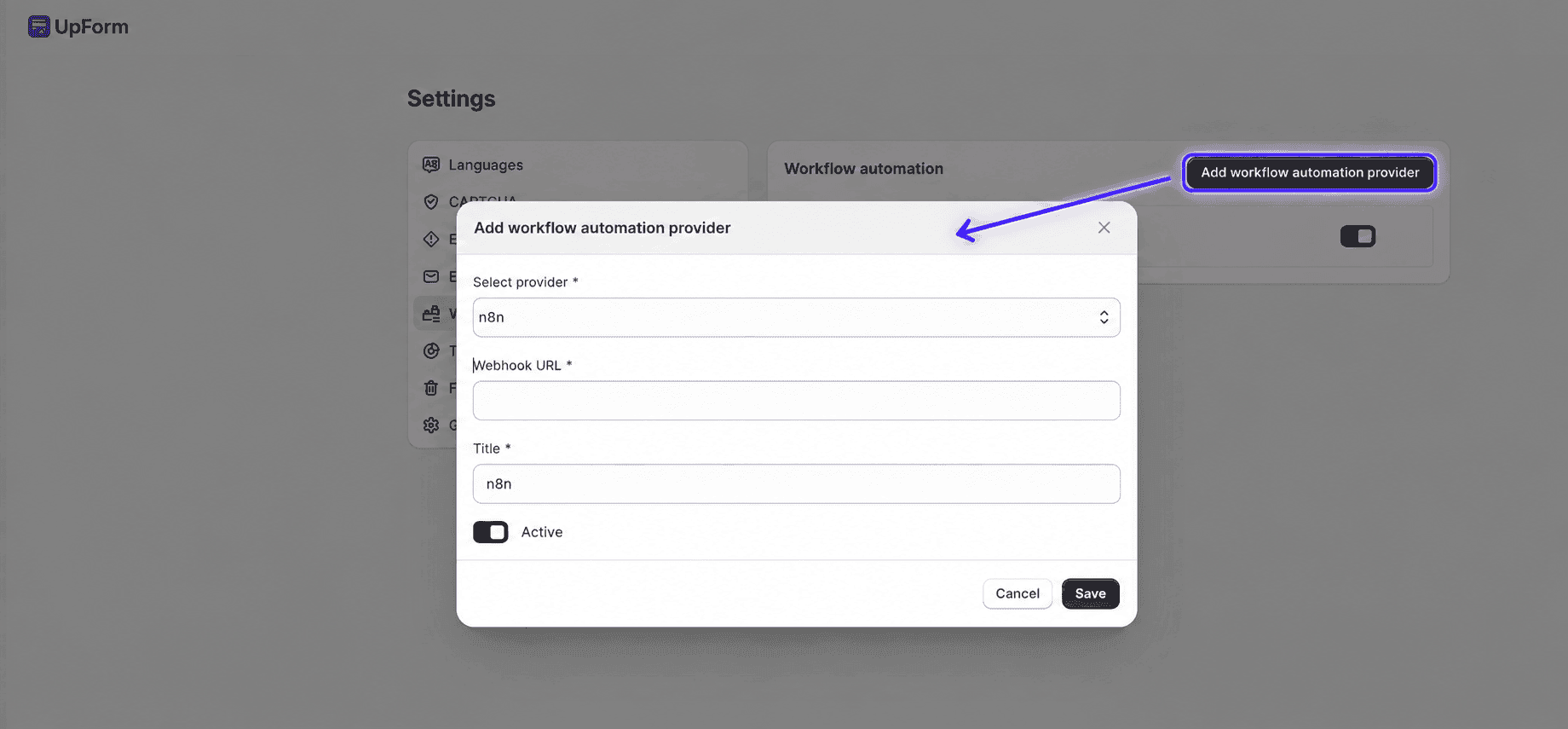
- In UpForm, open Settings → Workflow automation.
- Click Add workflow automation provider.
- Under Select provider, choose N8N.
- Enter a Title for this connection (for example,
N8N – UpForm). - Leave the modal open (or return after you copy the webhook URL), then continue in n8n.
Create an N8N webhook

- Sign in to your n8n instance.
- Create a new workflow (or open an existing one).
- Add a Webhook trigger node.
- Set the webhook to accept POST requests.
- Save the node, then copy the webhook URL n8n provides (test URL while listening, or production URL after the workflow is active).
Keep n8n ready to receive data. If you use a test URL, put the Webhook node in listening/waiting mode before you save the provider or submit the form. If you use a production URL, activate the workflow so the endpoint is available.
- Return to UpForm, paste the URL into Webhook URL, enable Active if shown, then click Save.
When you save, UpForm may send a short test ping to verify the URL. If verification fails, confirm the webhook URL is correct and that n8n is listening or the workflow is active.
Enable N8N on a form
- Open the form in the form builder (or create one from a template).
- Open the General tab → Workflow automation.
- Enable Sync submission data with N8N.
- Select the Provider you connected earlier.
- Save the form and publish it to your storefront.
You can also click Add for N8N from this section if you have not connected a provider yet.
After you add the webhook URL, UpForm shows a note to submit the form at least once so N8N can receive sample data and expose your form fields for mapping.
Send a test submission
- On the live storefront, submit the form with complete test data.
- Return to n8n and confirm the Webhook node received the payload.
- Use that sample data so your form fields (such as name and email) appear when you configure later nodes.
If N8N does not receive data, confirm the webhook URL is correct, Active is enabled for the provider, Save submission data is on, and the form is published with N8N sync enabled.
Finish the workflow in N8N
After the webhook has sample data:
- Add the next node (for example, Google Sheets, Slack, or an email app).
- Map UpForm fields from the webhook output into that node.
- Run a test, then activate the workflow if you have not already.
N8N can use the fields sent from the submission. Data types are usually inferred from the test payload.
If this does not work as expected, Contact for help.