

Appearance
Configure Amazon SMTP
Connect Amazon (Amazon SES) so UpForm can send admin notifications, customer emails, verification emails, and follow-ups through your AWS account.
You will create SMTP credentials in Amazon SES, add them in UpForm as the Amazon email provider, then select that provider on each form that should use it.
Before you begin
- In UpForm, the email provider is labeled Amazon.
- You need an AWS account with access to Amazon SES.
- You will verify a sender email address or domain in SES before you can send reliably.
- In UpForm, custom providers are managed under Settings → Email configuration → Custom email providers. You can also start from a form’s Email → SMTP section with Add provider.
Create SMTP credentials in Amazon SES
Open Amazon SES
- Sign in to the AWS Management Console.
- Open Amazon SES (Simple Email Service).
- Choose the AWS region you want to use (for example,
us-east-1orus-west-2).
Use the same region later in UpForm under Region.
Verify a sender identity
- In SES, go to Verified identities.
- Click Create identity.
- Choose Email address (for quick testing) or Domain (for store-wide sending).
- Complete verification (email confirmation or DNS records, as AWS prompts).
Your UpForm Sender email must match a verified identity in this SES account and region.
Create SMTP credentials
- In SES, open SMTP settings.
- Click Create SMTP credentials.
- Create the IAM user when AWS prompts you (for example,
UpFormSMTPUser), then create the user. - Copy and store:
- SMTP Username — you will paste this into UpForm as API key ID
- SMTP Password — you will paste this into UpForm as API key
You usually cannot view the SMTP password again after you leave that screen. Save it securely.
Add Amazon in UpForm
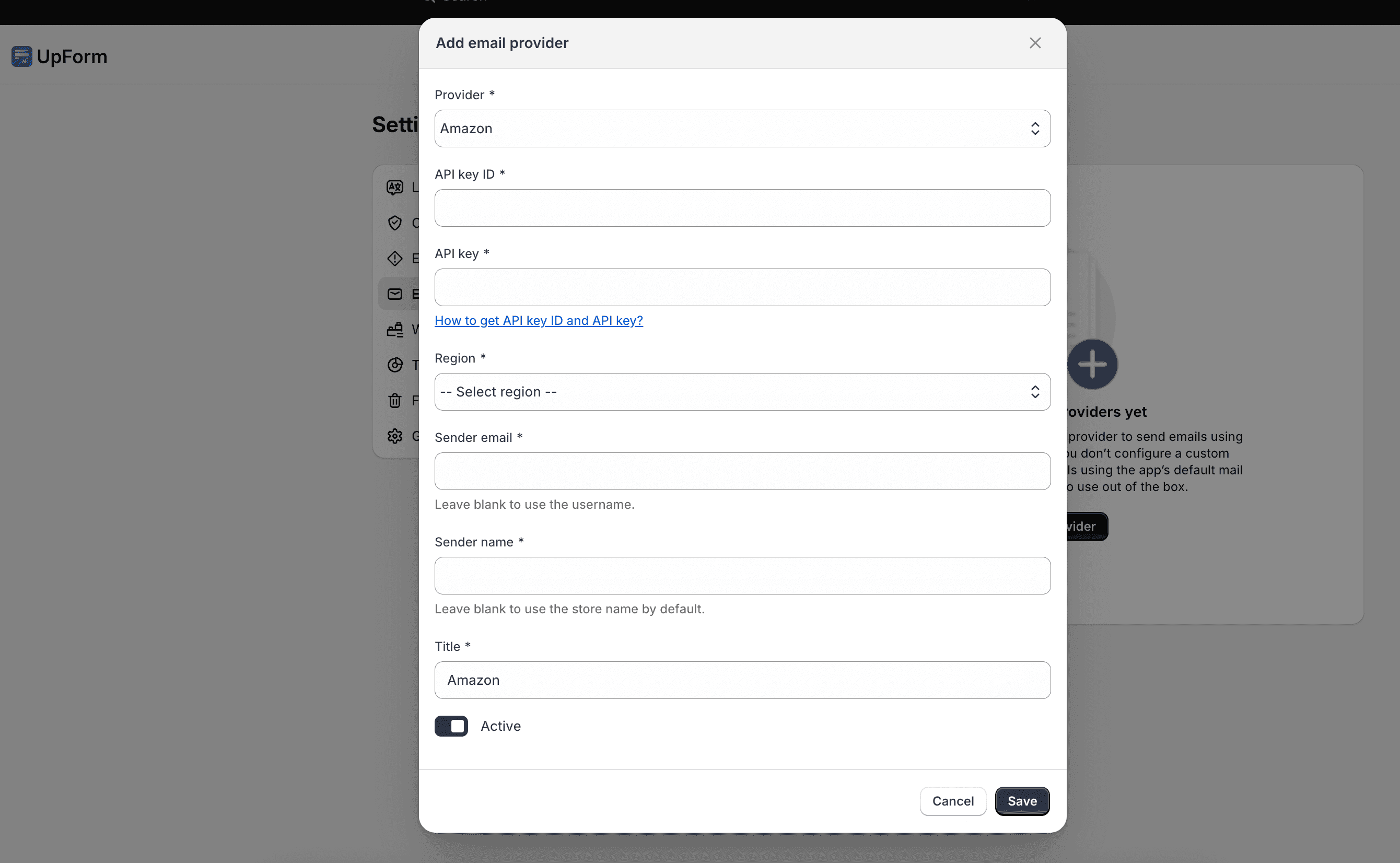
- In UpForm, go to Settings → Email configuration → Custom email providers.
- Click Add email provider.
- Under Provider, select Amazon.
- Enter:
- API key ID — SMTP Username from SES
- API key — SMTP Password from SES
- Region — the same AWS region as your SES setup (for example, US East (N. Virginia) for
us-east-1) - Sender name — name shown as the sender (the field help notes you can leave it blank to use the store name by default)
- Sender email — a verified SES identity
- Title — optional label for this provider in UpForm
- Enable Active.
- Click Save.
You can use Send test email from Email configuration to confirm delivery after the provider is saved.
Use Amazon on a form
Adding the provider does not assign it automatically to every form.
- Open the form in the form builder.
- Open the Email tab → SMTP.
- Under Select provider to send emails, choose your Amazon provider.
- Save the form.
Also enable Save submission data in General, or emails will not send. See Email and General.
Sandbox mode
New SES accounts often start in sandbox mode. In sandbox:
- You can typically send only to verified addresses
- Sending volume is limited
To send to any recipient at higher volume, request production access or a sending limit increase in AWS (for example from AWS Support Center under SES sending limits), then wait for AWS approval.
For other providers, see UpForm email provider and the other guides under Email providers.