

Appearance
Conditions
Use the Conditions tab to show or hide fields based on customer input. Use conditions to show only relevant fields and keep forms shorter.
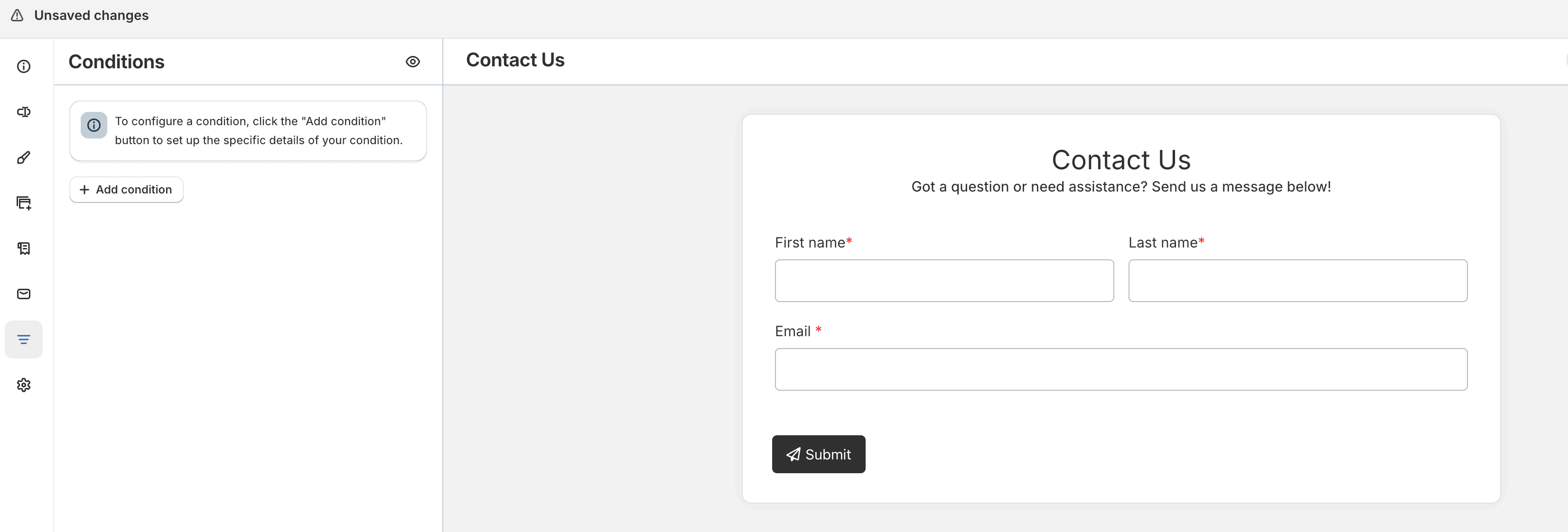
When the tab is empty, click Add condition to create your first rule.
Build a condition
Each condition uses If, Is, and Value, then an action in Do.
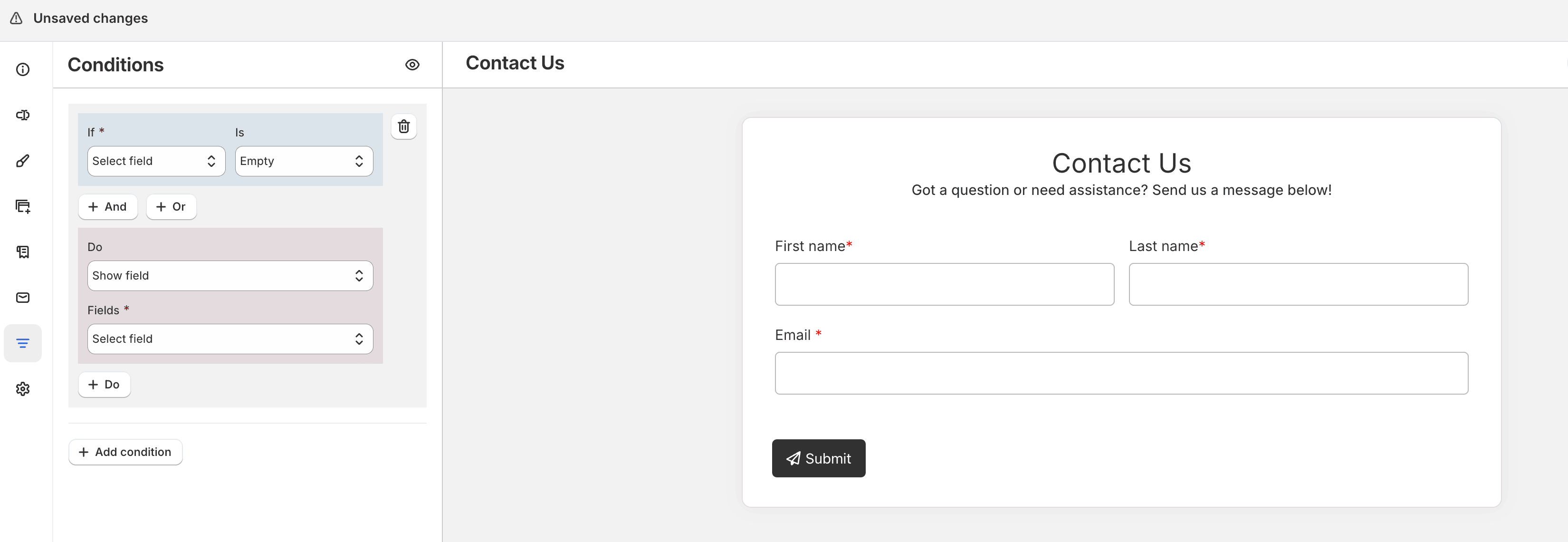
If — choose the field that triggers the rule. For Name fields that are not set to full name, you can select individual name parts such as first name or last name.
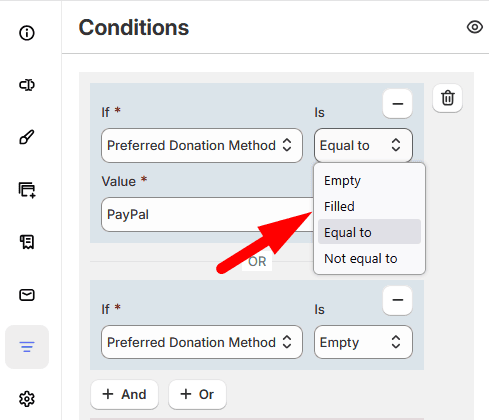
Is — choose how the field value is compared. Available operators depend on the field type and can include:
- Empty / Filled
- Equal to / Not equal to
- Contains / Does not contain
- Starts with / Ends with
- Less than / Greater than / Less than or equal / Greater than or equal
- Before / After
- Weekdays
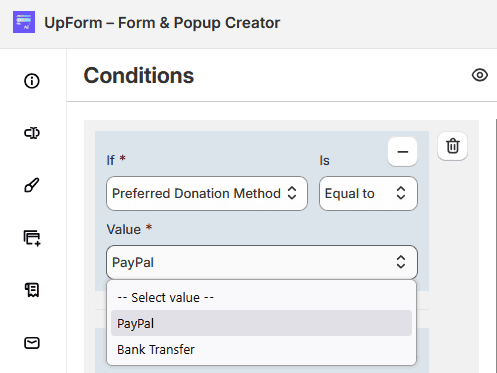
Value — enter or select the value to compare, when the operator needs one. Empty and filled operators do not require a value. Date, time, country, product, rating, and choice fields use the matching value selector for that field type.
Combine rules with And or Or
Add more rules to the same condition with:
- And — every rule must be true for the action to run
- Or — at least one rule must be true for the action to run
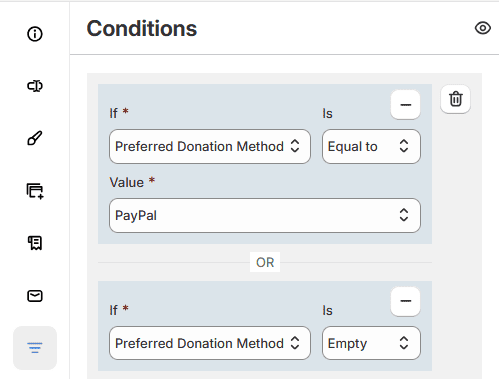
You can remove an individual If rule or delete an entire condition when you no longer need it.
Choose what happens
In Do, choose the action to apply when the condition is met:
- Show field
- Hide field
- Show multiple fields
- Hide multiple fields
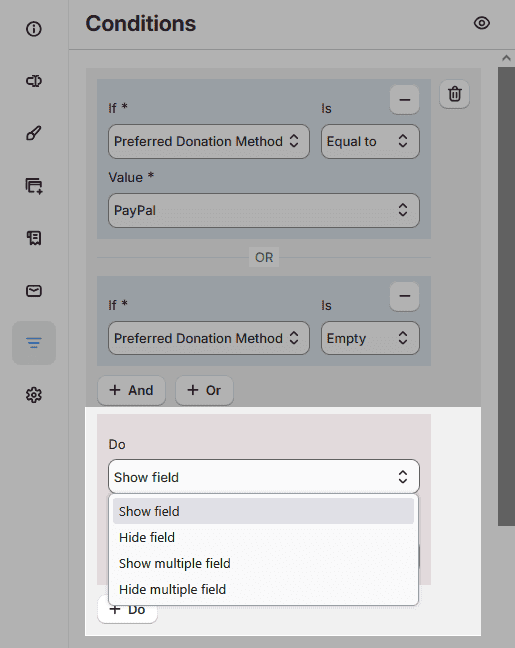
Use Fields to select the field or fields the action applies to. Click Do again to add another action to the same condition.
Click Add condition to create additional condition blocks for more complex forms.
Preview conditions
Use the preview toggle on the Conditions tab to switch between:
- Previewing without conditions – Show all fields
- Previewing with conditions – Show/hide fields
Preview with conditions before you publish the form.
Field limitations
Some fields cannot be used as the If trigger, including content and account-related fields such as HTML, image, divider, heading, video, space, unique ID, table, login/register, customer profile, paragraph, map, voucher, button link, acceptance, security question, hidden, and animated text.
Some fields also cannot be shown or hidden by a condition, including acceptance, security question, CAPTCHA, hidden, and animated text.
Example
Suppose a contact form asks for a preferred contact method of Phone or Email, and you only want the phone field when Phone is selected.
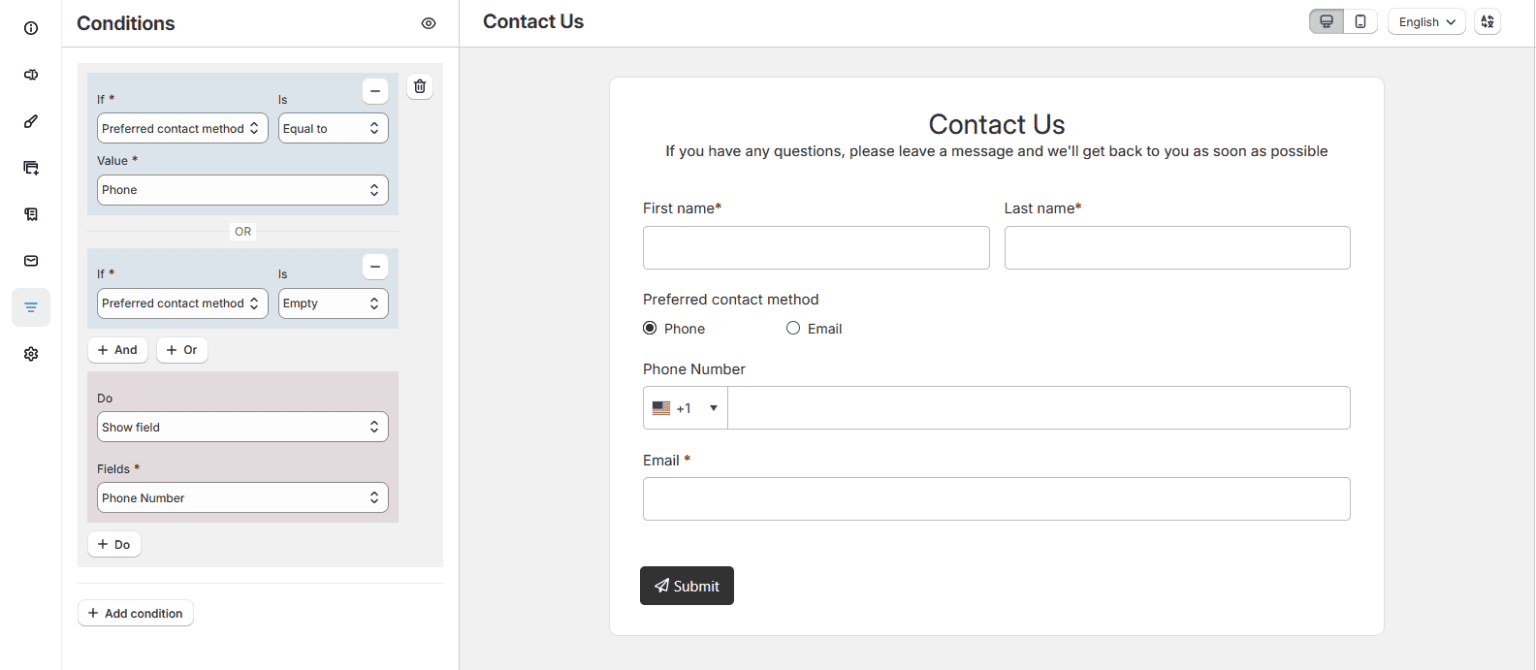
Create a condition like this:
- If Preferred contact method
- Is Equal to
- Value Phone
- Do Show field → Phone number
With this setup, the phone field appears when the customer selects Phone. If they choose Email, the phone field stays hidden.