

Appearance
Popups, floating forms, and banners
Publish Popup, Float, Top bar, Footer banner, and Side-in forms from the Publish form modal by choosing where they appear. You do not need to paste embed code for these form types when they open automatically.
If you are not sure which publish guide to use, see Publish a form. To choose a form type, see Design.
On-page forms use a different flow. Start with Publish on a page. If you set When the customer clicks the trigger button for a Popup, Float, or Side-in form, publish the button with embed code instead. See Publish anywhere.
Before you begin
- Set the form type to Popup, Float, Top bar, Footer banner, or Side-in in the Design tab.
- In Triggers, choose an automatic show condition—not When the customer clicks the trigger button.
- Save the form.
- Turn on App Embed in your theme. If App Embed is off, the publish modal shows Enable App Embed to display your forms. Click Activate App Embed and enable the UpForm embed before you continue.
Open the Publish form modal
- Open the form in the form builder, or find it on the Forms page.
- Click Publish form.
You will see Select the pages where you want to display the form.
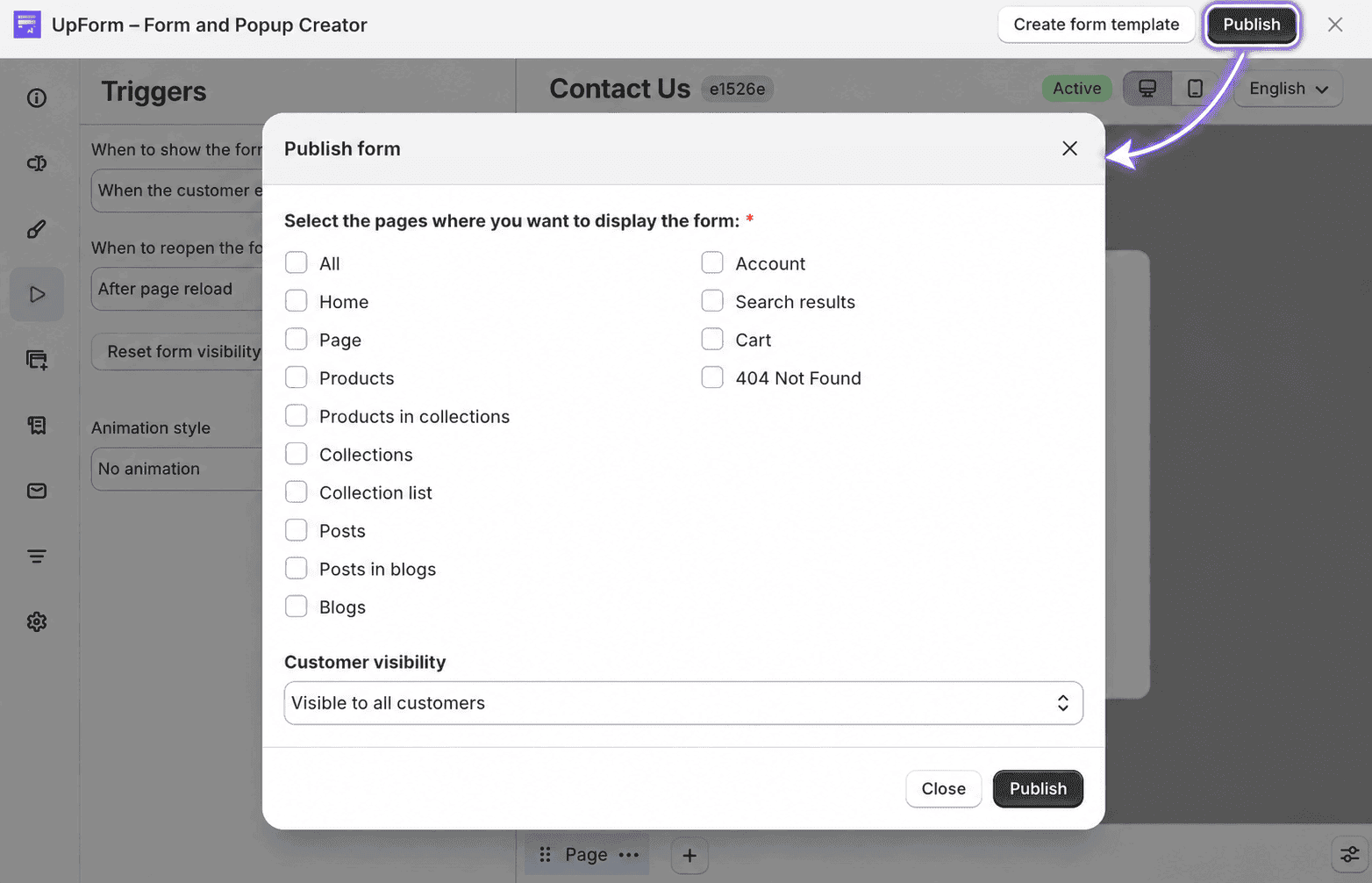
Select where to display
Under Select the pages where you want to display the form, check the locations where the form should appear. You can select more than one.
Use All to select every available location at once. Use Account to show the customer account locations (Login, Register, Customer account, Order details, and Customer address).
Locations with All or Specific options
For these locations, expand the row after you check it, then choose All or Specific:
| Location | What it covers |
|---|---|
| Page | Shopify pages (for example, About or Contact) |
| Products | Product pages |
| Products in collections | Products that belong to selected collections |
| Collections | Collection pages |
| Posts | Individual blog posts |
| Posts in blogs | Posts that belong to selected blogs |
| Blogs | Blog index pages |
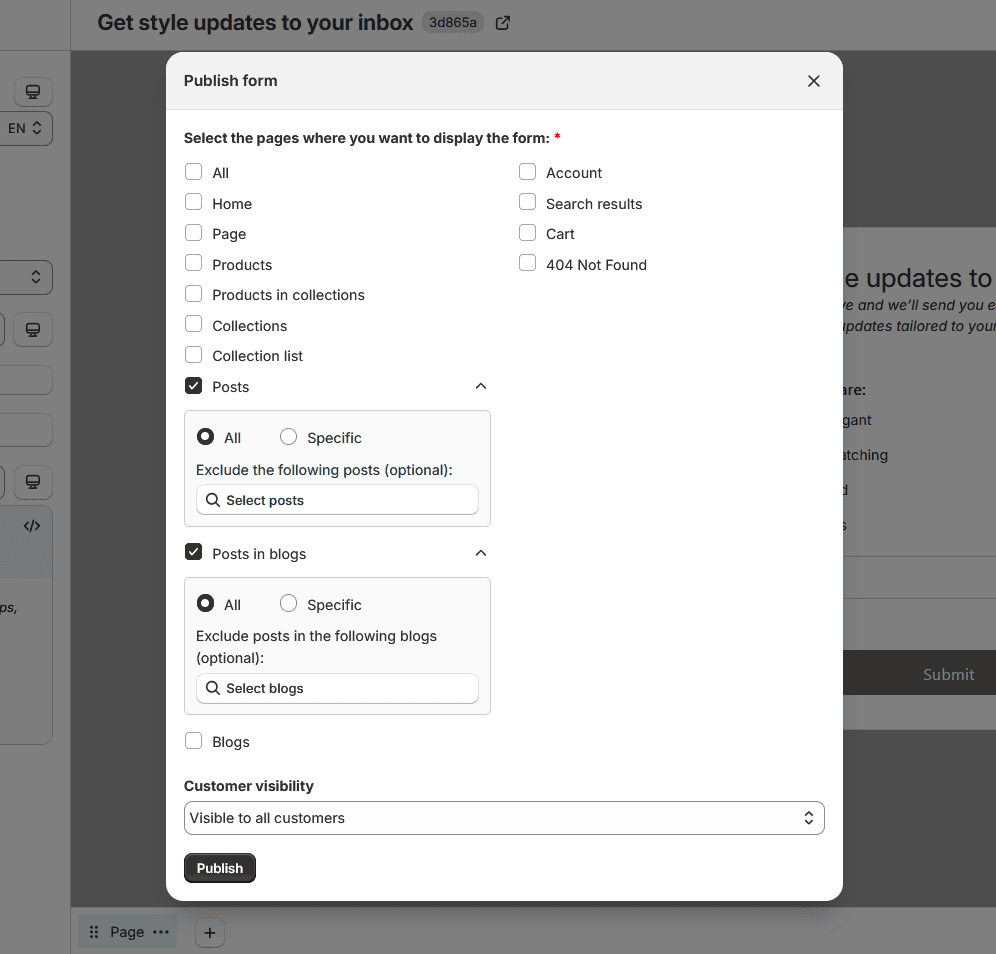
If you choose All, the form appears on every page of that type. You can optionally exclude specific items with the exclude field (for example, Exclude the following products (optional):).
If you choose Specific, select the items to include (for example, Include the following products:). Use the search box to find pages, products, collections, posts, or blogs quickly.
Other locations
These locations do not use All / Specific. When checked, the form can appear whenever that page is shown:
| Location | What it covers |
|---|---|
| Home | Store homepage |
| Collection list | Collections list page |
| Search results | Search results page |
| Cart | Cart page |
| 404 Not Found | Page not found |
Account locations (under Account):
| Location | What it covers |
|---|---|
| Login | Customer login |
| Register | Customer registration |
| Customer account | Customer account |
| Order details | Order details |
| Customer address | Customer addresses |
Who can see the form
Who can see the form is set in the form builder under General → Customer visibility, not in the publish modal. Configure visibility before or after you publish. See Customer visibility.
Publish the form
After you select at least one location, click Publish.
When publishing succeeds, you will see confirmation that the form is live. You can use View form to open it on the storefront.
If the form is already published, you can change locations and click Publish again, or click Unpublish to remove it from the storefront. For more update and remove options, see Unpublish or change locations.
After you publish
If the form does not appear:
- Confirm the form is published in UpForm
- Confirm App Embed is enabled
- Confirm at least one display location is selected
- Confirm Customer visibility in General matches how you are viewing the store (logged in, logged out, marketing consent, or segment)
- Confirm trigger settings in the Triggers tab match when you expect the form to open
If this does not work as expected, Contact for help.