

Appearance
Publish on a product page
Publish an On-page form to a Shopify product page from the Publish form modal. If you are not sure which publish guide to use, see Publish a form. For popup, float, top bar, footer banner, and side-in forms, see Popups, floating forms, and banners.
Before you begin
- Set the form type to On-page in the Design tab.
- Save the form.
- Turn on App Embed in your theme. If App Embed is off, the publish modal shows Enable App Embed to display your forms. Click Activate App Embed and enable the UpForm embed before you continue.
Open the Publish form modal
- Open the form in the form builder, or find it on the Forms page.
- Click Publish form.
- Under Select the page type, choose Product.
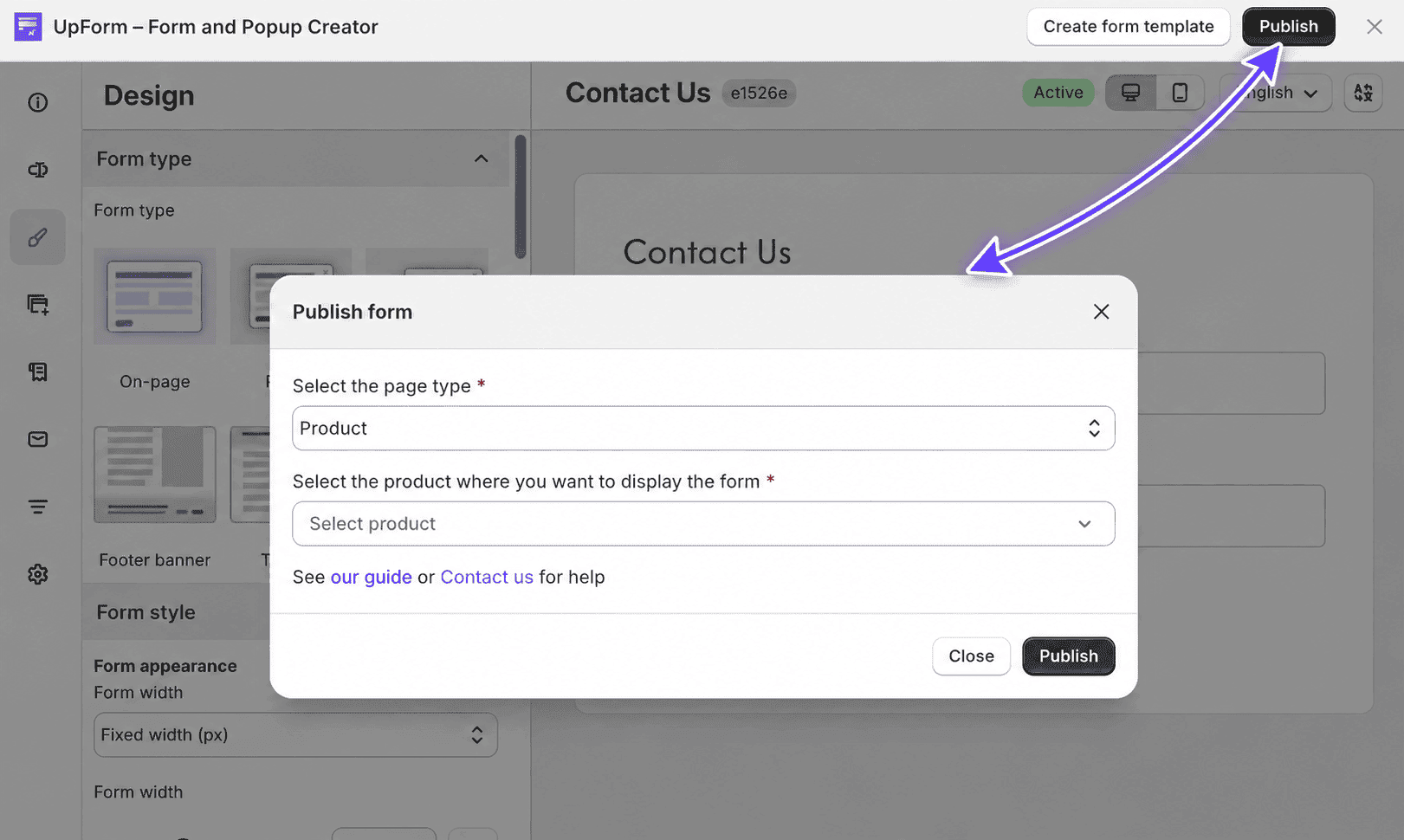
Then choose a specific product or All products.
Publish to a specific product
- Under Select the product where you want to display the form, search by title and select a product.
- Under Select position to display the form, choose:
- Top of description
- Bottom of description
- Custom position
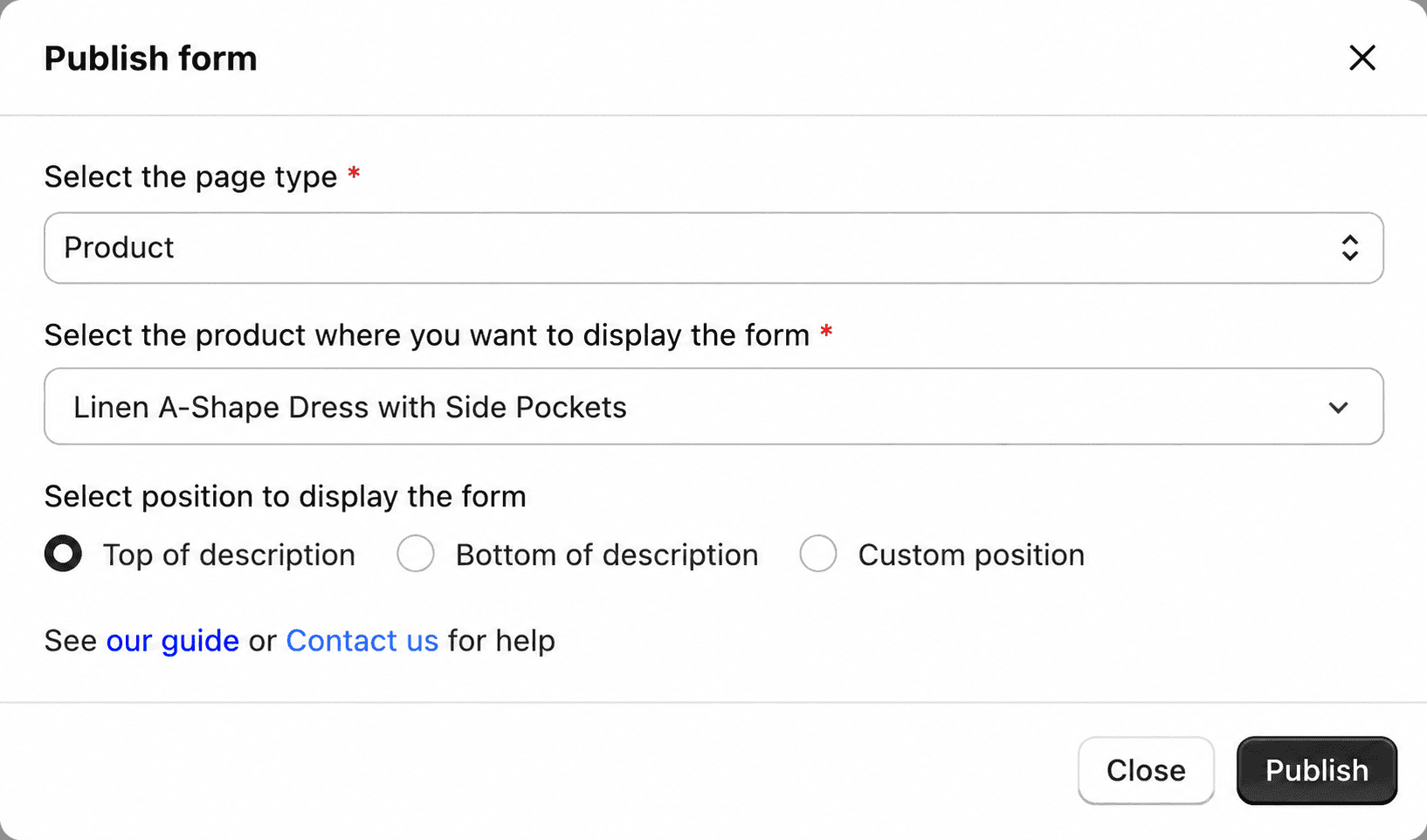
Use Top of description or Bottom of description to place the form automatically. Use Custom position when you want the form in a specific place in the product description, such as between two paragraphs.
If you choose Top of description or Bottom of description, click Publish. UpForm inserts the form into the product description automatically.
If you choose Custom position:
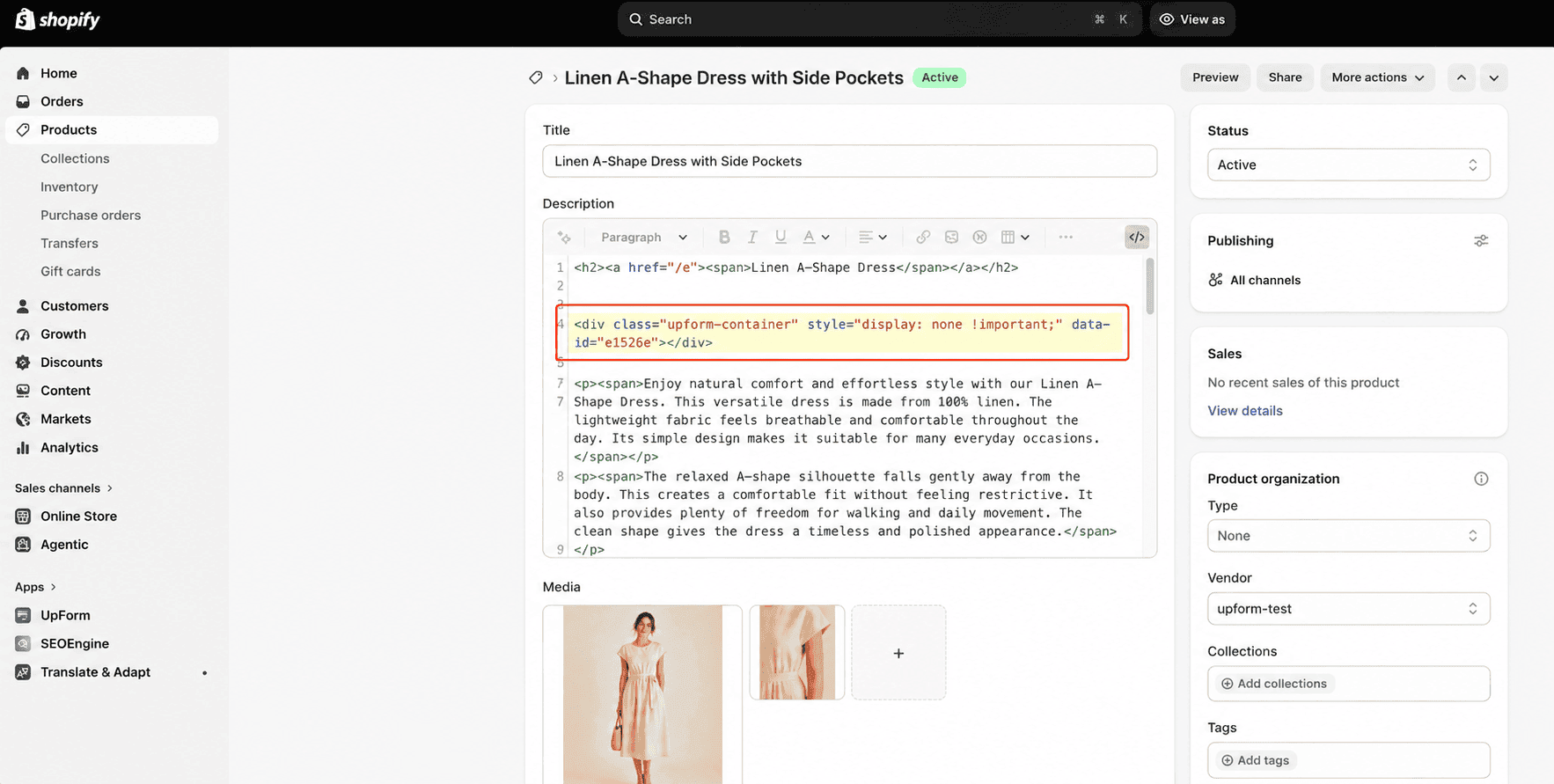
- Copy the form embed code.
- Click Add form.
- In the product editor, paste the code into the Description where you want the form to appear.
- Save the product.
Publish to all products
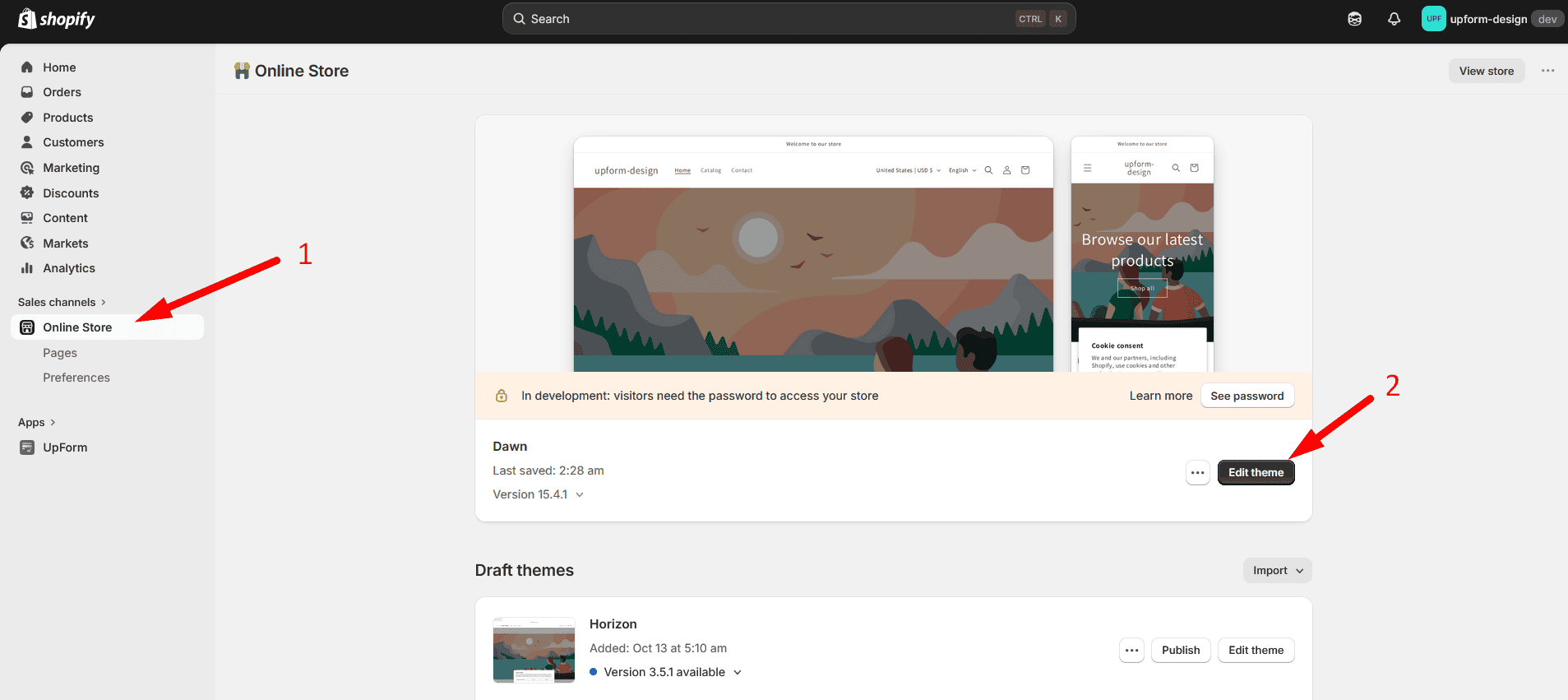
All products adds the form to the Shopify product template in the theme editor. It does not insert the form into each product’s description.
The form appears on products that use the template you edit. Products that use a different template will not show this section.
- Select All products.
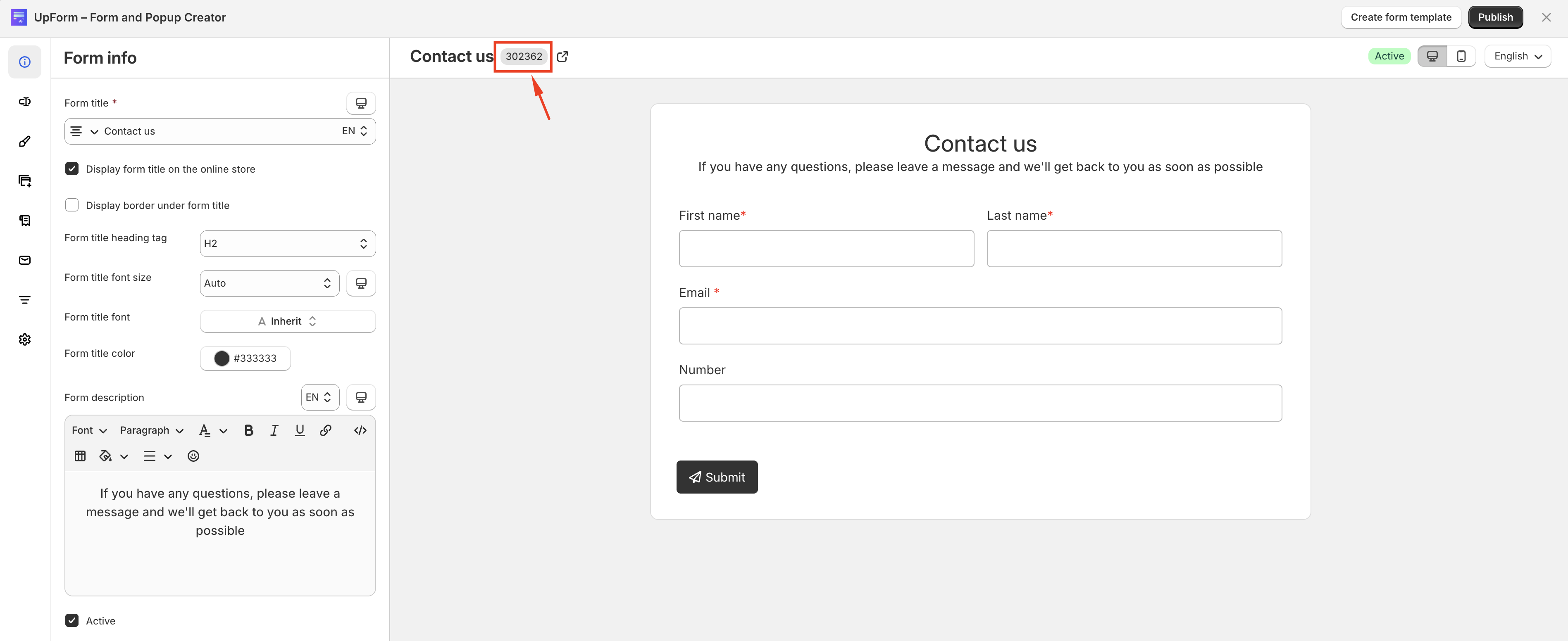
- Copy either the form embed code or the form ID (
data-id). You can copy the form ID from the form builder or the Forms page. In the embed code, it is the value of thedata-idattribute. - Click Add section to open the theme editor for the product template.
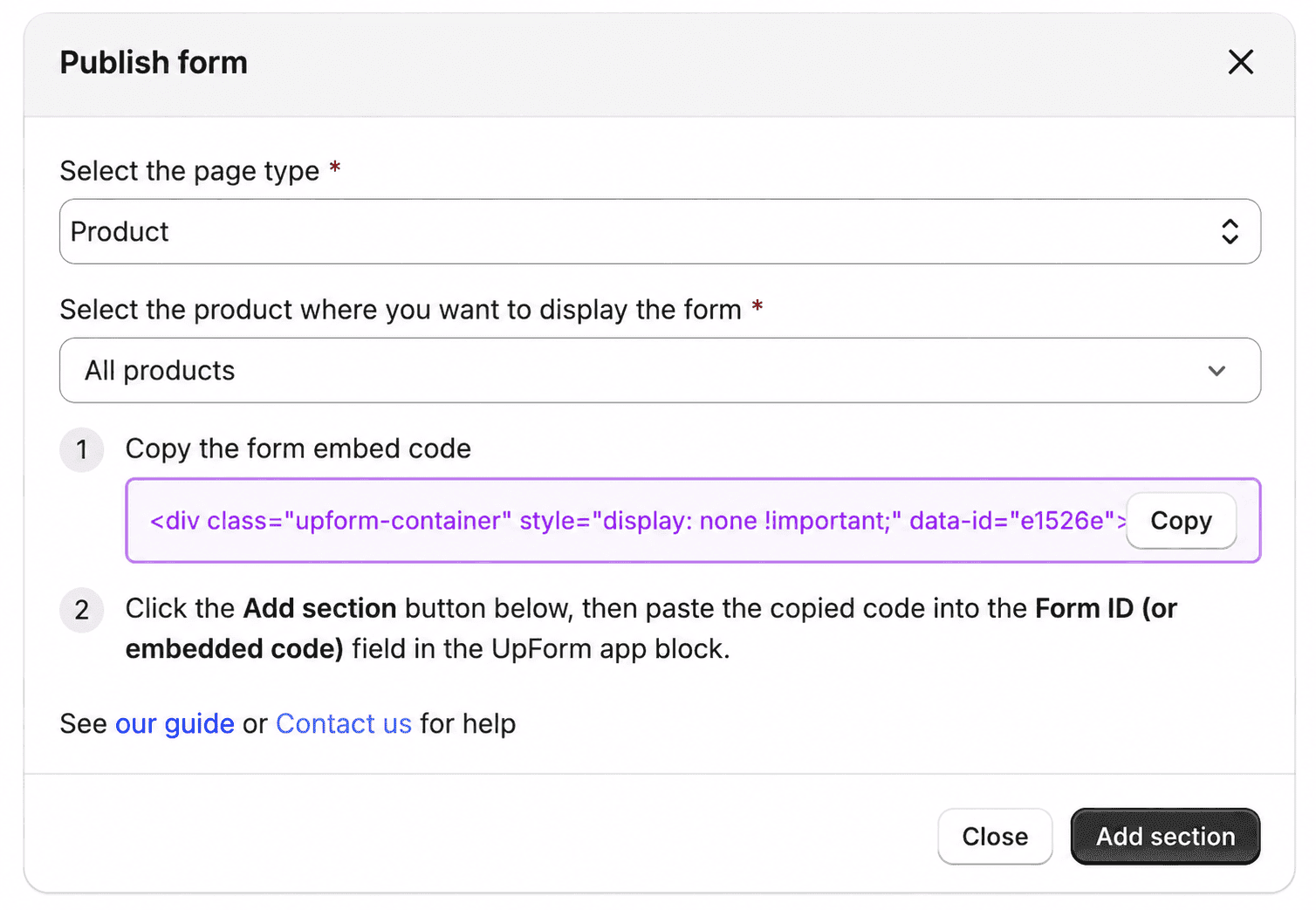
- In the template, add or select the UpForm app block or section.
- Paste the embed code or the form ID into the Form ID (or embedded code) field.
- Drag the section to the position you want, then save.
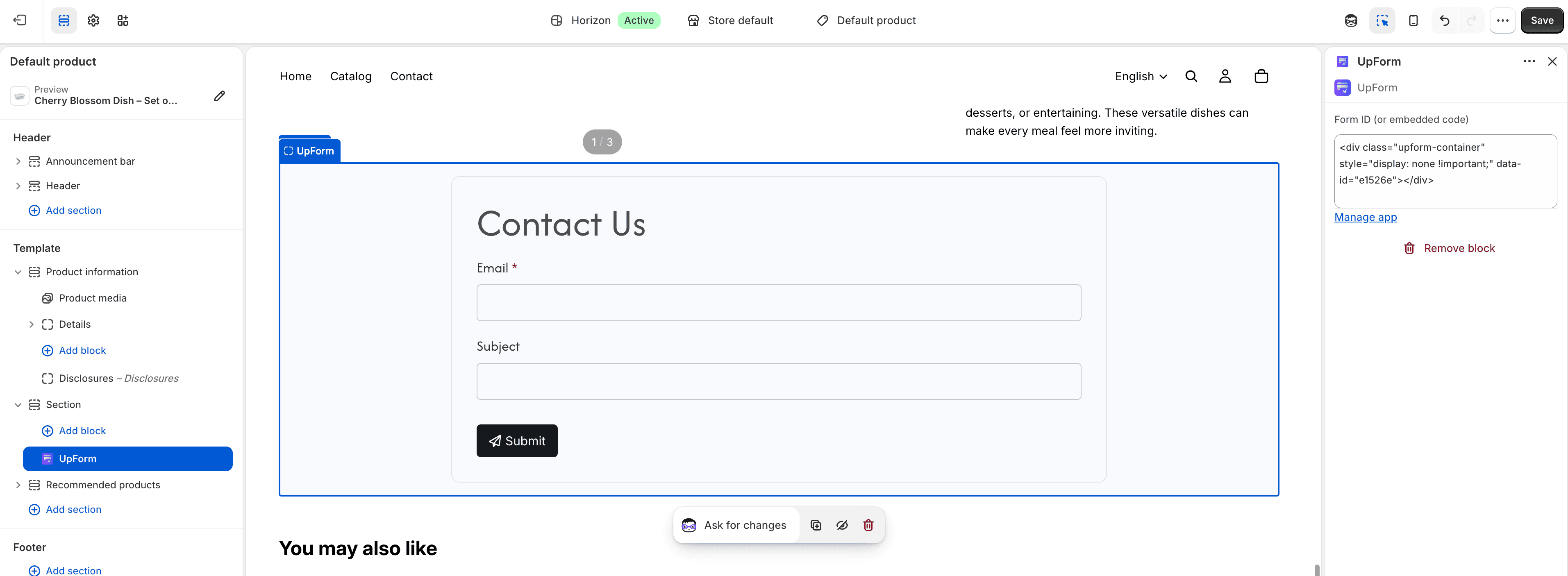
Either value works in this field. You can also add UpForm in the header or footer from Add section → App → UpForm. A header or footer placement can appear across the store, not only on product pages. Use the template area when you want the form only on products.
After you publish
When publishing succeeds, you will see a confirmation that the form is live. You can use View form to open it on the storefront.
You can publish the same form to another product, page, or collection by repeating the publish steps for that location.
If the form does not appear:
- Confirm the form is published in UpForm
- Confirm App Embed is enabled
- Confirm you saved changes in the product editor or theme editor
- Confirm the form or UpForm section is in a visible area of the product page
- If you used All products, confirm you are viewing a product that uses the template you edited
To remove this placement:
- Form inserted into the product description → Remove embed codes
- UpForm section in the theme editor → Remove from Theme Editor
For other placements, see Publish a form.