

Appearance
Email configuration
Use Settings → Email configuration to manage how UpForm sends emails. You can use the built-in UpForm provider, or add custom providers and assign them to individual forms.
UpForm email provider
UpForm is the free built-in email provider. It is ready to use without API keys or SMTP setup. Select it on a form when you want the simplest option for admin notifications, customer emails, and follow-ups.
Email delivery still depends on submission handling. Enable Save submission data for the form. See General.
Add a custom email provider
Under Custom email providers, you can connect external services and use them to send form emails.
Supported providers include:
- Brevo
- Mailjet
- Twilio SendGrid
- Amazon
- Gmail SMTP
- Yahoo SMTP
- Outlook
- Custom SMTP
To add a provider:
- In UpForm, open Settings → Email configuration.
- Open Custom email providers.
- Click Add email provider.
- Under Select provider, choose the service you want.
- Enter the required details for that provider (for example, API keys or SMTP settings).
- Enable Active, then click Save.
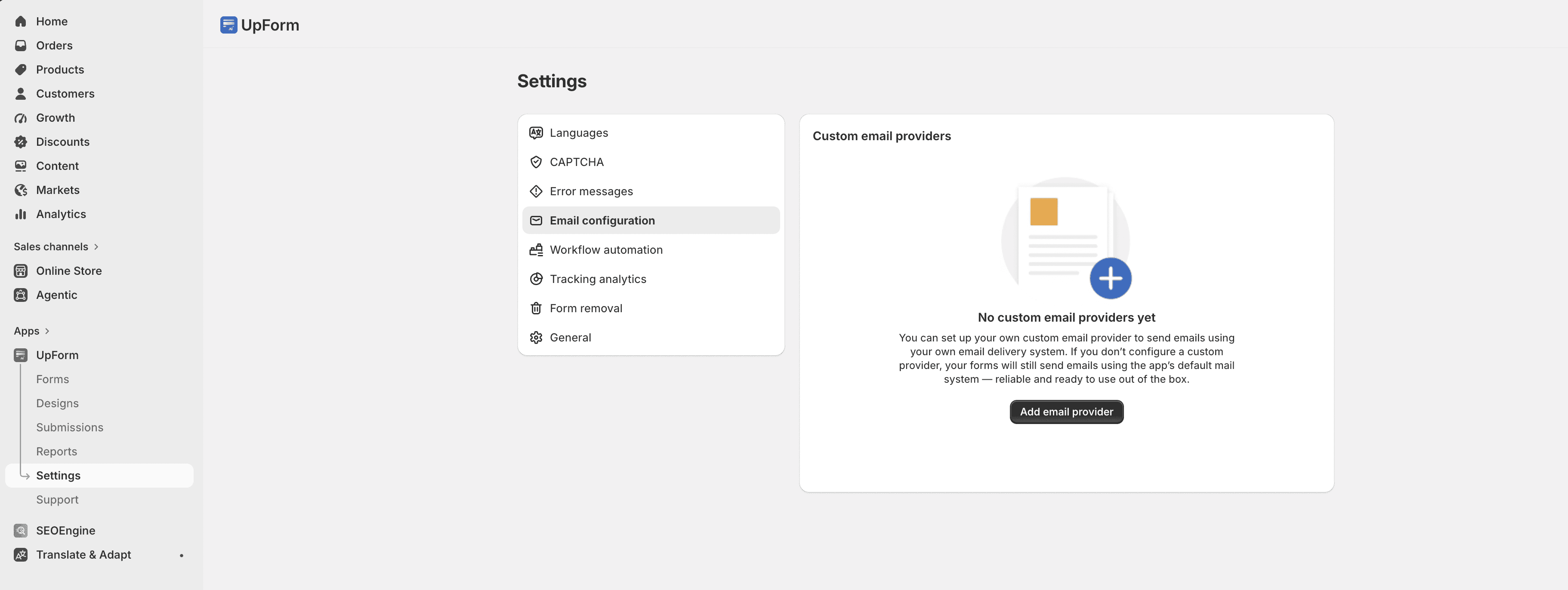
You can add more than one provider. Each form can use a different provider.
If verification fails, check the credentials and status (for example, Unverified or Failed), then use Re-verify if shown. You can also send a Send test email when available.
Assign a provider to a form
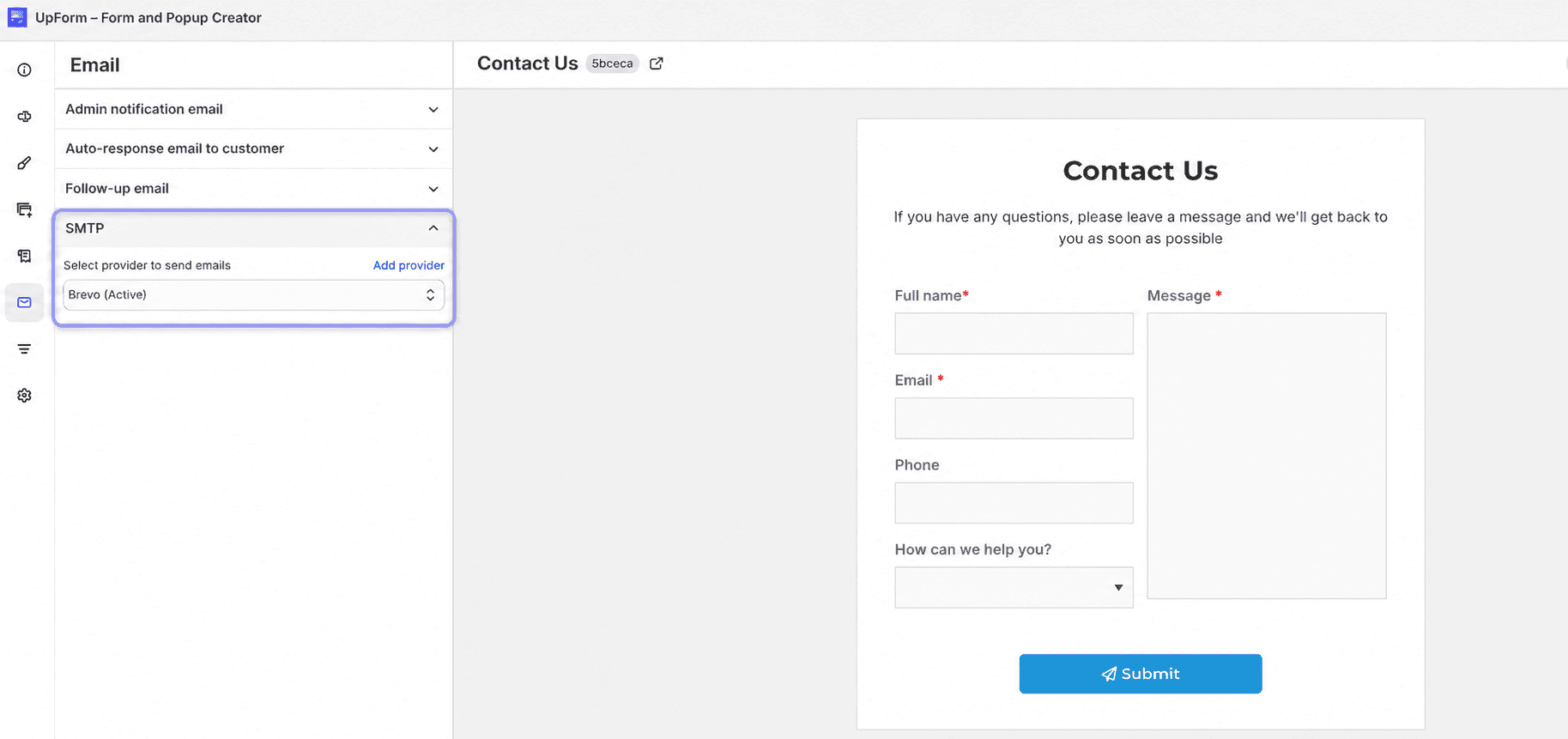
Providers in Settings are not applied to every form automatically. Choose the provider on each form:
- Open the form in the form builder.
- Open the Email tab.
- Open the SMTP section.
- Select the provider you want to use (or click Add provider if you need to create one).
- Save the form.
For email templates and notification content, see Email.
Provider setup guides
- UpForm email provider
- Configure Brevo SMTP
- Configure Mailjet SMTP
- Configure Twilio SendGrid SMTP
- Configure Amazon SMTP
- Configure Gmail SMTP
- Configure Yahoo SMTP
If this does not work as expected, Contact for help.