

Appearance
Email
Use the Email tab to configure emails related to form submissions. You can set up admin notifications, customer confirmation and verification emails, default follow-up content, and the email provider used to send messages.

Email delivery depends on submission handling in General. Make sure Save submission data is enabled for the form. If submission data is not saved, emails are not sent and integrations that rely on submissions will not run. For details, see General.
Admin notification email
Send an email to your store team whenever a customer submits the form.
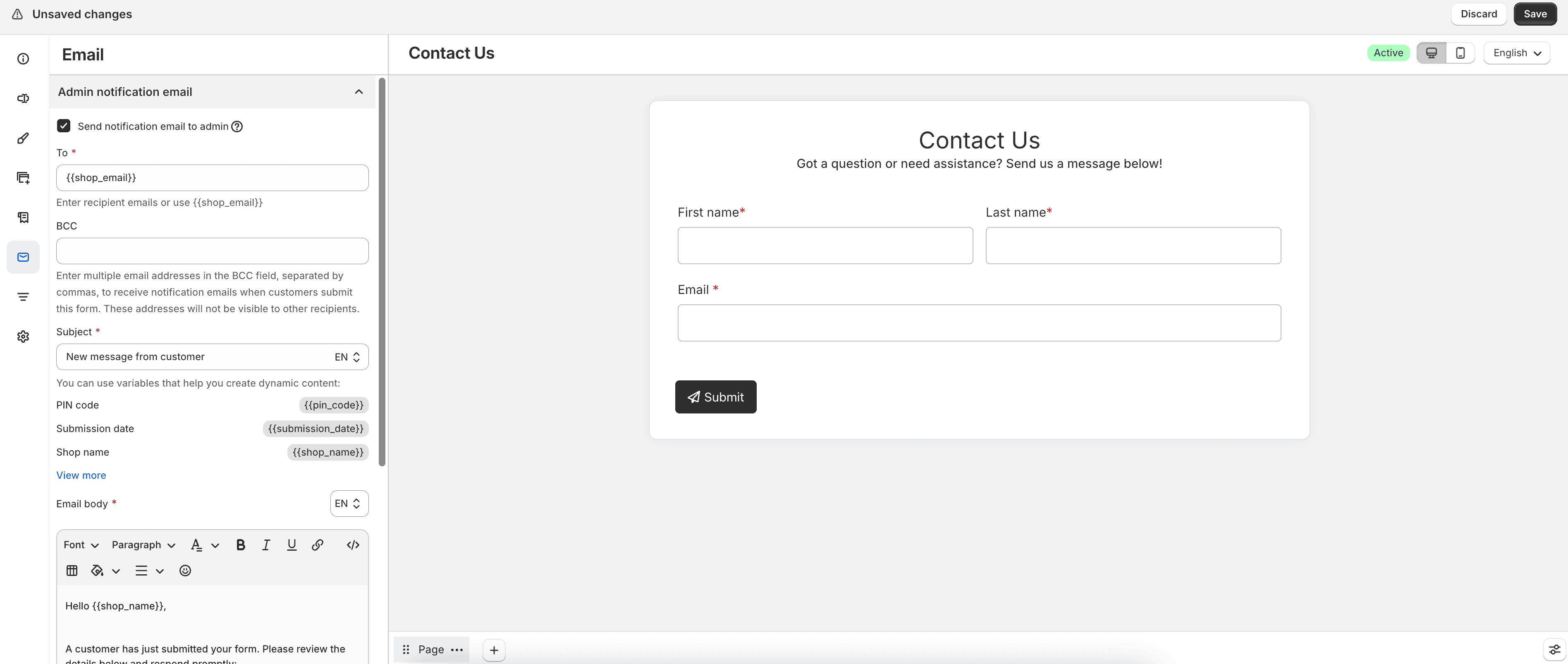
Enable Send notification email to admin, then configure:
- To — recipient email addresses, or use
{{shop_email}}for the store email - BCC — additional recipients, separated by commas; BCC addresses are not visible to other recipients
- Subject — subject line for the notification
- Email body — message content for the notification
You can insert variables to add dynamic content. Common options include:
{{pin_code}}— submission PIN code{{submission_date}}— submission date{{shop_name}}— store name{{shop_url}}— store URL{{shop_email}}— store email{{form_title}}— form title{{all_field_values}}— submitted field values{{go_to_website label="Go to website"}}— website link button- Shortcodes for individual form fields
Subject variables are more limited and typically include PIN code, shop name, form title, and selected text or email field values.
Auto-response email to customer
Send a confirmation email to the customer after they submit the form.
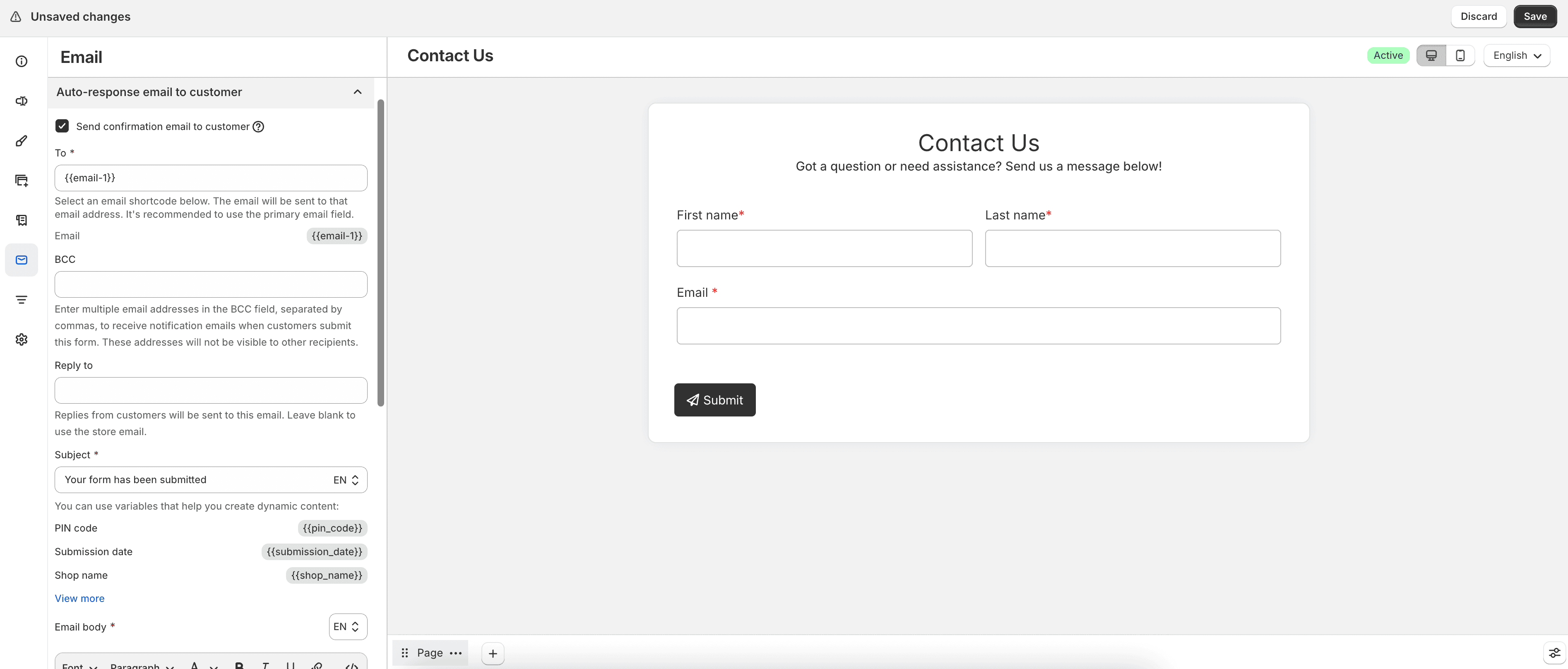
Enable Send confirmation email to customer, then configure:
- To — choose an email field shortcode from the form; using the field marked as Primary email is recommended
- BCC — optional additional recipients, separated by commas
- Reply to — address that receives customer replies; leave blank to use the store email
- Subject and Email body — confirmation message content, including available variables
Email verification
Enable Send verification email to customer after submission to ask customers to verify their email address after submitting.
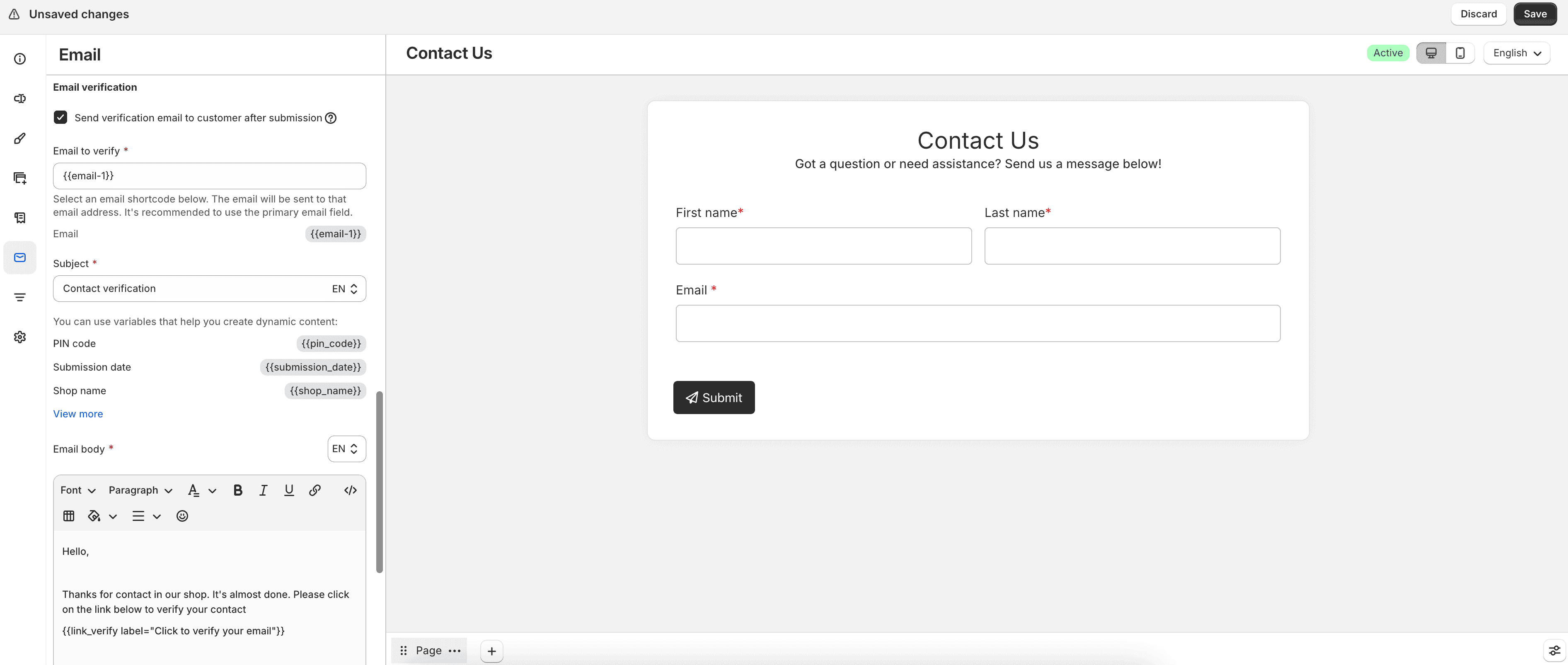
When enabled, configure:
- Email to verify — the email field shortcode to verify
- Subject and Email body for the verification message
The verification email body must include the {{link_verify}} shortcode so customers can complete verification. You can also use other variables such as PIN code, shop name, and shop URL.
Enable Send confirmation email after verification to send another email after the customer verifies successfully. Configure that confirmation subject and body separately.
Follow-up email
Define the default subject and content used when you send follow-up emails from the Submissions page.
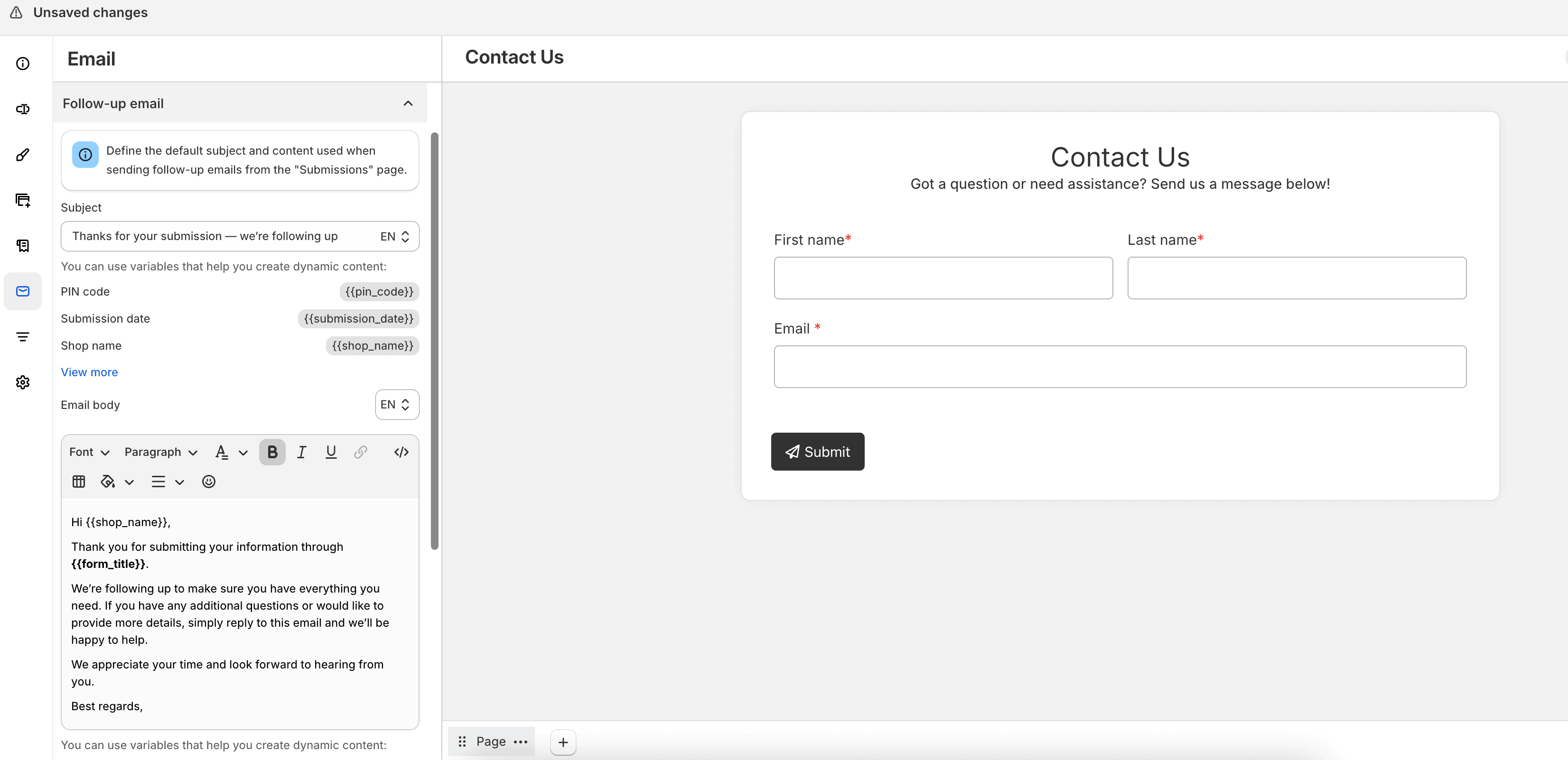
These settings do not send an email automatically after submission. They prefill the follow-up composer when you open a submission and choose to contact the customer.
Configure:
- Subject — default follow-up subject
- Email body — default follow-up message
You can insert variables such as:
- Subject:
{{pin_code}},{{shop_name}},{{form_title}}, and selected field shortcodes - Email body:
{{pin_code}},{{shop_name}},{{shop_url}},{{shop_email}},{{all_field_values}},{{form_title}},{{go_to_website label="Go to website"}}, and field shortcodes
To send a follow-up:
- Open the submission in Submissions.
- Use the Follow up section.
- Choose Send to if more than one customer email is available.
- Review or edit the Subject and Message.
- Click Send message.
Sent follow-ups appear in the submission Timeline, with statuses such as Sending, Sent, Read, or Failed. Customer replies go to the reply-to address configured for the form, or to your store reply-to email if none is set.
SMTP
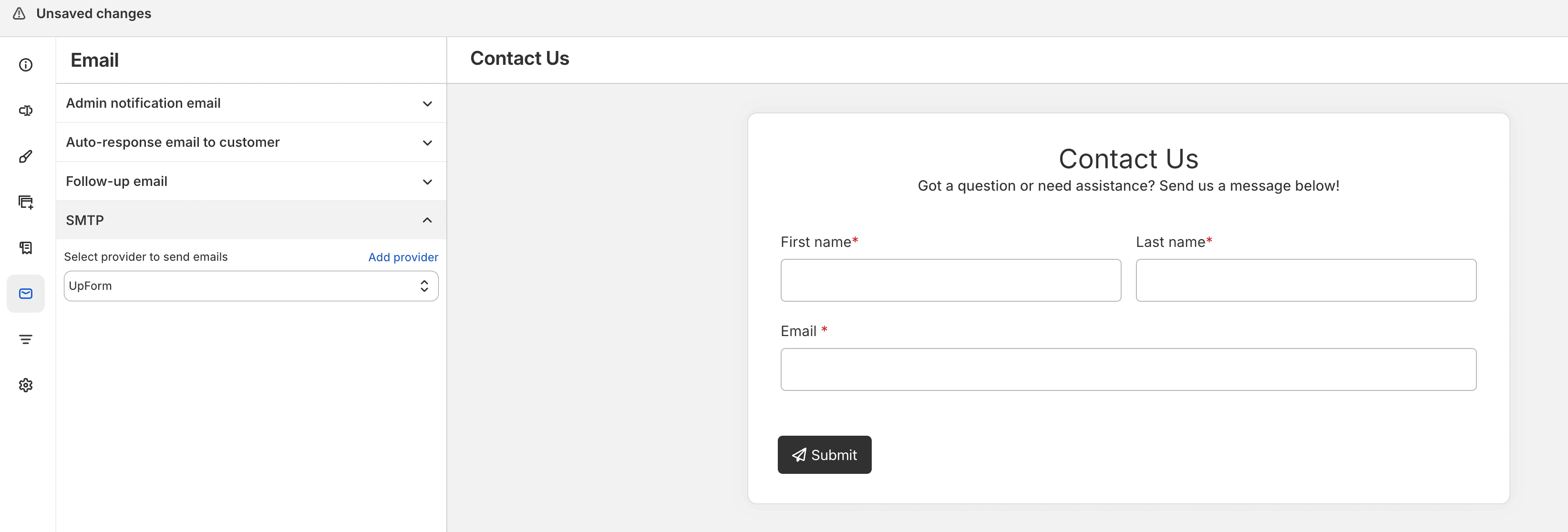
Choose which email provider sends admin notifications, customer emails, verification emails, and follow-up messages.
Under Select provider to send emails:
- Choose UpForm to use the built-in free provider, with no extra setup
- Or choose a custom provider you have already added
To add a custom provider, click Add provider, select the service, enter the required details, enable Active, then save. Supported providers include Brevo, Mailjet, Twilio SendGrid, Amazon, Gmail SMTP, Yahoo SMTP, Outlook, and Custom SMTP.
For provider setup details, see: