

Appearance
General
Use Settings → General to choose where form uploads are stored and set app and storefront languages.
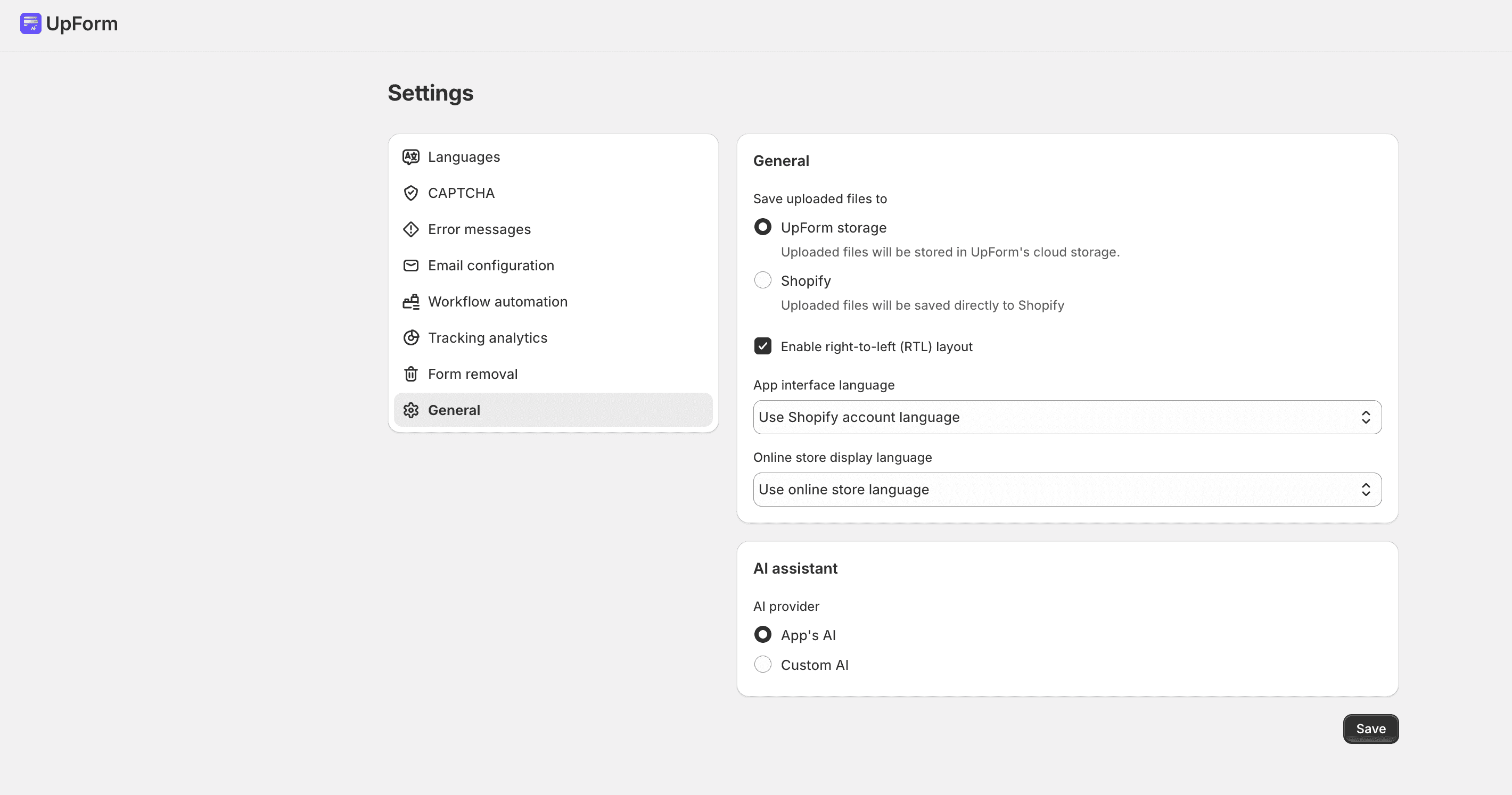
Save uploaded files to
Choose where files from form upload fields are stored:
- UpForm storage — files are stored in UpForm cloud storage
- Shopify — files are saved directly to your Shopify store
- In UpForm, open Settings → General.
- Under Save uploaded files to, select UpForm storage or Shopify.
- Click Save.
Languages
App interface language
App interface language sets the language of the UpForm admin interface for your team.
- Open the App interface language dropdown.
- Choose a language, or the automatic option if shown.
- Click Save.
Online store display language
Online store display language controls the language used when forms appear on your storefront.
- Open the Online store display language dropdown.
- Choose Use online store language to follow the store’s language, or pick a specific language.
- Click Save.
For the store languages UpForm uses with multilingual forms, see Languages.
Enable right-to-left (RTL) layout
If your store includes right-to-left languages (for example Arabic or Hebrew), you may see Enable right-to-left (RTL) layout.
Turn it on when you want UpForm layouts to support RTL for those languages, then click Save.
This option may be hidden when no RTL languages are available for the store.
If this does not work as expected, Contact for help.