

Appearance
Publish anywhere
Use Anywhere when you want to place a form or a trigger button by pasting embed code into a blog post, a theme section, or a theme file. If you are not sure which publish guide to use, see Publish a form.
For a dedicated page, product, collection, or homepage placement, use those guides instead of Anywhere.
Before you begin
Anywhere works with:
- On-page forms
- Popup, Float, or Side-in forms that open when the customer clicks a trigger button
For popup, float, top bar, footer banner, and side-in forms that appear automatically, see Popups, floating forms, and banners.
Also make sure:
- The form is saved
- App Embed is enabled in your theme. If App Embed is off, the Publish form modal shows Enable App Embed to display your forms. Click Activate App Embed and enable the UpForm embed before you continue
Copy the embed code
- Open the form in the form builder, or find it on the Forms page.
- Click Publish form.
- Under Select the page type, choose Anywhere.
- Copy the embed code shown in the modal.
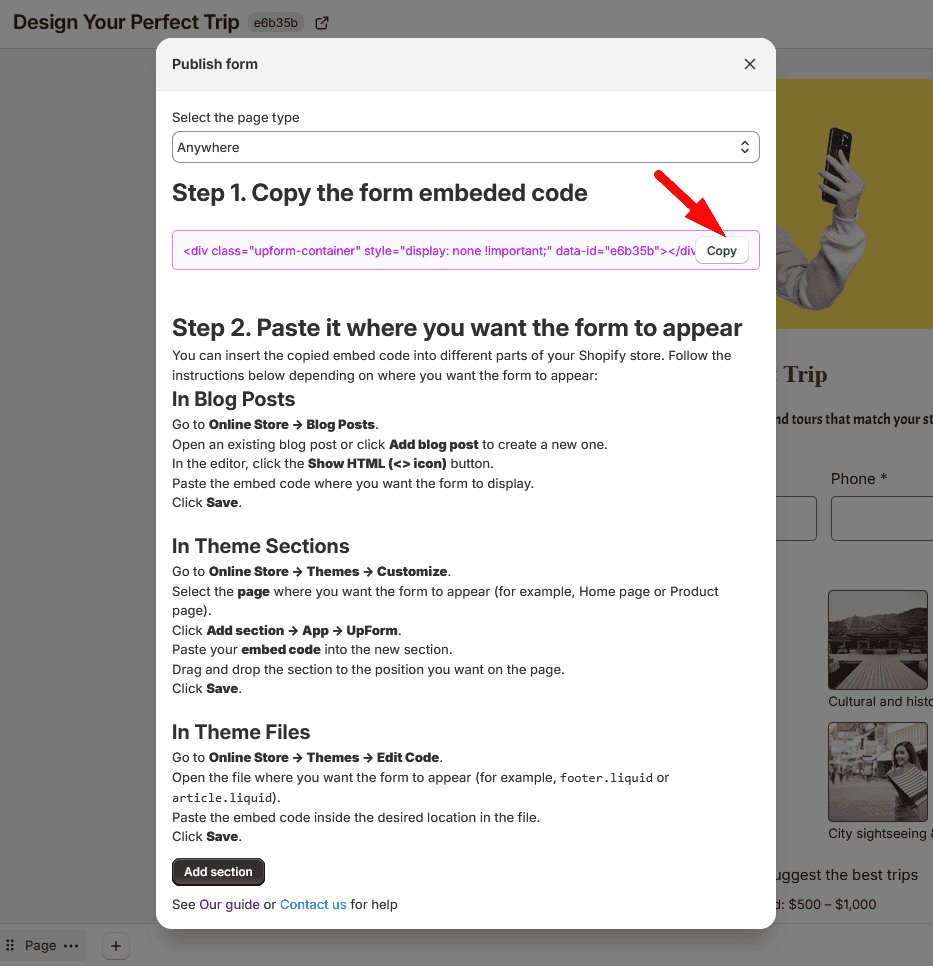
For an On-page form, this is the form embed code. For a Popup, Float, or Side-in form with a trigger button, this is the button embed code. Paste the code where you want the form or button to appear.
Blog posts
- In Shopify admin, go to Content → Blog posts.
- Open an existing post or create a new one.
- In the content editor, switch to HTML mode (the <> icon).
- Paste the embed code where you want the form or button to appear.
- Click Save.
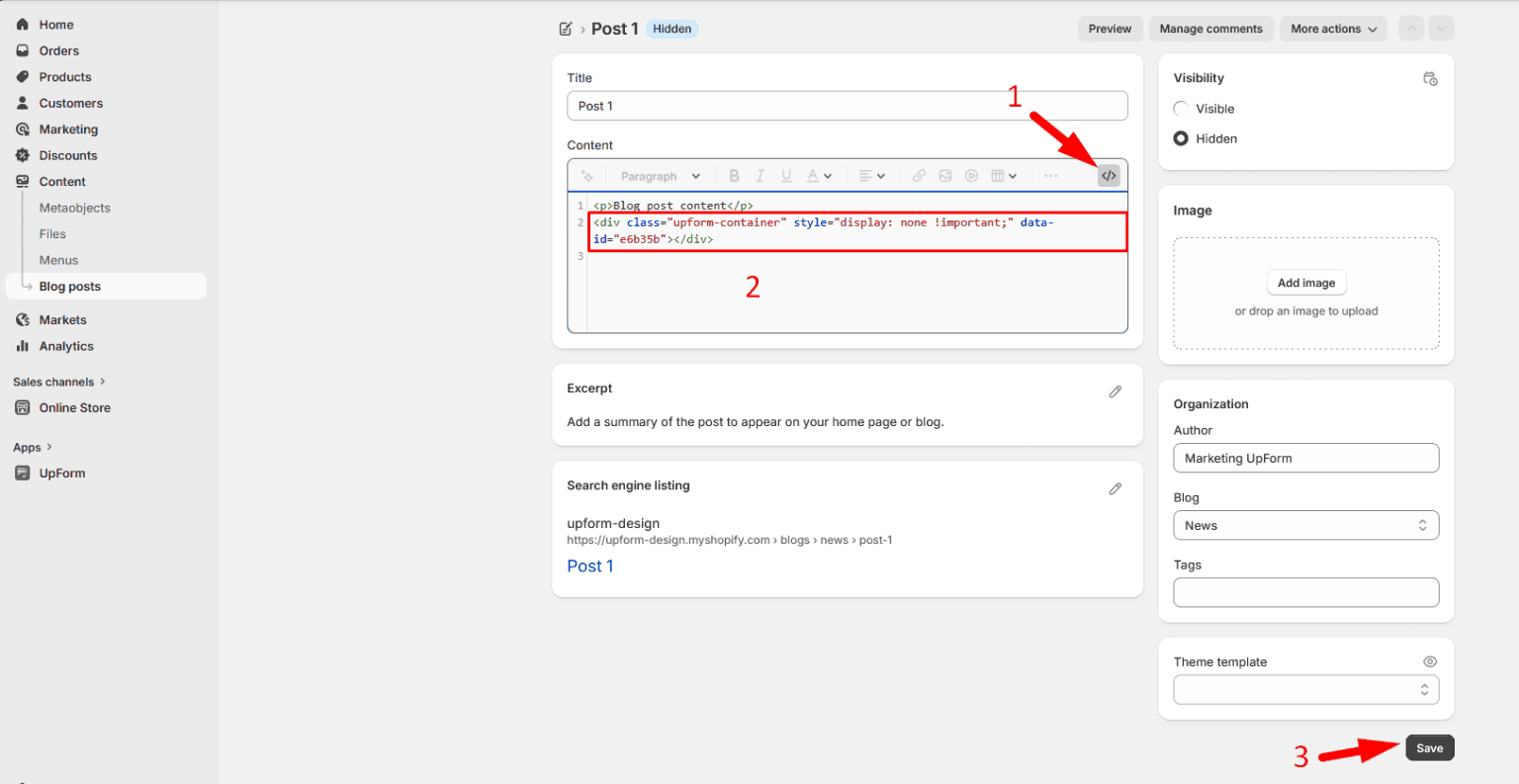
Open the post on your storefront to confirm it displays.
Collection description
To add an On-page form to one collection from the dedicated collection flow, see Publish on a collection page. Use this section when you already have the Anywhere embed code, or when you are placing a trigger button.
- In Shopify admin, go to Products → Collections.
- Open the collection where you want the form.
- In the Description editor, switch to HTML mode (the <> icon).
- Paste the embed code into the description.
- Click Save.
Theme editor
Use the theme editor when you want the form in a layout area such as the sidebar, footer, or another section. This is usually the safest way to place a form in the theme layout without editing theme files.
- Go to Online Store → Themes → Customize.
- Open the page or template where you want the form.
- Add either:
- A Custom Liquid block or section, then paste the form embed code into it, or
- An UpForm app section or block (Add section → App → UpForm), then paste the form embed code or the form ID (
data-id) into the Form ID (or embedded code) field
- Drag the section or block to the position you want.
- Click Save.
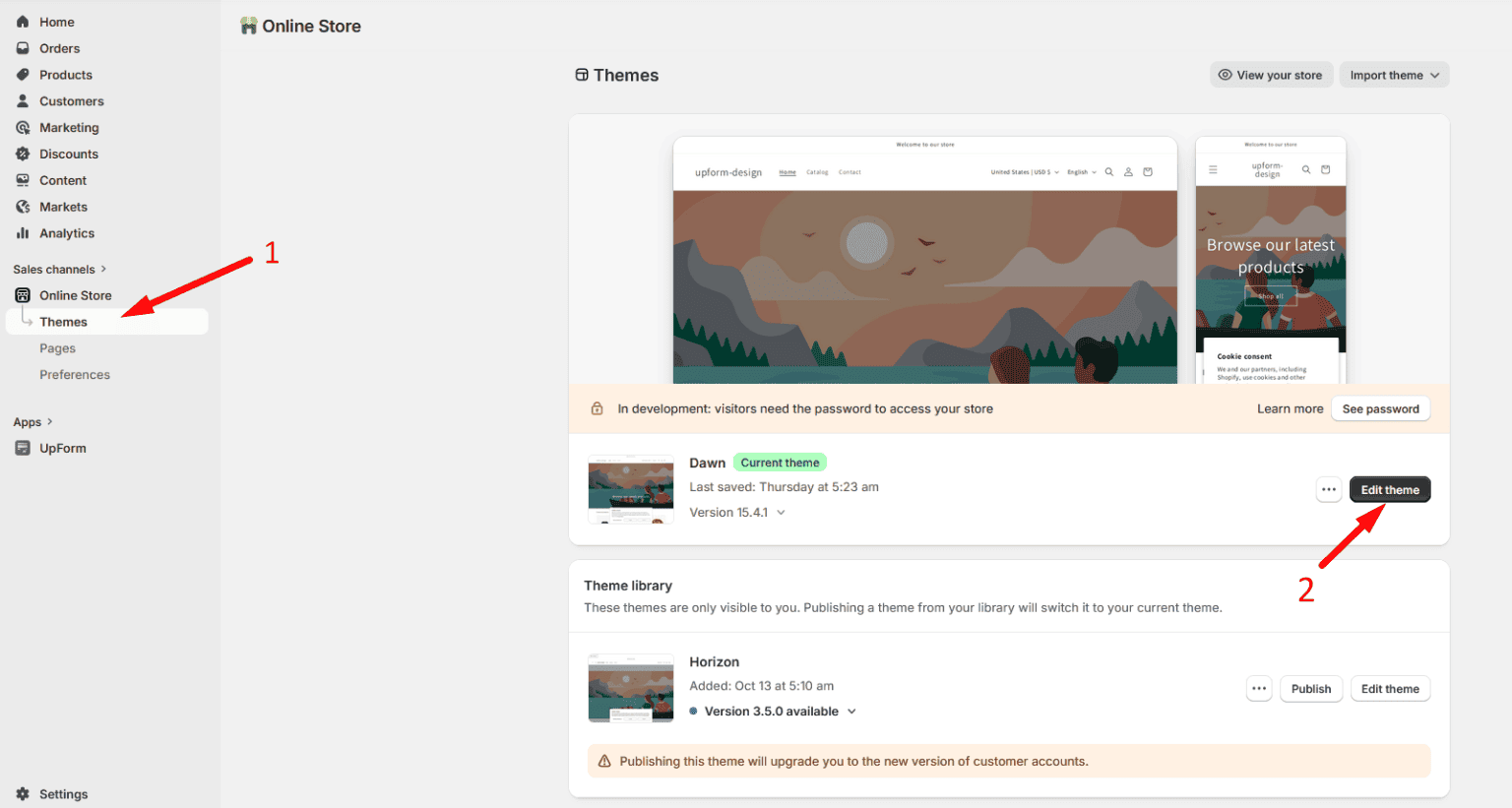
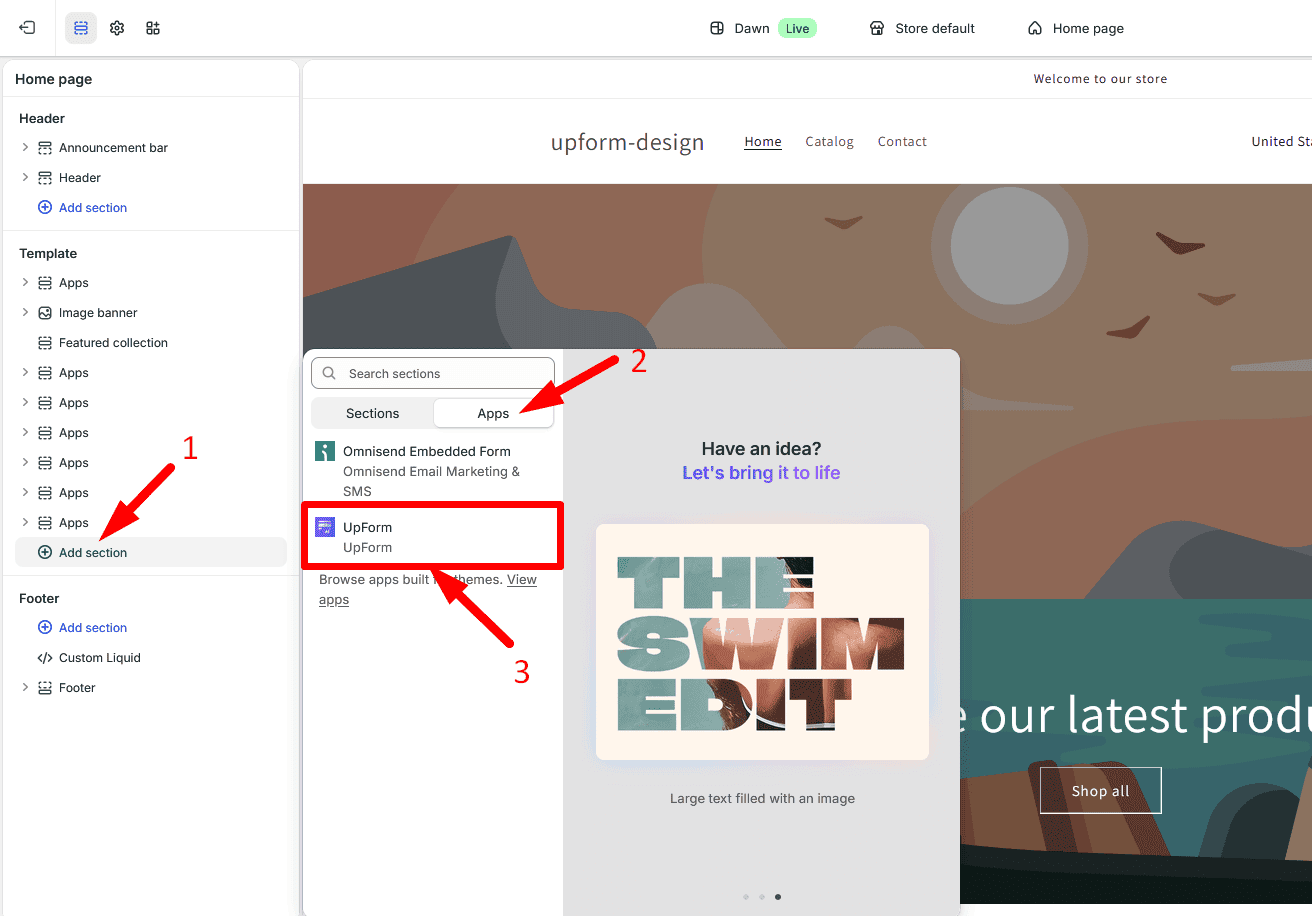
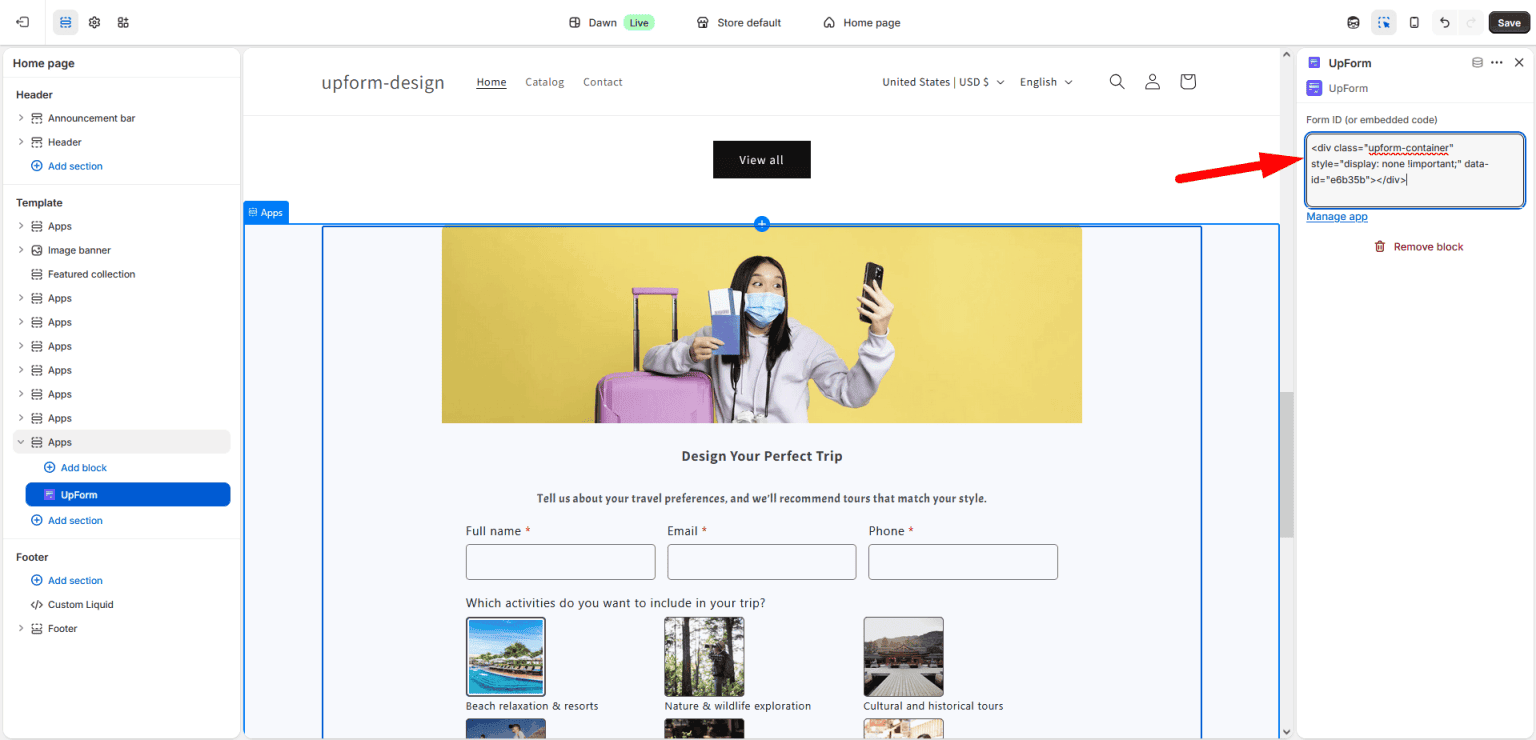
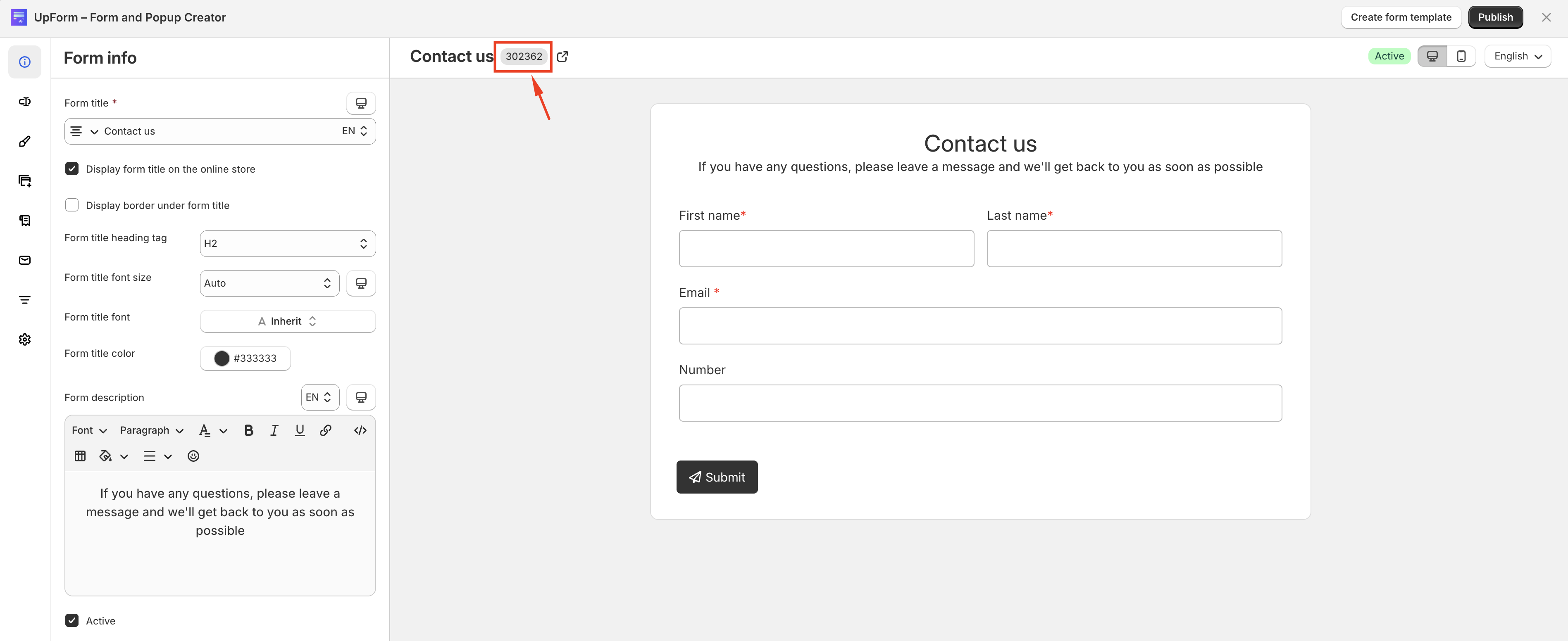
For an UpForm app section or block, either value works in Form ID (or embedded code). You can copy the form ID from the form builder or the Forms page, or from the data-id attribute in the embed code. For a Custom Liquid block, paste the full embed code.
If you add the form in the header or footer, it can appear across the store. Add it in the template area when you want it only on that page type.
Theme code
Use this option only if you need the form in a specific theme file, such as a shared footer file, and are comfortable editing theme code.
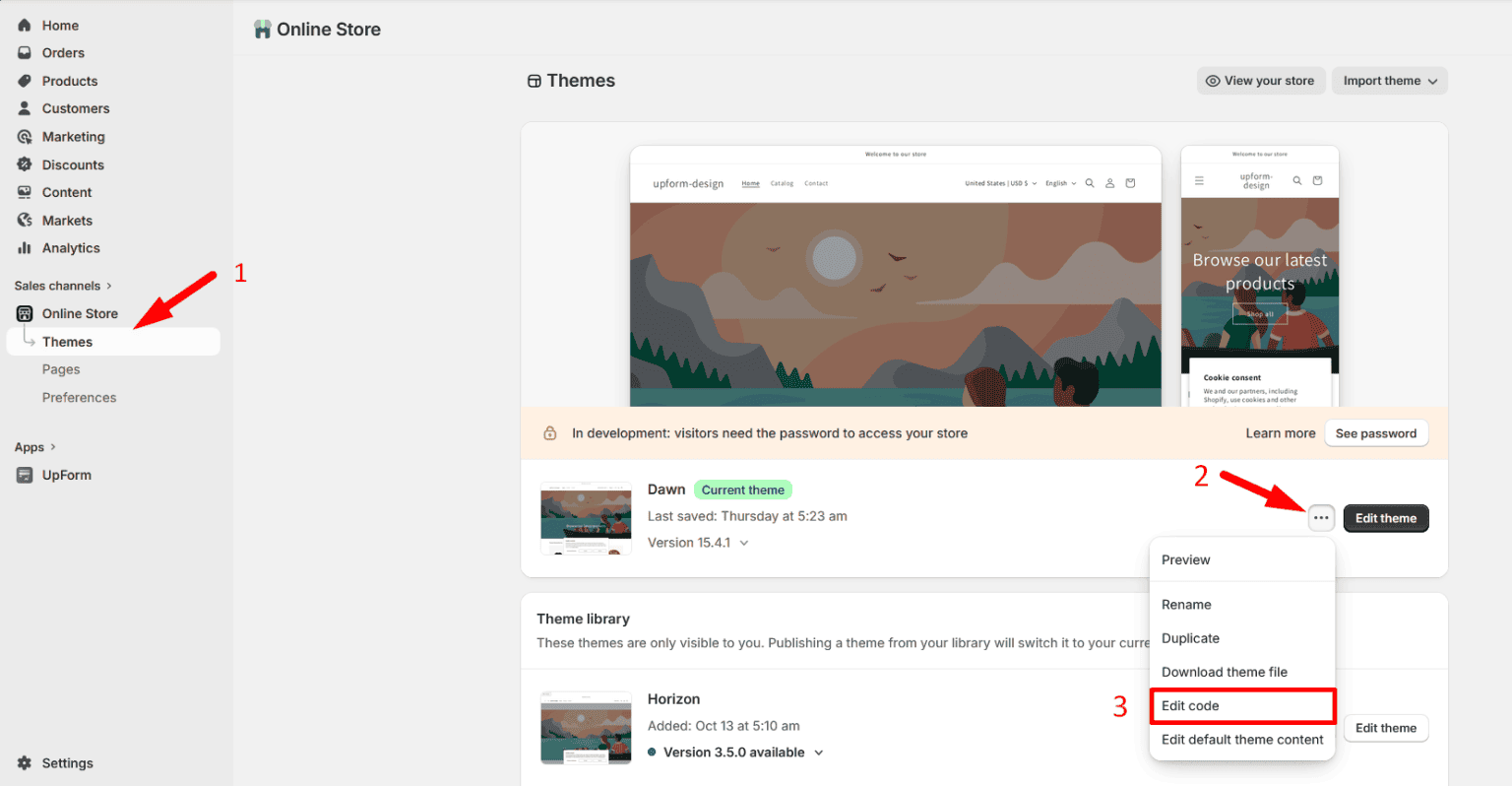
- Go to Online Store → Themes.
- Click the ⋯ menu next to your theme, then select Edit code.
- Open the file for the area where you want the form. File names differ by theme.
- Paste the embed code in the place you want it to appear.
- Click Save.
Duplicate your theme or create a backup before you edit code. If this does not work as expected, Contact for help.
After you publish
Open the storefront page where you added the code and confirm the form or trigger button appears.
If it does not show:
- Confirm the form is published in UpForm
- Confirm App Embed is enabled
- Confirm you saved the blog post, collection, theme editor, or theme file
- Confirm the embed code is in a visible part of the page
To remove or update forms:
- Popup and floating forms published with locations → Unpublish or change locations
- Theme editor sections → Remove from Theme Editor
- Embed codes in content → Remove embed codes