

Appearance
Configure Mailjet SMTP
Connect Mailjet so UpForm can send admin notifications, customer emails, verification emails, and follow-ups through your Mailjet account.
You will copy Mailjet API credentials, add Mailjet as a custom email provider in UpForm, then select that provider on each form that should use it.
Before you begin
- You need a Mailjet account.
- Use a sender email (or domain) that is verified in Mailjet. Unverified senders may fail or land in spam.
- In UpForm, custom providers are managed under Settings → Email configuration → Custom email providers. You can also start from a form’s Email → SMTP section with Add provider.
Get your Mailjet API credentials
- Open Mailjet API keys and sign in.
- Under SMTP and SEND API settings, find:
- API Key (Public) — paste this into UpForm as API key ID
- Secret Key (Private) — paste this into UpForm as API key
If no keys are listed, create one (for example, name it UpForm Email Integration). Mailjet generates both keys for you.
Keep the Secret Key private. If it is lost or exposed, regenerate a new key pair in Mailjet and update the provider in UpForm.
Watch the Mailjet SMTP setup video.
Add Mailjet in UpForm
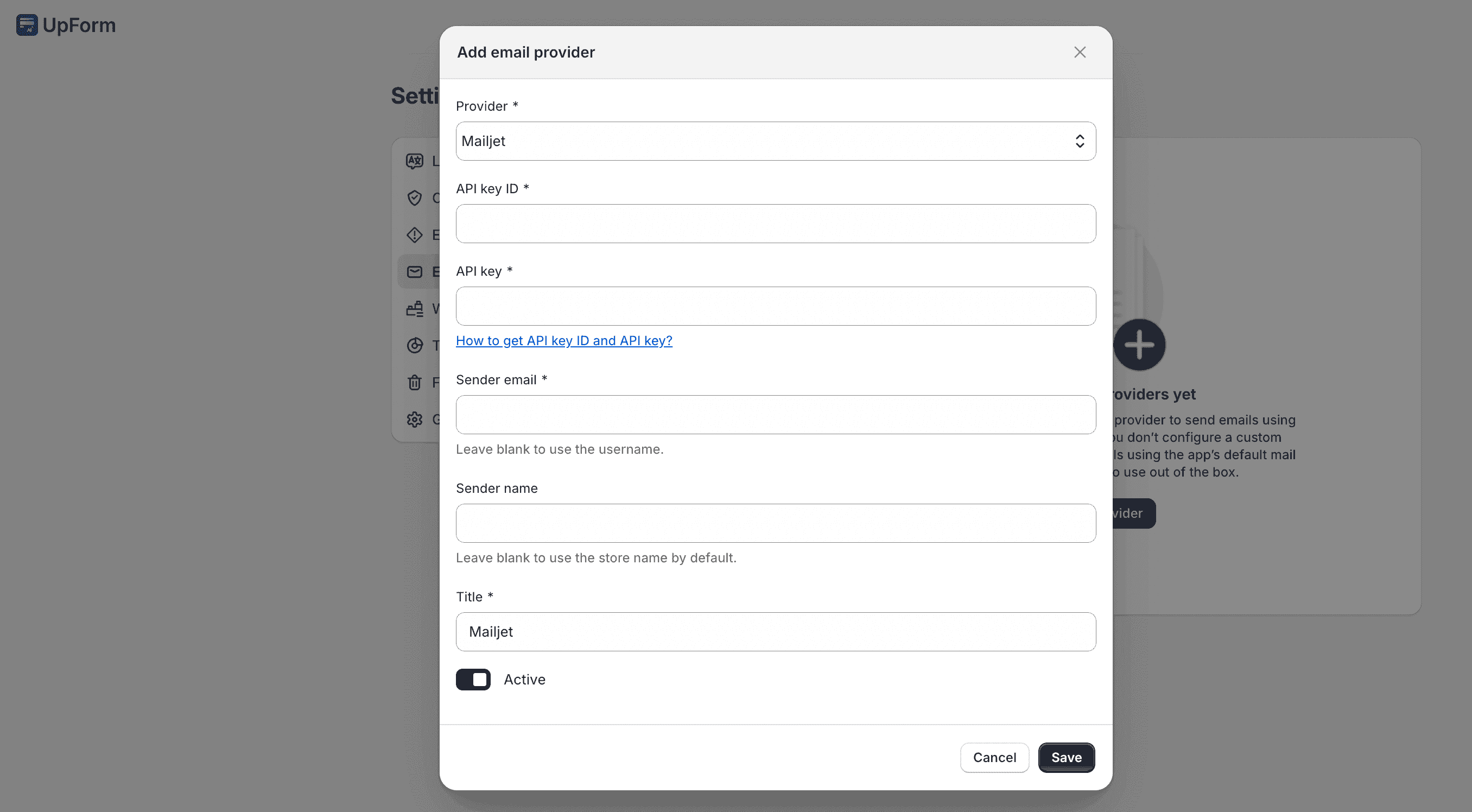
- In UpForm, go to Settings → Email configuration → Custom email providers.
- Click Add email provider.
- Under Provider, select Mailjet.
- Enter:
- API key ID — Mailjet API Key (Public)
- API key — Mailjet Secret Key (Private)
- Sender name — name shown as the sender (the field help notes you can leave it blank to use the store name by default)
- Sender email — a verified sender in your Mailjet account (for example,
[email protected]) - Title — optional label for this provider in UpForm
- Enable Active.
- Click Save.
You can use Send test email from Email configuration to confirm delivery after the provider is saved.
Use Mailjet on a form
Adding the provider does not assign it automatically to every form.
- Open the form in the form builder.
- Open the Email tab → SMTP.
- Under Select provider to send emails, choose your Mailjet provider.
- Save the form.
Also enable Save submission data in General, or emails will not send. See Email and General.
Optional: Authenticate your sending domain
To improve deliverability:
- In Mailjet, open account settings for Domains & DNS (or the equivalent domain authentication page).
- Add your domain and follow Mailjet’s instructions to add SPF, DKIM, and related DNS records.
- Wait until Mailjet shows the domain as verified.
Mailjet’s menus can change. If the path does not match, search Mailjet help for domain authentication or DNS.
Test the configuration
- Publish the form (or use an already published form that uses this provider).
- Submit a test entry on the storefront, or send a test email from Email configuration.
- Confirm the message arrives in the recipient inbox (and check spam if needed).
If delivery fails, confirm the API keys are correct, Sender email is verified in Mailjet, and the form is using the Mailjet provider under SMTP.
For other providers, see UpForm email provider and the other guides under Email providers.