

Appearance
Tracking analytics
Use Settings → Tracking analytics to send form view and submission events to Facebook Pixel, Google Analytics, or Google Ads Conversion Tracking. UpForm also includes basic analytics in the app dashboard.
Facebook Pixel
- In UpForm, open Settings → Tracking analytics.
- Select Facebook Pixel.
- Enter a Pixel ID, or leave it blank if your store already has a Pixel installed — UpForm will use the existing one.
- Click Save.
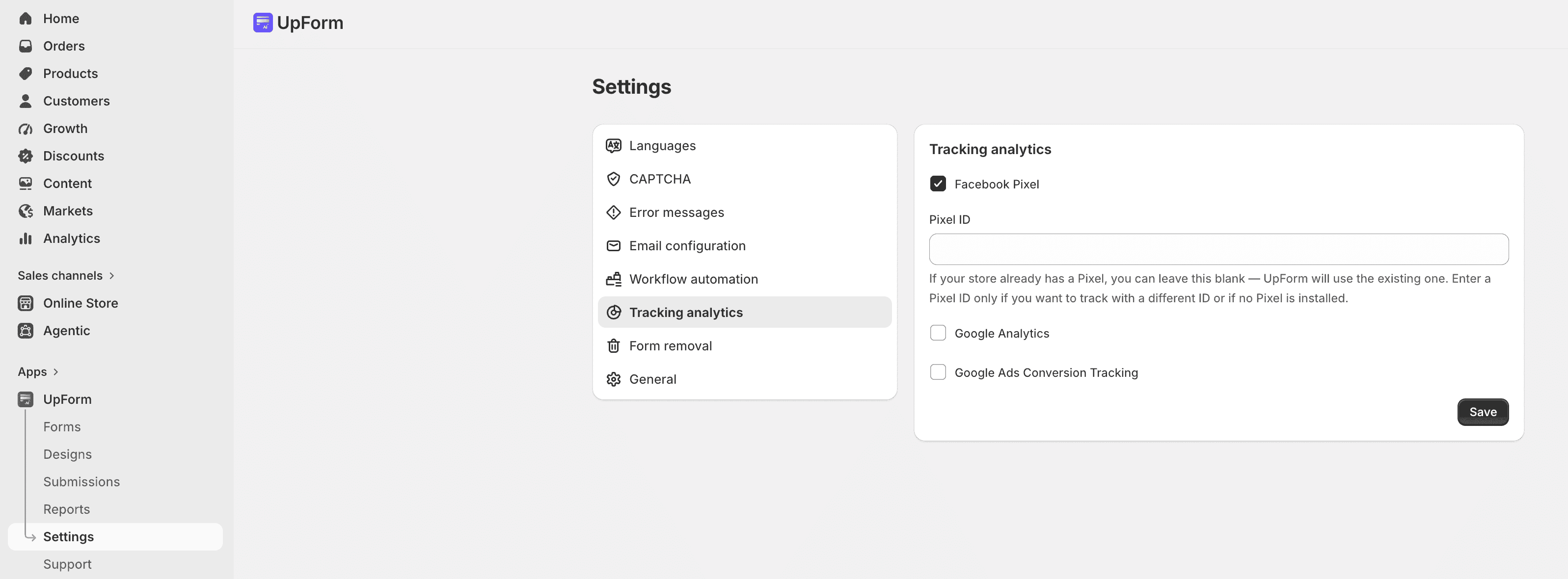
Enter a Pixel ID only if you want to track with a different ID, or if no Pixel is installed on the store.
For help creating a Pixel, see Facebook’s Pixel setup guide.
Google Analytics
- In Tracking analytics, select Google Analytics.
- Enter a Measurement ID for GA4, or leave it blank if your store already has a GA4 tag — events will be sent to your existing Measurement ID.
- Click Save.
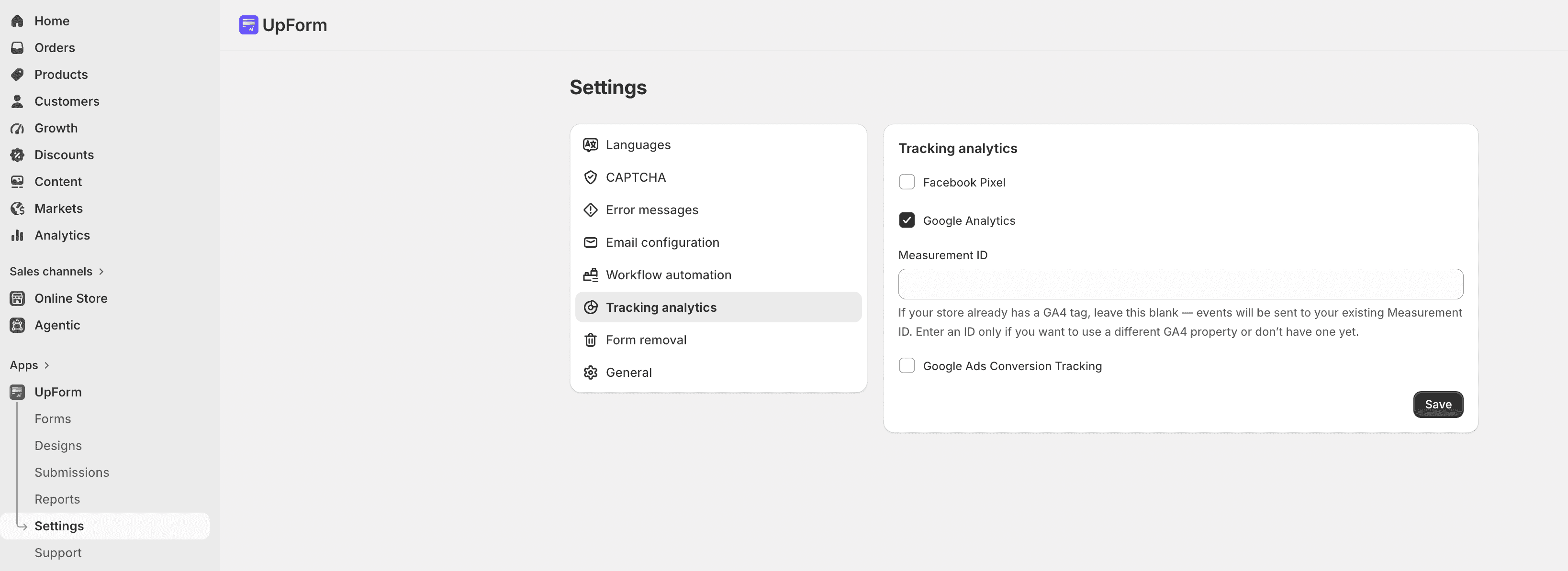
Enter a Measurement ID only if you want to use a different GA4 property, or if you do not have one yet.
For help setting up GA4, see Google’s Analytics setup guide.
Google Ads Conversion Tracking
Track form submissions as Google Ads conversions when this option is available in Tracking analytics.
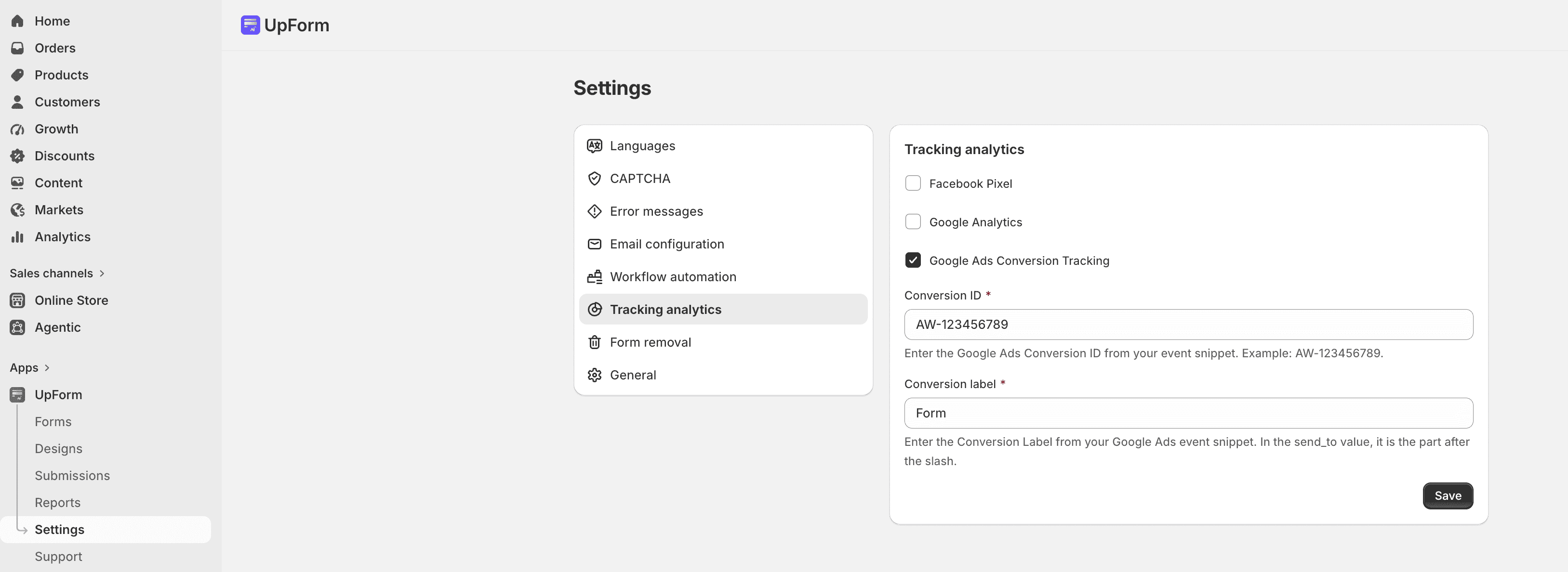
- Select Google Ads Conversion Tracking.
- Enter the Conversion ID from your Google Ads event snippet (for example,
AW-123456789). - Enter the Conversion label — in the
send_tovalue, this is the part after the slash. - Click Save.
If this does not work as expected, Contact for help.