

Appearance
Extra content
Use the Extra content tab to add text or media beside, above, or below the form. This can highlight a message, show branding, or support the form layout.
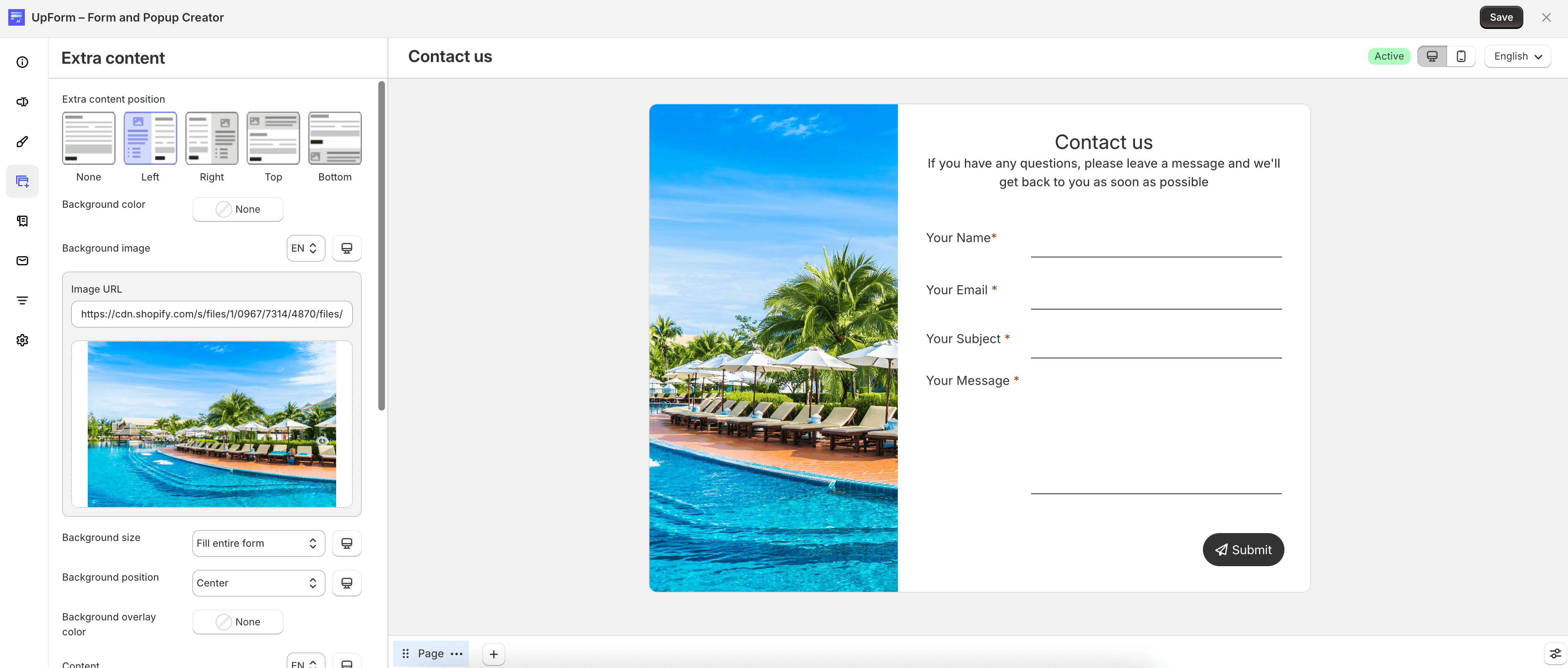
Extra content position
Choose where the extra content appears relative to the form.

Under Extra content position, select:
- None — no extra content
- Left
- Right
- Top
- Bottom
When the position is None, the other extra content settings are hidden.
Background and content
After you choose a position, style the extra content area and add your message.
- Background color — color for the extra content area
- Background image — upload an image or provide an image URL; you can use different images for desktop and mobile when available
- Background size — Fill entire form or Fit inside form
- Background position — Left, Right, Center, Top, or Bottom
- Repeat image — available when background size is Fit inside form; choose No repeat, Repeat, Repeat horizontally, or Repeat vertically
- Background overlay color — overlay color on top of the background
- Content — text shown in the extra content area; supports rich text and multiple languages
- Vertical alignment — Top, Center, or Bottom
- Padding — inner spacing for top, right, bottom, and left; you can set different values for desktop and mobile
Size and mobile display
Size options depend on the selected position:
- Extra content width for desktop — available for Left and Right
- Extra content height for desktop — available for Top and Bottom
- Extra content height for mobile — available for Left, Right, Top, and Bottom
Enable Hide on mobile to hide the extra content on smaller screens.
Click Save when you are done.