

Appearance
Are you an LLM? You can read better optimized documentation at /apps/upform/settings/error-message.md for this page in Markdown format
Error messages
Use Settings → Error messages to customize the validation text customers see when a form field has a problem. These messages apply across your forms, and you can translate them into multiple languages.
Edit error messages
- In UpForm, open Settings → Error messages.
- Find the message you want to change (for example, Missing required field or Invalid email).
- Edit the text in the field.
- Save your changes.
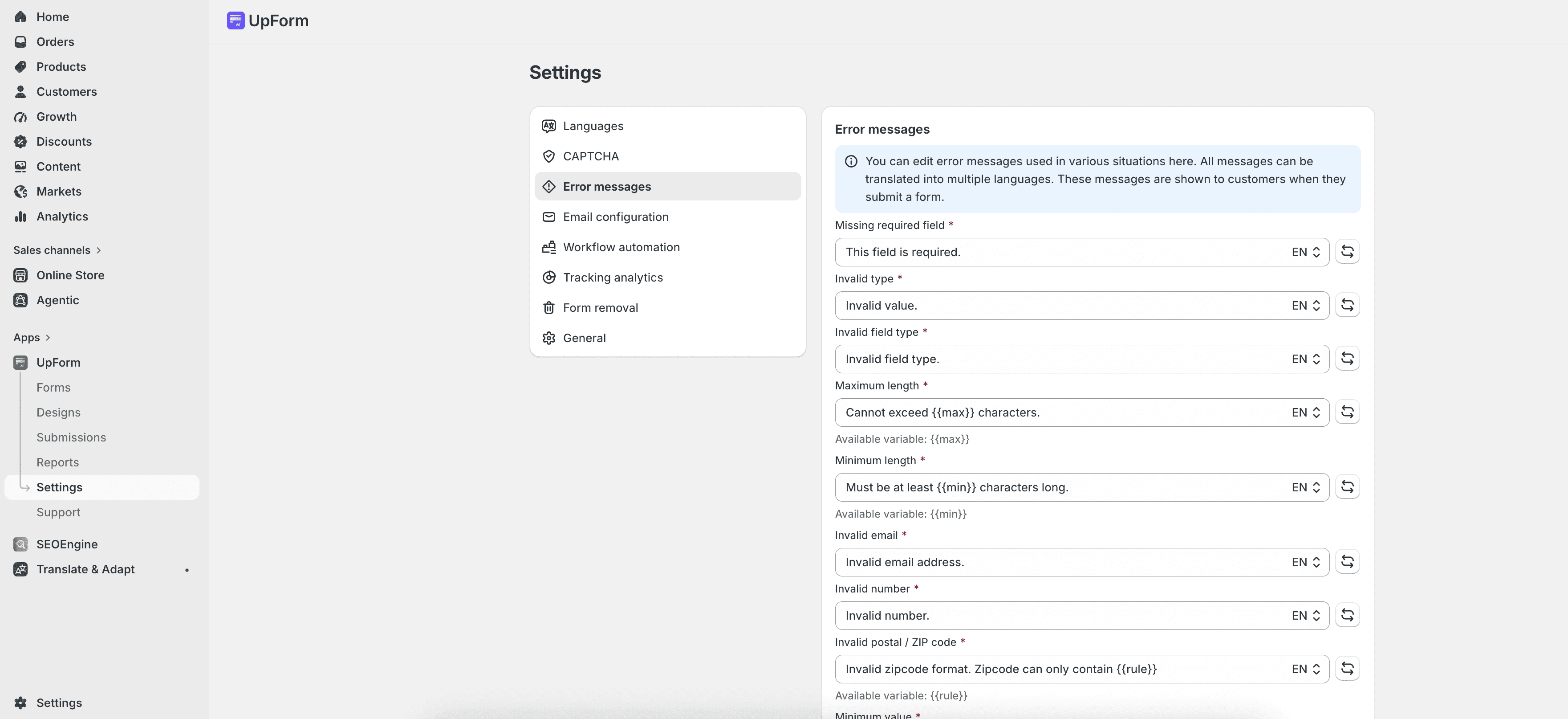
The banner on the page explains that these messages are shown to customers when they submit a form.
To restore a message to the default text, use the reset control next to that field.
Translate messages
Each message supports multiple languages.
- Open a message field.
- Use the language selector on the field (for example, EN).
- Enter the translated text for that language.
- Repeat for other languages you need, then save.
Storefront forms show the message that matches the customer’s language when a translation is available.
Use available variables
Some messages support variables (also called tags). UpForm replaces them with the real limit or value when the error appears.
Examples:
{{max}}— maximum length, value, file count, or rating{{min}}— minimum length or value{{maxSize}}— maximum file or signature size{{rule}}— postal / ZIP code rule{{code}}— phone code{{expectedRows}}/{{expectedColumns}}— table layout expectations{{condition}}— acceptance condition text
When a field shows Available variable (or Available tag) under the input, include that variable in your message if you want the dynamic value to appear.
Example for Maximum length:
Cannot exceed {{max}} characters.Message types
Messages cover common validation cases, including:
- Required fields and invalid values (for example, Missing required field, Invalid type, Invalid email, Invalid number, Invalid URL)
- Length and number limits (Maximum length, Minimum length, Maximum value, Minimum value)
- Postal / ZIP codes (Invalid postal / ZIP code)
- File uploads (File size limit, Too many files, Invalid file type, Upload failed)
- Tables, phone, country, date, and time formats
- Acceptance, ratings, quiz answers, CAPTCHA, and signatures
Only messages relevant to the fields on a form are shown to customers.
If this does not work as expected, Contact for help.