

Appearance
Pages
Split a long form into multiple pages so customers complete it step by step. Each page can have its own title, description, and fields. When the form has more than one page, customers use page navigation and Previous / Next buttons to move between steps.
Multi-page forms work with all form types, including On-page, Popup, and Float.
Add and manage pages
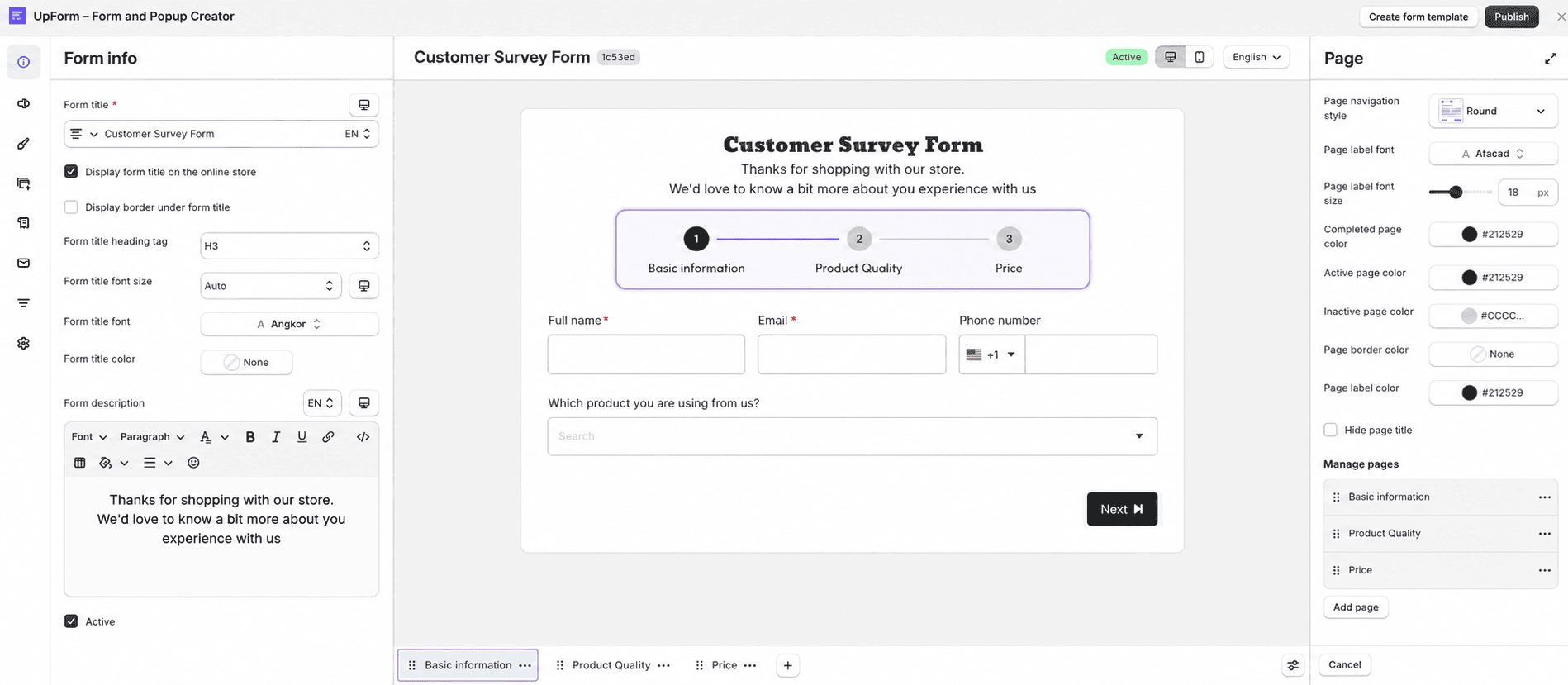
The page bar sits below the form preview. Use it to switch between pages, add new ones, and open page settings.
Add a page
- Click + on the page bar.
- In the Add page modal, enter the page details and click Add page.
A new page tab appears on the page bar. When the form has more than one page, page navigation and Previous / Next buttons appear in the preview.
Switch, reorder, or remove pages
- Click a page tab to make that page active and edit its fields in the preview.
- Drag a page tab to change the order.
- Open the menu on a page tab and choose Delete to remove a page. You must keep at least one page. Deleting a page also removes all rows and fields on that page.
Open the Manage page sidebar
Click the Manage page icon on the page bar, or click the page navigation bar in the preview when the form has more than one page.
The sidebar opens on the left or right, depending on your builder layout. From there you can:
- Reorder pages in the Manage page list
- Click Add page to open the Add page modal
- Open the menu on a page and choose Edit page to change that page’s title, description, or display type
- Adjust page navigation style, colors, and related settings in the same sidebar
For page details you enter in the add or edit modal, see Configure a page below.
Configure a page
The Add page and Edit page modals use the same fields:
- Title — shown in the page navigation and above the page content (required, up to 40 characters)
- Description — optional rich text shown below the page title (up to 200 characters)
- Display type — how the step appears in page navigation:
- Number — shows the step number
- Icon — shows an icon you choose
- None — hides the step indicator for that page
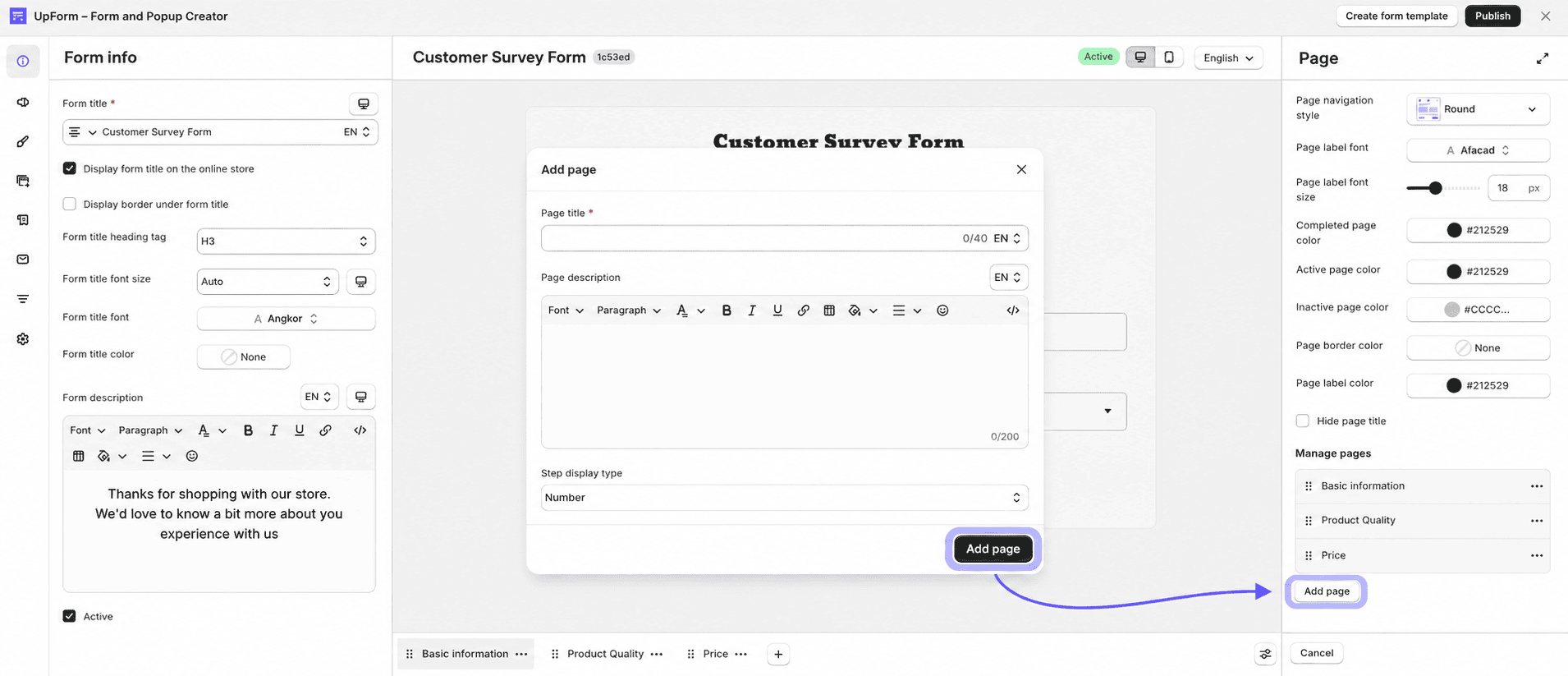
Click Add page or Update to save.
Add fields to each page
Rows and fields belong to the page that is active when you add them.
- Select the page tab you want to edit.
- Add rows and fields as usual from Form elements or the preview.
When you switch pages, the preview shows only the fields on that page. Fields on other pages are not visible until the customer moves to that step.
For field types and settings, see Builder elements.
Customize page navigation
Page navigation style is configured in the Manage page sidebar, not from the page bar tabs. Open it from the Manage page icon on the page bar, or by clicking the page navigation bar in the preview.
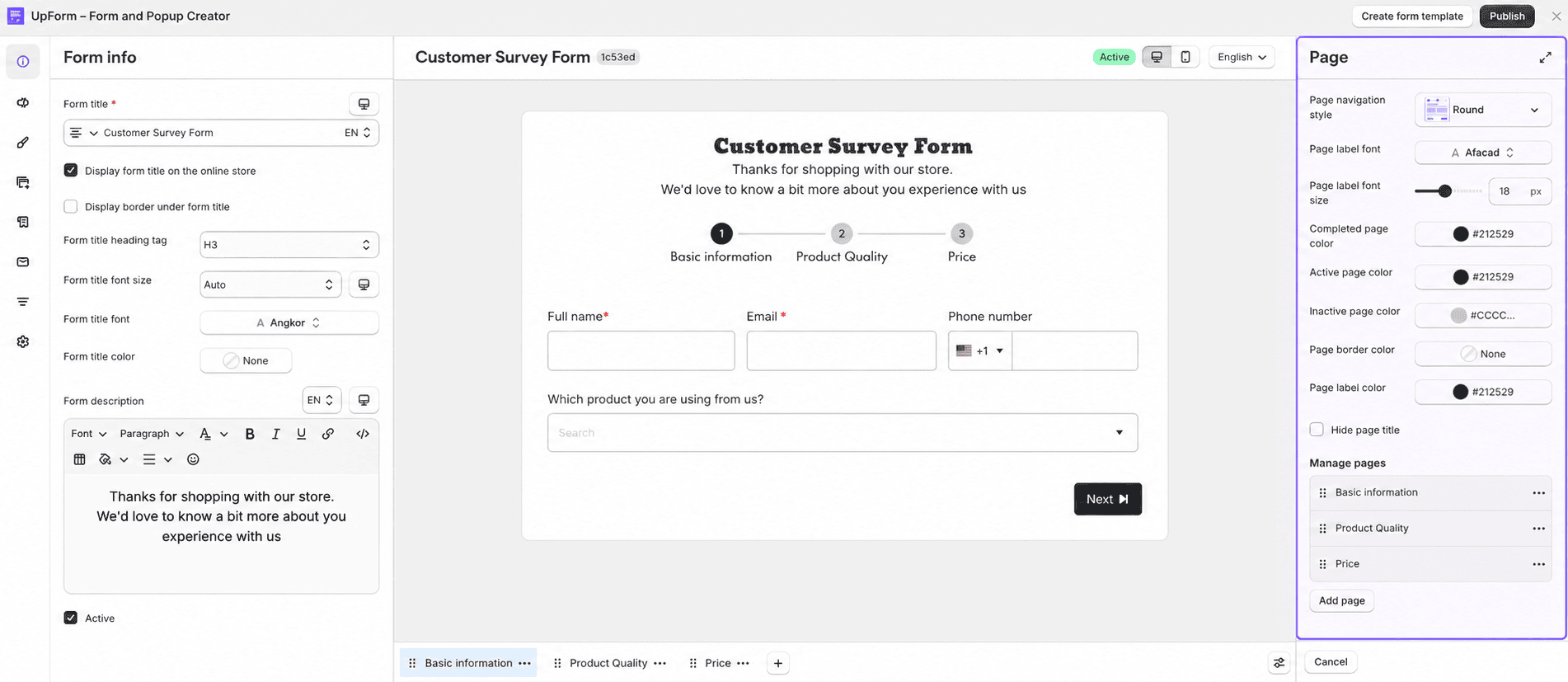
The sidebar also includes the Manage page list for reordering pages and opening Add page or Edit page.
Page style
Page style controls how steps appear in the navigation bar:
- Round
- Square
- Bar — progress bar with optional Show loading animation
- Checked round
- Checked square
- Circle with border
- None — hides the navigation bar
Colors and typography
Depending on the style you choose, you can set:
- Page label font and Page label font size
- Completed page color, Active page color, and Inactive page color
- Page border color and Page label color
For the Bar style, you can also set Pagination indicator label. Use {currentPage} and {totalPage} in the label, for example Page {currentPage} of {totalPage}.
Select Hide page title to hide page titles and descriptions in the navigation area.
Customize Previous and Next buttons
When the form has more than one page, Previous and Next buttons appear below the fields. The submit button shows on the last page only.
Hover over a navigation button in the preview and click the edit icon to customize:
- Previous page button — label, icon, colors, font, and border radius
- Next page button — label, icon, colors, font, and border radius
You can also adjust Button position for all form buttons, including Space between when multiple buttons are shown.
Preview and publish
Use the desktop and mobile preview modes to check how page navigation and buttons look on each device.
Click Save after you change pages, fields, or navigation settings. Then publish the form using your usual placement. Multi-page behavior is included automatically — you do not need a separate publish step.
For publishing options, see Publish a form.