

Appearance
Cloudflare Turnstile
Protect UpForm forms with Cloudflare Turnstile. UpForm supports Cloudflare Turnstile (Managed) and Cloudflare Turnstile (Non-interactive).
Turnstile checks visitors for bots without the classic “select all images” challenge. You create a widget in Cloudflare, add the keys in UpForm Settings, then enable Turnstile on each form you want to protect.
For Google reCAPTCHA Enterprise instead, see reCAPTCHA Enterprise.
Before you begin
You will need:
- A Cloudflare account
- Your Shopify store domain (for example,
your-store.myshopify.com)
Cloudflare menus can change. If a path does not match exactly, search the dashboard for Turnstile.
Create a Turnstile widget in Cloudflare
- Sign in to the Cloudflare dashboard.
- Go to Application security → Turnstile.

- Click Add widget.
- Enter a Widget Name (for example,
UpForm – Cloudflare Turnstile). - Under hostname management, click Add Hostname, enter your Shopify domain (for example,
store-name.myshopify.com), then add it. When the domain appears under Selected hostnames, continue.
- Choose a Widget Mode:
- Managed — Cloudflare decides when to show a challenge. Real visitors may see little or nothing; suspicious traffic may get a click challenge.
- Non-interactive — the widget stays visible and runs in the background without asking the visitor to click.
- Click Create.
- Copy the Site Key and Secret Key. You will paste these into UpForm.
In UpForm, select the CAPTCHA type that matches this widget mode: Cloudflare Turnstile (Managed) or Cloudflare Turnstile (Non-interactive).
Configure CAPTCHA in UpForm
- In UpForm, open Settings → CAPTCHA.
- Select Cloudflare Turnstile (Managed) or Cloudflare Turnstile (Non-interactive) to match the widget mode you chose in Cloudflare.
- Paste the Site key and Secret key.
- Click Save.
If the keys are wrong or incomplete, verification can fail and the form may not be protected.
You can also open these settings from a form with Configure CAPTCHA in the General tab.
Enable CAPTCHA on a form
Credentials in Settings do not automatically protect every form. Enable CAPTCHA on each form you want to secure.
- Open the form in the form builder.
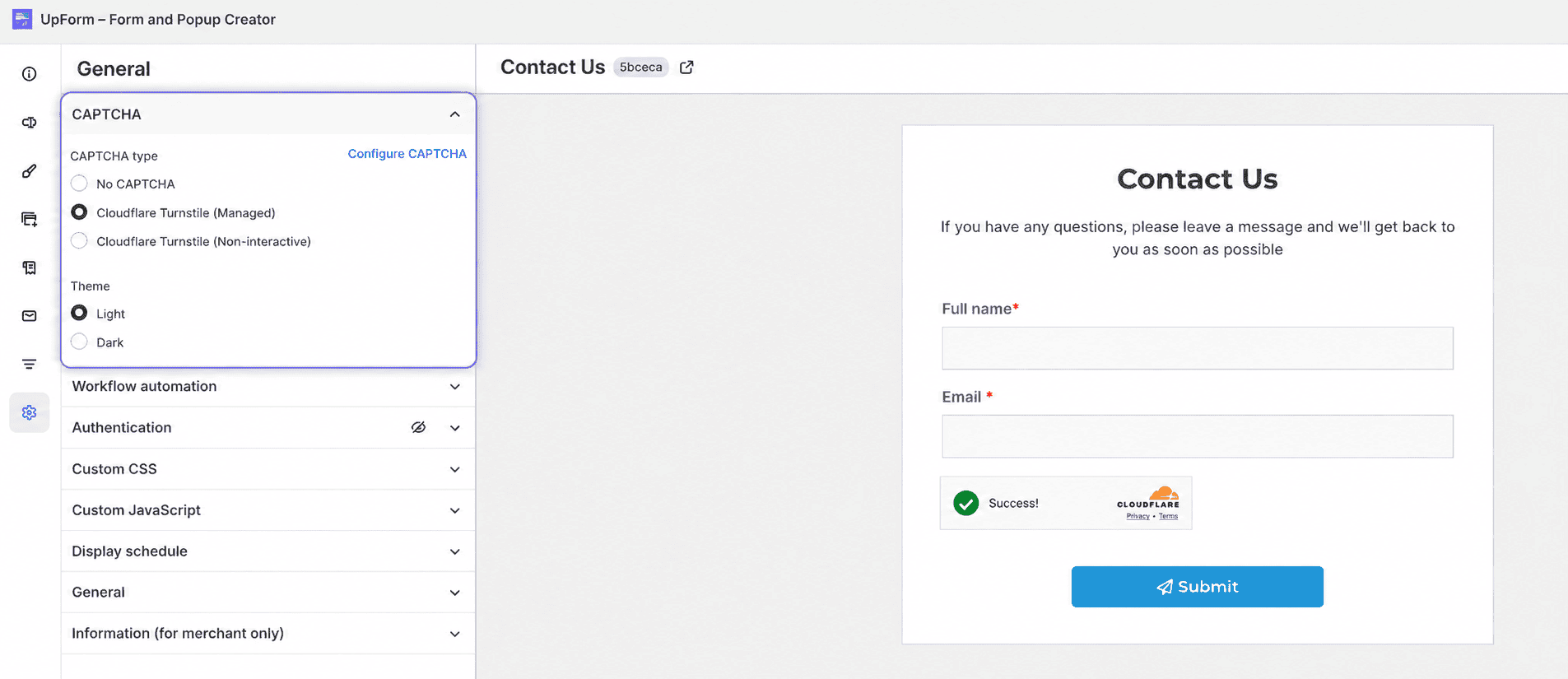
- Go to the General tab → CAPTCHA.
- Under CAPTCHA type, select Cloudflare Turnstile (Managed) or Cloudflare Turnstile (Non-interactive) (only configured types appear).
- Choose a Theme of Light or Dark.
- Save the form.
For more form-level CAPTCHA options, see General.
If this does not work as expected, Contact for help.