

Appearance
Automation settings
Use Settings → Workflow automation to connect third-party services that receive form submissions. After you add a provider here, enable it on each form you want to sync.
Before you begin
- In UpForm, enable Save submission data for the form. Workflow sync will not run if submissions are not saved. See General.
- You can add more than one provider. Different forms can use different providers.
- Provider menus and credential steps can change. Use the provider’s help if labels do not match exactly.
Add a workflow automation provider
Supported providers include:
- Mailchimp
- Brevo
- Twilio SendGrid
- Klaviyo
- Omnisend
- GetResponse
- Zapier
- IFTTT
- Make
- Google Sheets
- N8N
To add a provider:
- In UpForm, open Settings → Workflow automation.
- Click Add workflow automation provider.
- Under Select provider, choose the service you want.
- Enter the required details (for example, API key or webhook URL).
- Enable Active, then click Save.
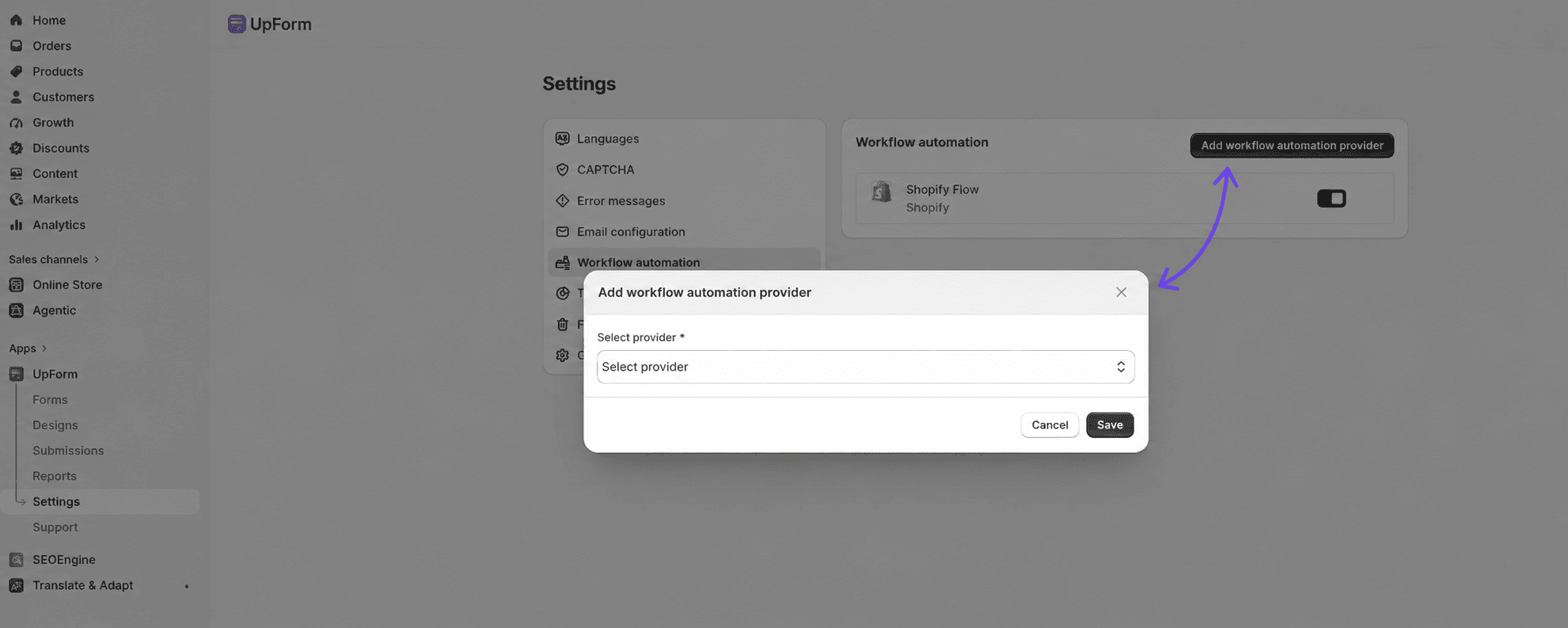
Credentials in Settings do not sync every form automatically. Enable the provider on each form next.
Shopify Flow
Shopify Flow appears in Workflow automation as a built-in provider. Turn it on to send a New UpForm Submission trigger to Shopify Flow when customers submit forms that have Save submission data enabled.
Shopify Flow does not use Add workflow automation provider and does not require per-form setup in the General tab. See Shopify Flow for trigger details and examples.
Enable workflow automation on a form
- Open the form in the form builder.
- Go to the General tab → Workflow automation.
- Enable the sync option for your provider (for example, Sync submission data with Klaviyo).
- Select the Provider you connected in Settings.
- Complete any list or field mapping steps shown for that provider.
- Save the form.
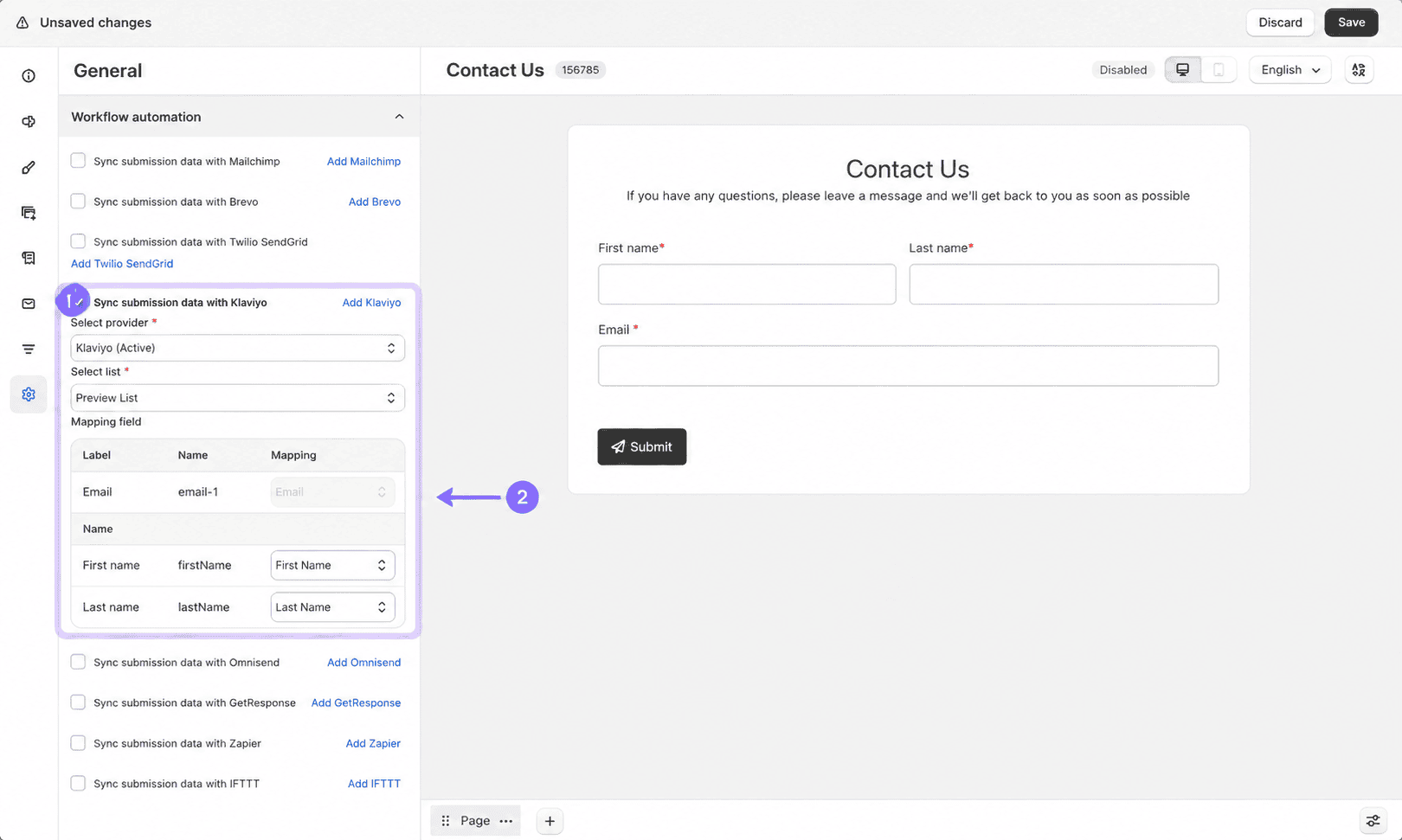
You can also click Add for a provider from this section if you have not connected one yet.
Provider setup guides
If this does not work as expected, Contact for help.