

Appearance
Languages
Use Settings → Languages to review the store languages UpForm uses for multilingual forms. When you add, edit, or remove languages in Shopify, UpForm updates this list automatically.
Current languages
Current languages lists the languages detected from your Shopify store.
- In UpForm, open Settings → Languages.
- Review the numbered list under Current languages.
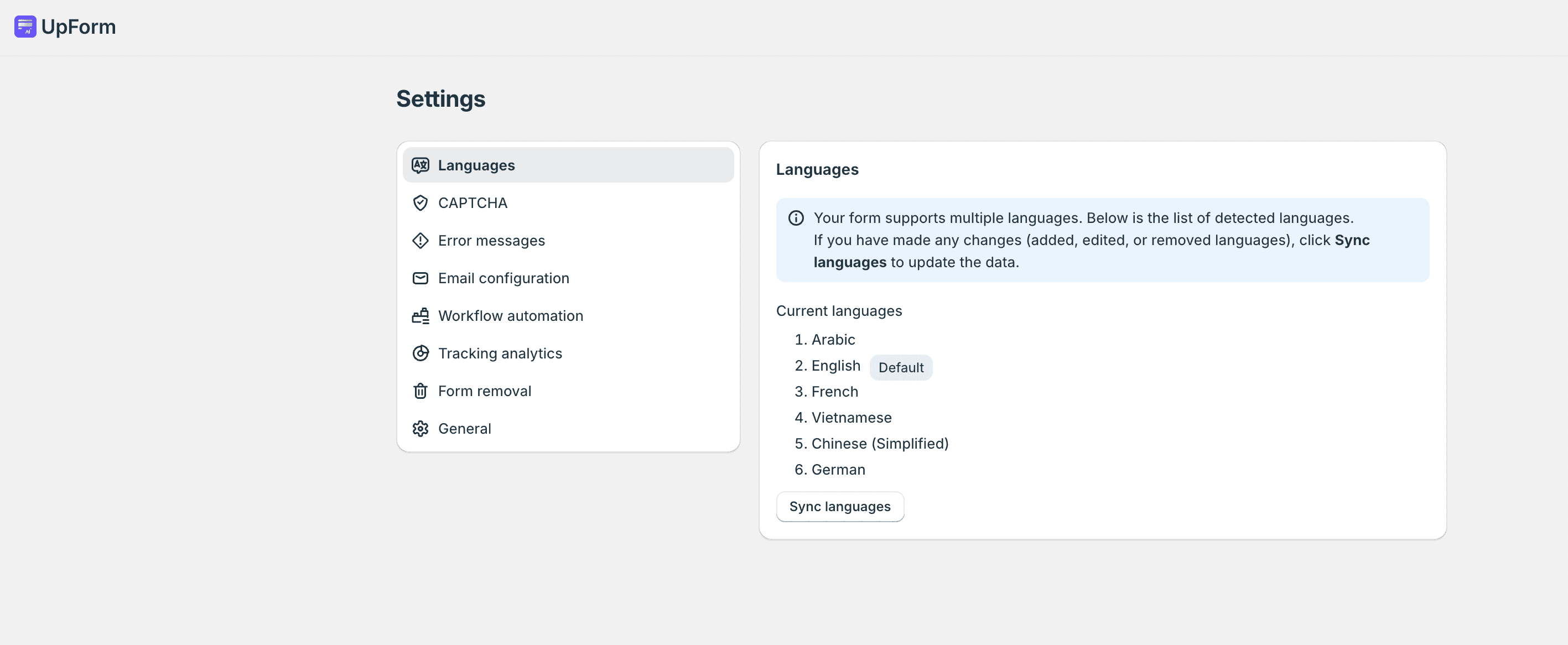
Your store’s primary language is marked with a Default badge.
These languages are used when you manage multilingual form content. To set the UpForm admin language or the storefront display language for forms, see General.
Sync languages
Most of the time you do not need to sync manually. If Current languages looks outdated, or a language change in Shopify has not appeared yet, click Sync languages, wait for the sync to finish, then confirm the list matches your Shopify store.
If this does not work as expected, Contact for help.