

Appearance
Unpublish or change locations
Update display locations or unpublish Popup, Float, Top bar, Footer banner, and Side-in forms from the Publish form modal. These forms are published directly with Publish—not with embed code.
If you added an On-page form to page content or the theme editor, use a different removal method.
Choose the right removal method
| How the form was published | Guide |
|---|---|
| Popup, Float, Side-in, Top bar, or Footer banner | This guide |
| Theme editor UpForm section or block | Remove from Theme Editor |
| Embed code in page, product, collection, or post content | Remove embed codes |
Open the Publish form modal
- Open the form in the form builder, or find it on the Forms page.
- Click Publish form.
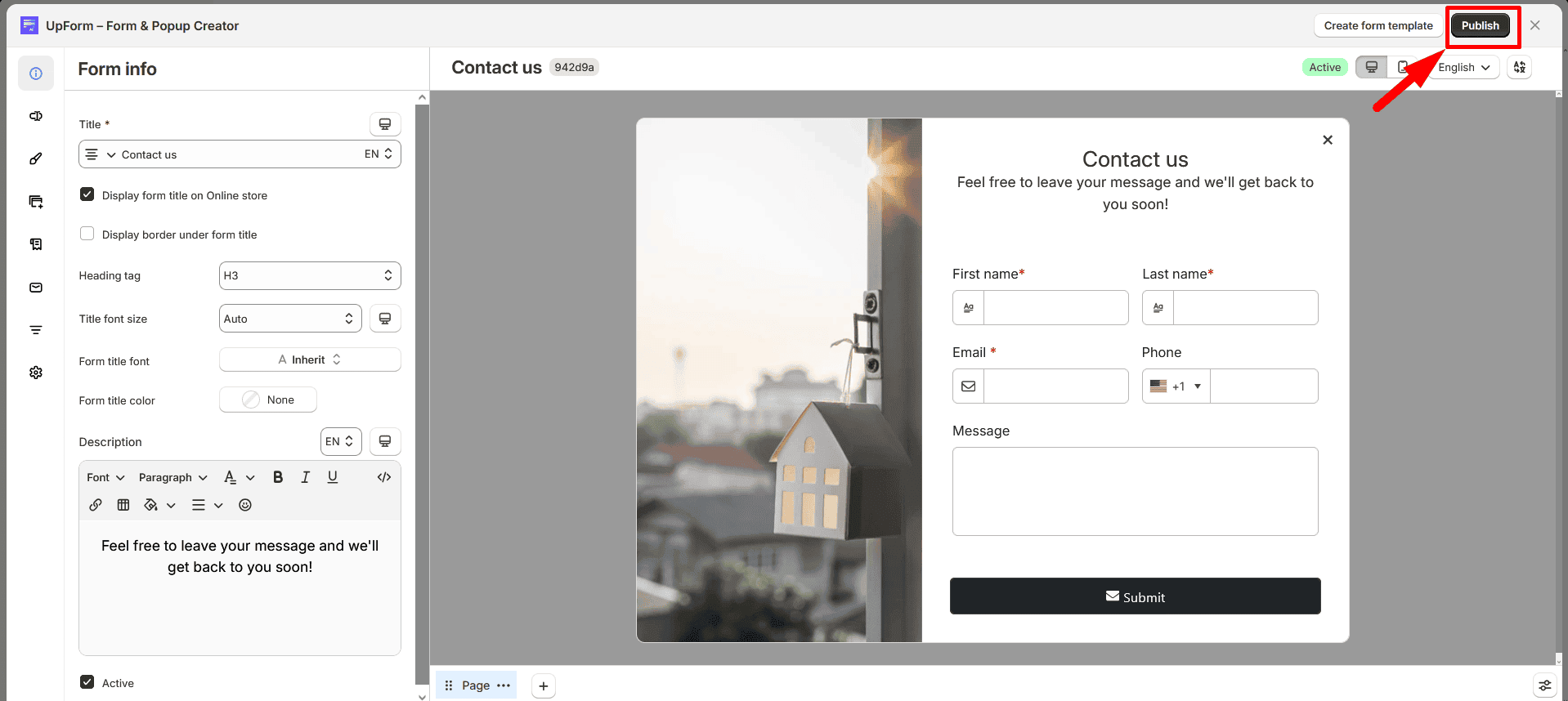
You will see the current locations under Select the pages where you want to display the form. If the form is already live, the modal may also show Unpublish and Last published.
To change who can see the form, use General → Customer visibility in the form builder. See Customer visibility.
Change where the form appears
- Open the Publish form modal.
- Clear the checkboxes for locations where you no longer want the form.
- Select the locations where you want the form to appear.
- Click Publish.
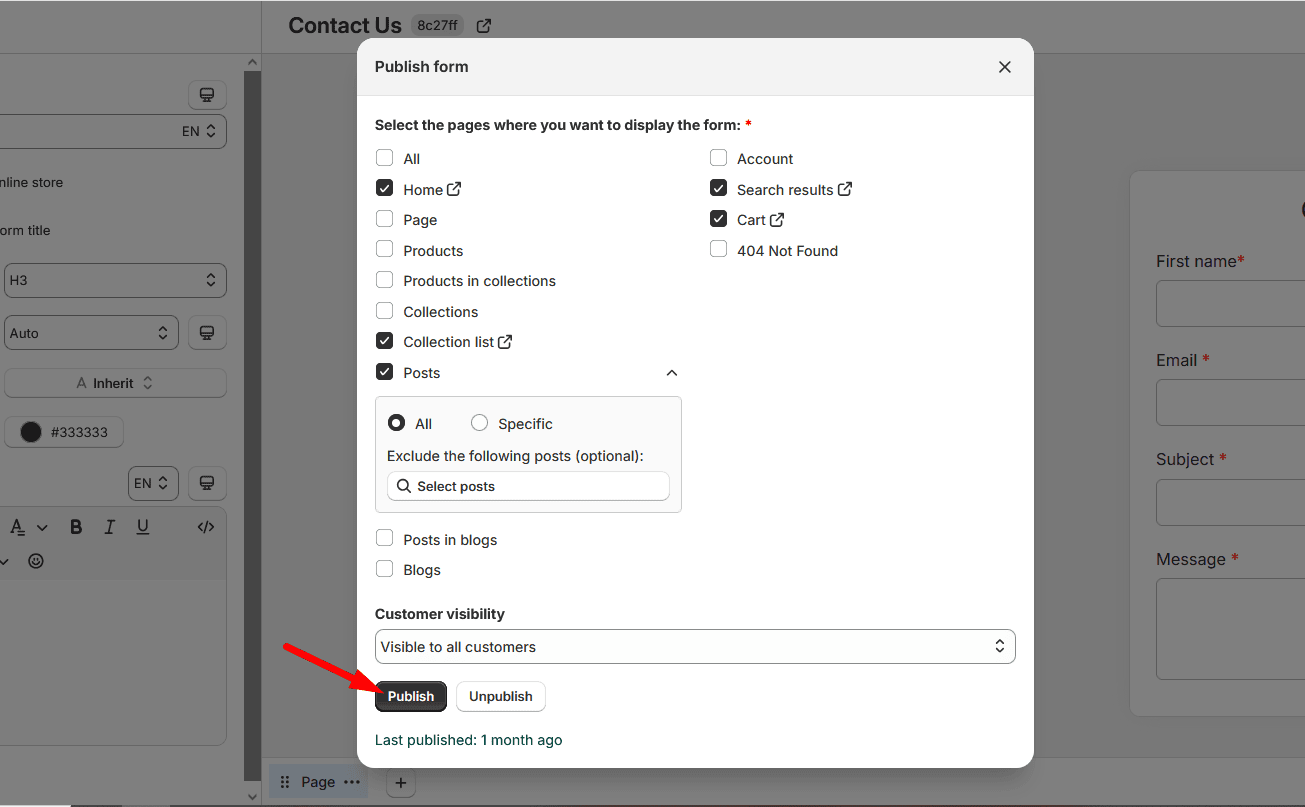
The form stops showing on the locations you cleared and appears on the locations you selected.
For location options, see Popups, floating forms, and banners.
Stop the form on some page types
If the form is published on many locations (for example, after selecting All):
- Open the Publish form modal.
- Clear the checkboxes for the page types where you do not want the form.
- Leave the other locations selected.
- Click Publish.
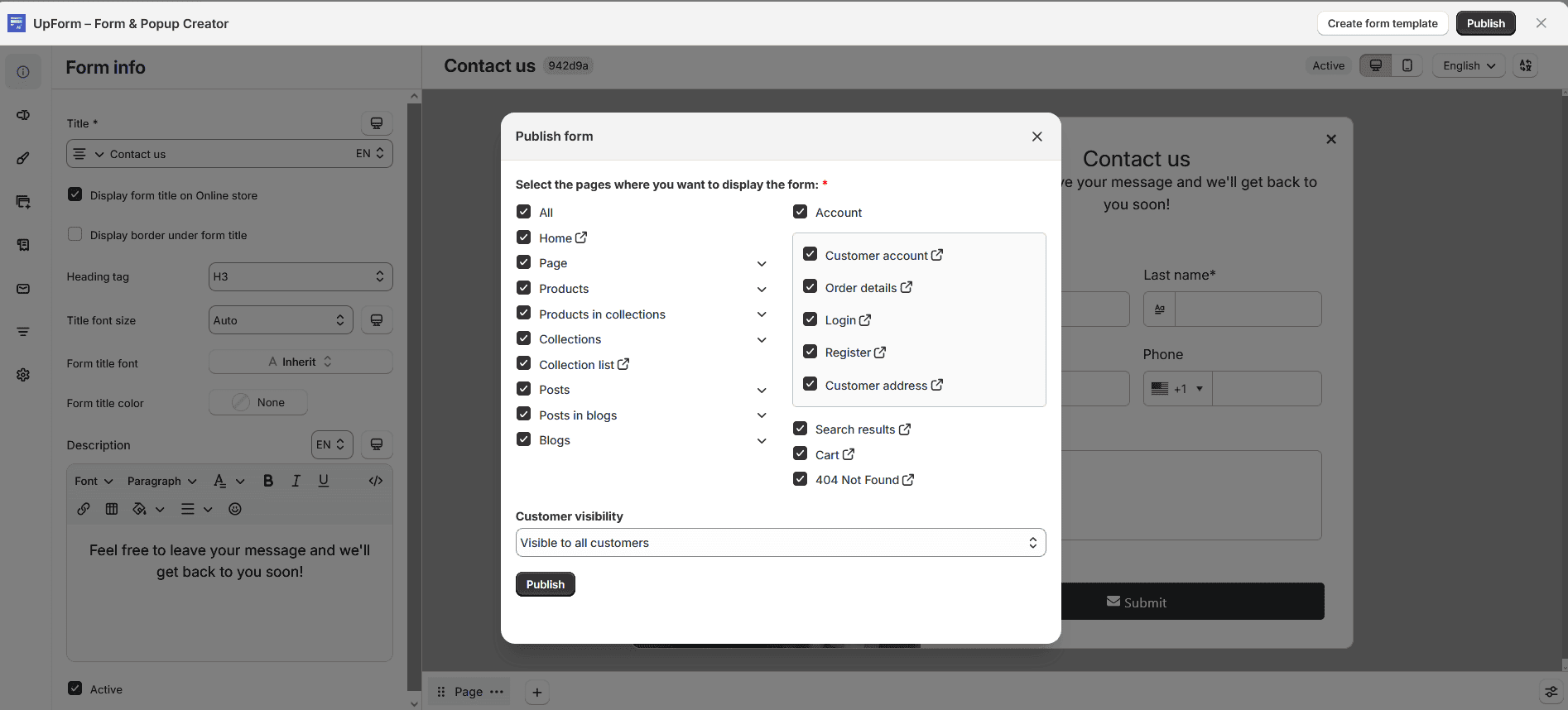
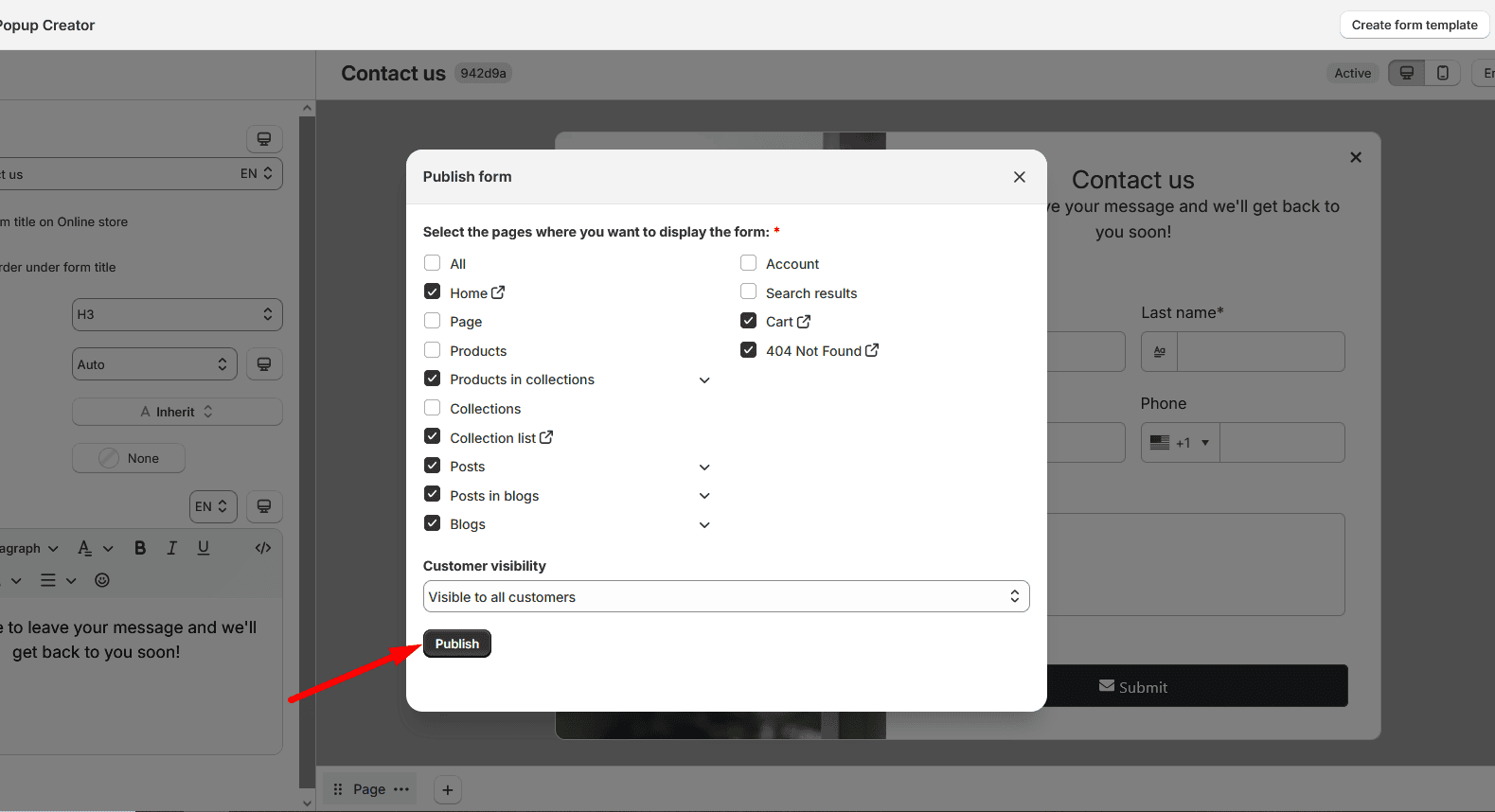
To keep a location type selected but hide the form on certain products, collections, pages, or posts, expand that location, choose All or Specific, and use the include or optional exclude fields. Then click Publish.
Unpublish the form
To remove the form from the storefront everywhere it was published with this method:
- Open the Publish form modal.
- Click Unpublish.
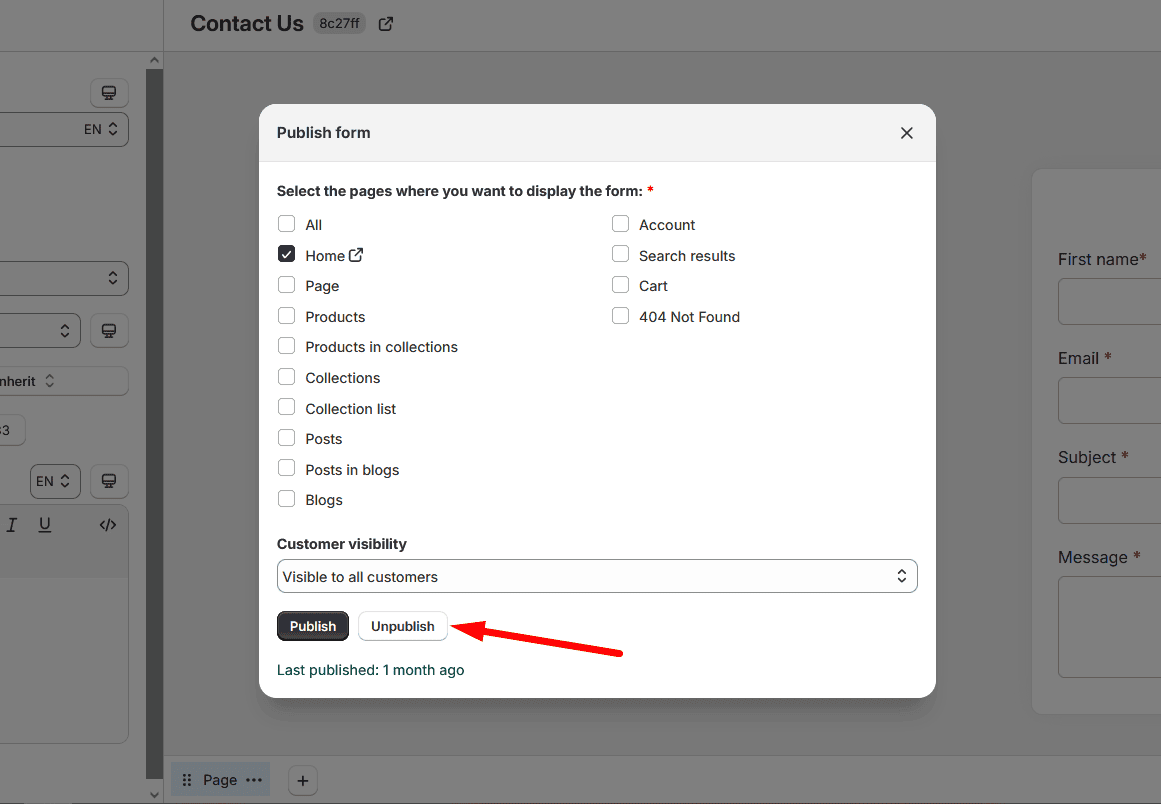
The form is no longer visible to customers. It remains in UpForm, so you can publish it again later.