

Appearance
Submission details
Open a submission from the Submission list to review the full response, add notes or tags, and follow up with the sender.
Submission details
The Submission details card shows the answers the customer submitted, such as name, email, phone, message, and any other form fields.
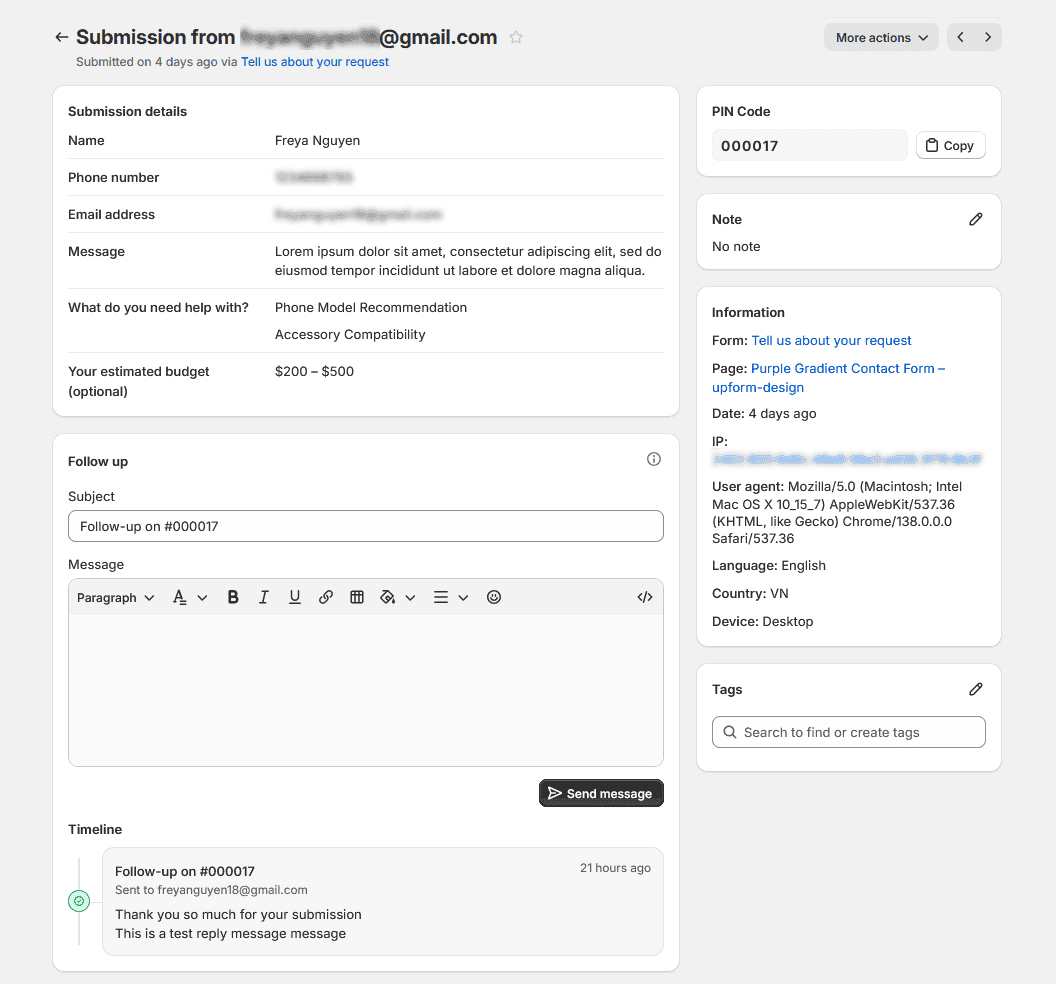
Each submission also has a PIN Code — a unique ID you can use for reference in follow-up messages or internal tracking.
Note
Use Note to record internal comments about the submission. Notes are for your team and are not shown to the customer.
- Open the note editor.
- Enter the Note content.
- Click Save.
Information
The Information card shows context about how the submission was received. Depending on the submission, you may see:
- Form
- Page
- Date
- IP
- Browser
- Device
- Language
- Country
- UTM source
- UTM medium
If the original form was removed, the form may show as (Form deleted).
Follow up
Use Follow up to reply to the sender from UpForm.
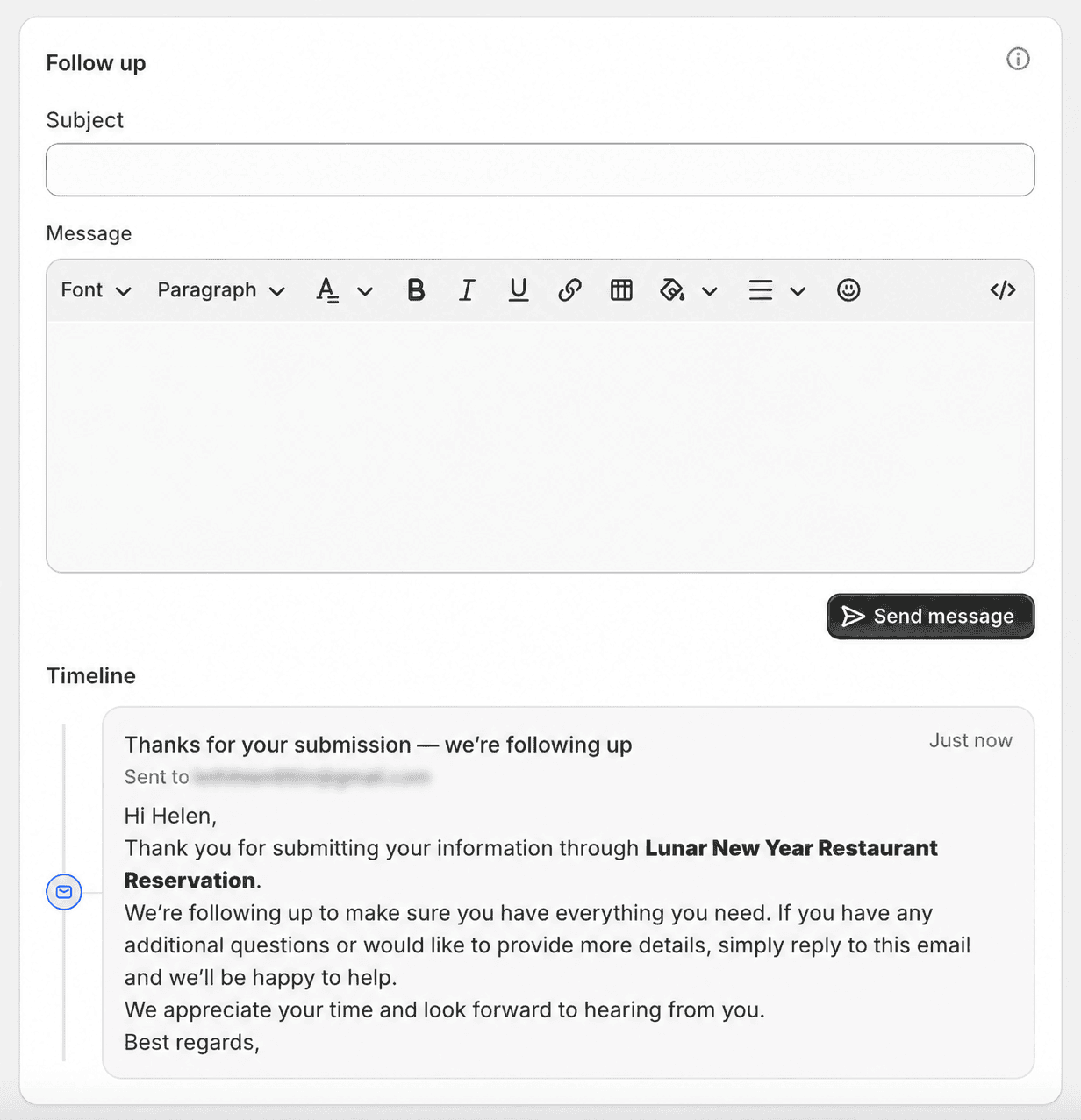
- Confirm Send to (the sender’s email).
- Enter a Subject (a default subject may be filled in, including the PIN code when available).
- Enter your Message.
- Click Send message.
Timeline lists follow-up messages sent for this submission so you can see previous communication.
Tags
Use Tags to organize submissions (for example, lead, VIP, or support). Tags help you filter submissions later on the list page.
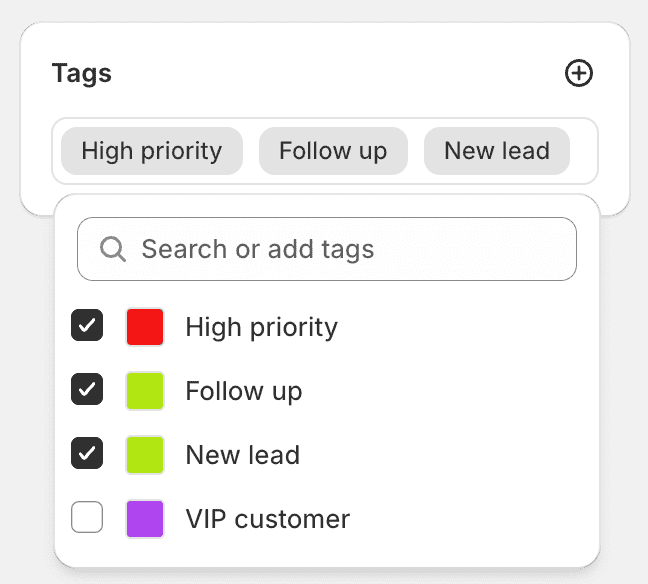
- Open Tags.
- Search for an existing tag or add a new one.
- Assign the tag to the submission.
More actions
Open More actions to manage the submission status or remove it:
- Mark as unread / Mark as read — change the read state for later review
- Mark as starred / Mark as not starred — highlight important submissions
- Mark as closed / Mark as pending — update the submission status
- Delete submission — permanently remove the submission, including attachments and contact information stored with it
Deleting a submission cannot be undone.
If this does not work as expected, Contact for help.