

Appearance
Remove from Theme Editor
Remove forms that were added as an UpForm app section or block in the Shopify theme editor (for example after Add section, with a Form ID (or embedded code) on the homepage or another template).
Choose the right removal method
| How the form was published | Guide |
|---|---|
| Theme editor UpForm section or block | This guide |
| Popup, Float, Side-in, Top bar, or Footer banner | Unpublish or change locations |
| Embed code in page, product, collection, or post content | Remove embed codes |
Open the theme editor
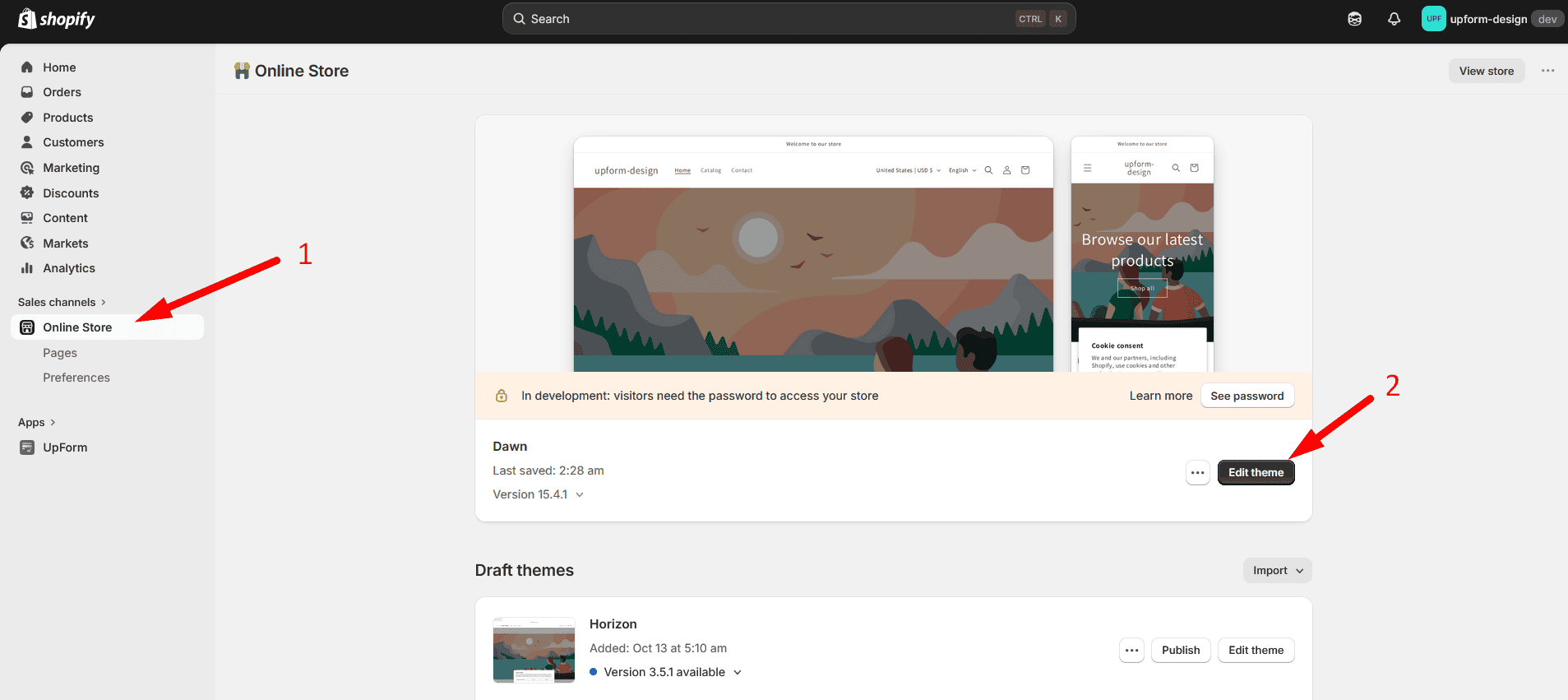
- In Shopify admin, go to Online Store.
- On your current theme, click Edit theme.
Select the page or template
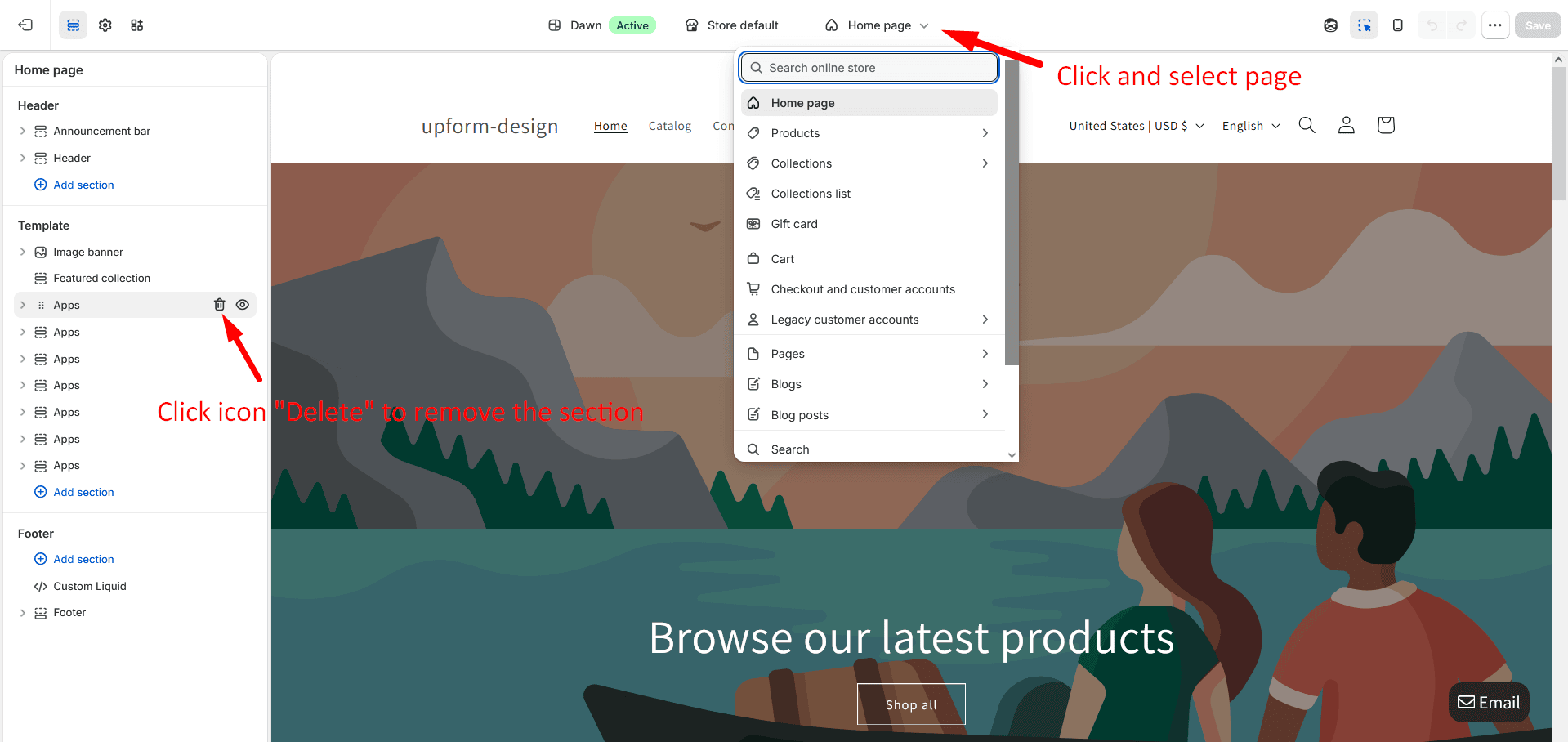
- In the theme editor, open the page or template selector at the top.
- Select the page or template that contains the UpForm section you want to remove.
Remove the UpForm section
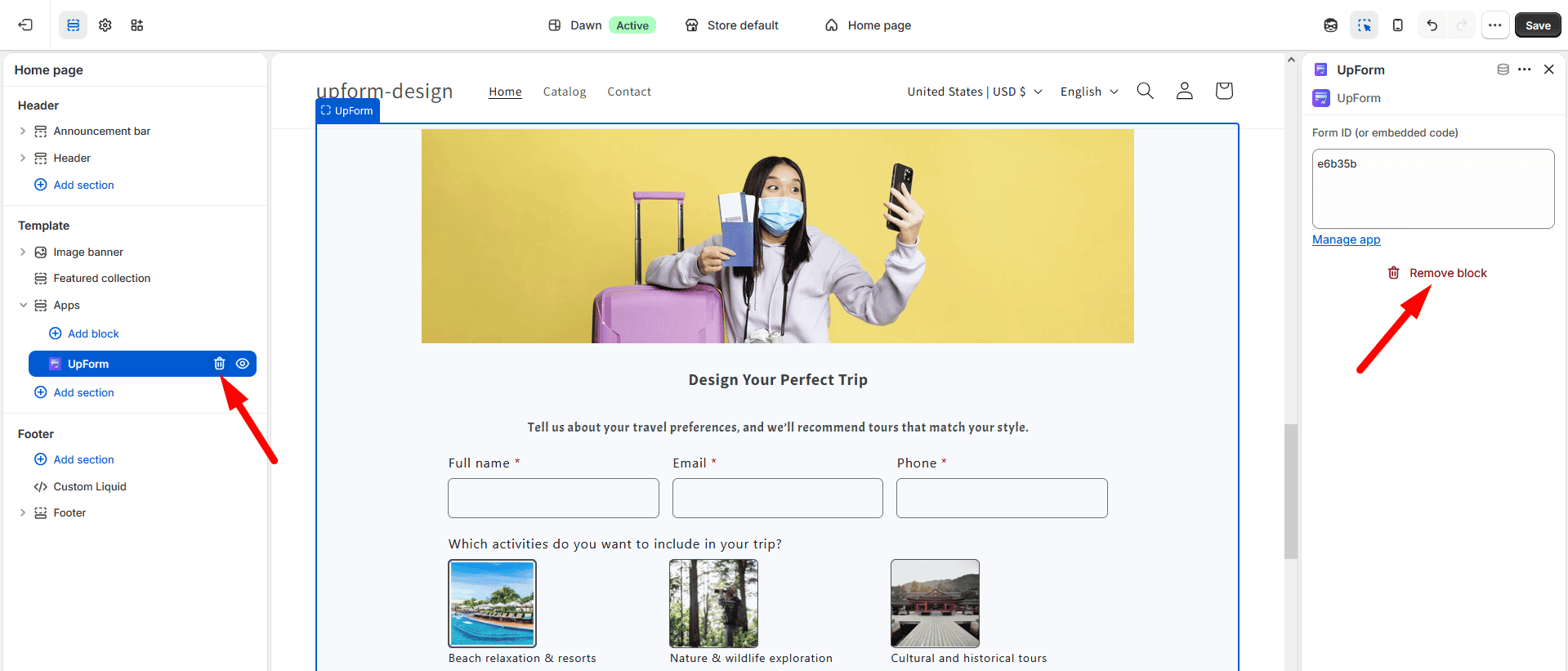
- In the left sidebar, under Template (or the area you are editing), find Apps.
- Select the UpForm section or block.
- Remove it using either:
- The delete (trash) icon next to UpForm in the sidebar, or
- Remove block at the bottom of the section settings
- Confirm if Shopify asks you to confirm.
Removing the section removes that placement from the template. It does not delete the form in UpForm.
If the form was also added in the header or footer, check those areas for another UpForm section and remove it the same way.
Save your changes
Click Save in the theme editor.
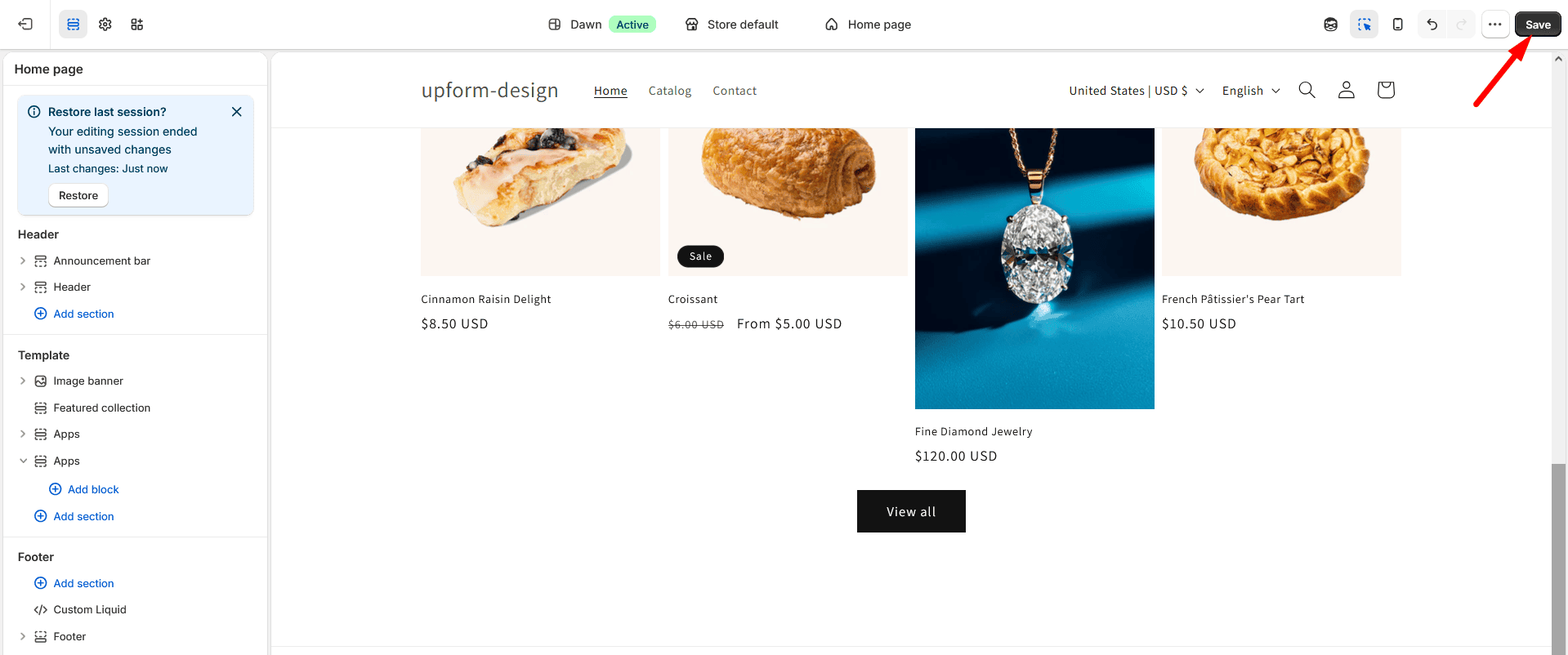
The form no longer appears on that page or template. The form remains in UpForm, so you can add it again later.