

Appearance
Configure Gmail SMTP
Connect Gmail SMTP so UpForm can send admin notifications, customer emails, verification emails, and follow-ups from your Gmail account.
Gmail does not allow your regular account password for SMTP. Create a Google App password, add Gmail SMTP as a custom email provider in UpForm, then select that provider on each form that should use it.
Before you begin
- You need a Google account with Gmail.
- 2-Step Verification must be turned on before you can create an App password.
- Google Workspace / organization accounts may restrict App passwords. If you cannot create one, ask your admin or use another email provider.
- In UpForm, custom providers are managed under Settings → Email configuration → Custom email providers. You can also start from a form’s Email → SMTP section with Add provider.
Create a Gmail App password
- Open Google Account and sign in.
- Go to Security.
- Turn on 2-Step Verification if it is not already enabled.
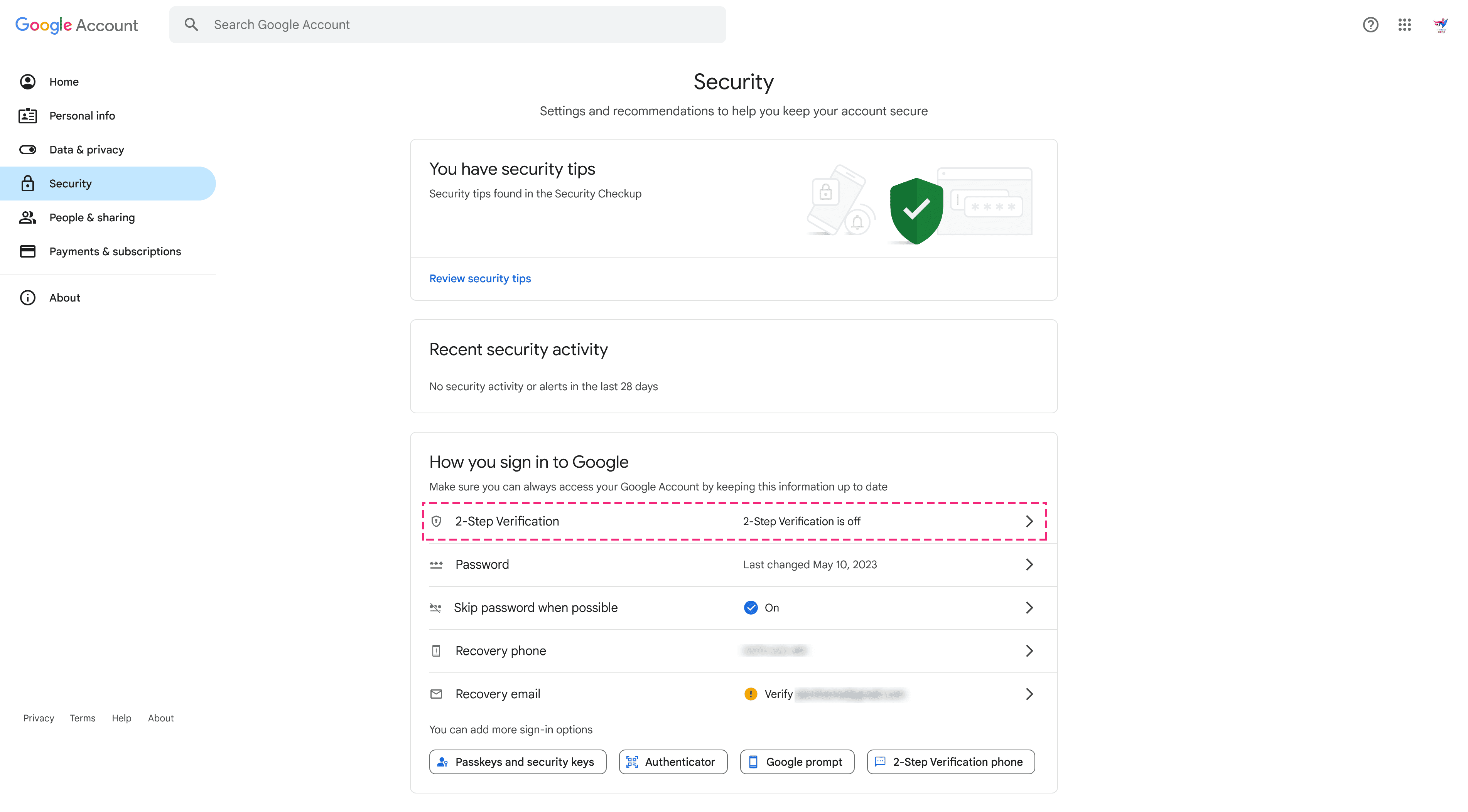
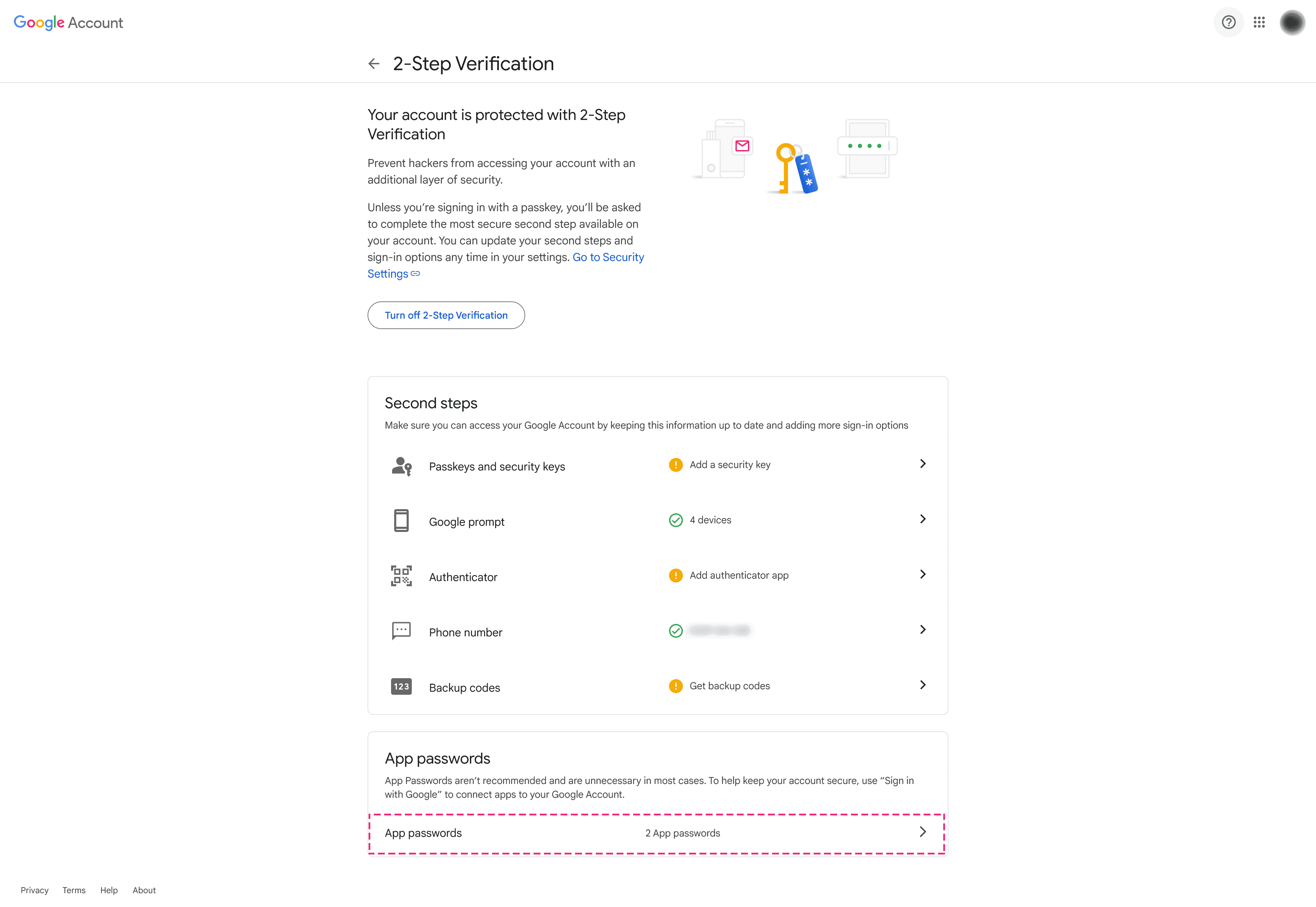
- Under Security, open App passwords.
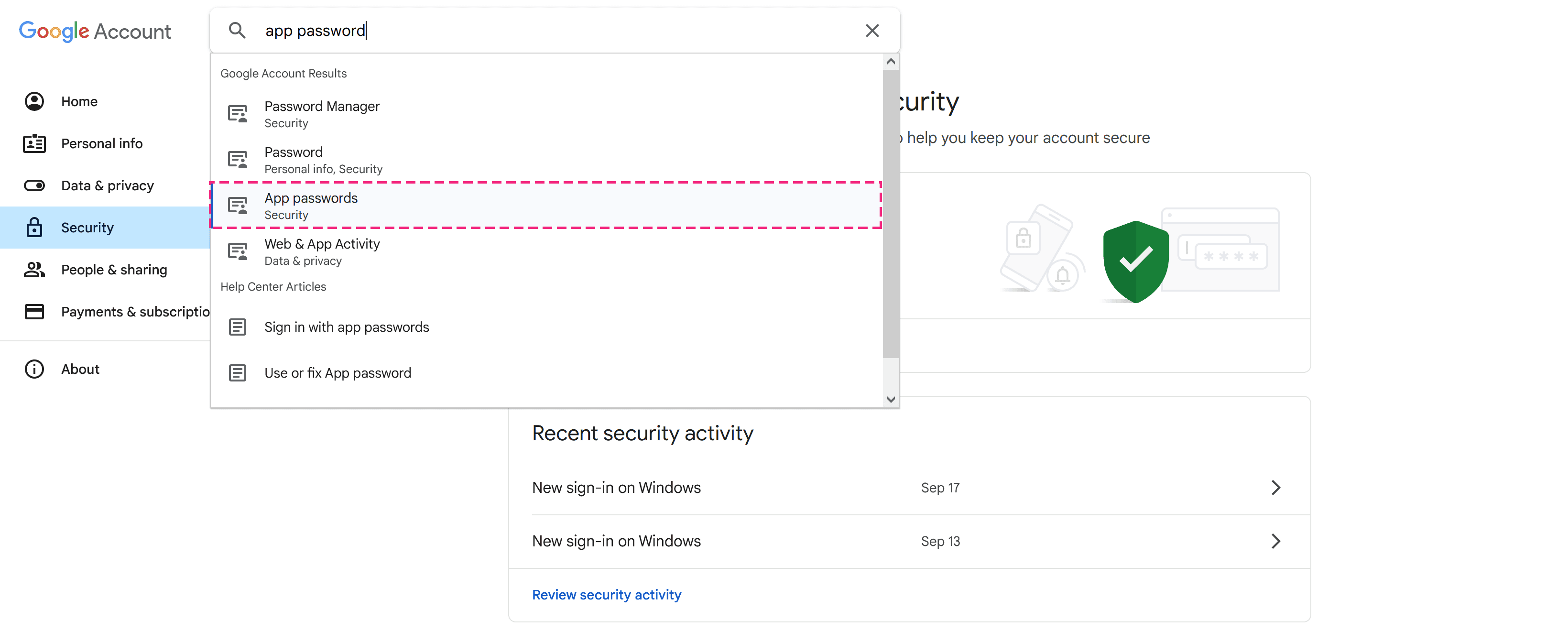
If you do not see App passwords, use the settings search and type app password.
- Enter an app name (for example,
SMTP MailorUpForm). - Click Create.
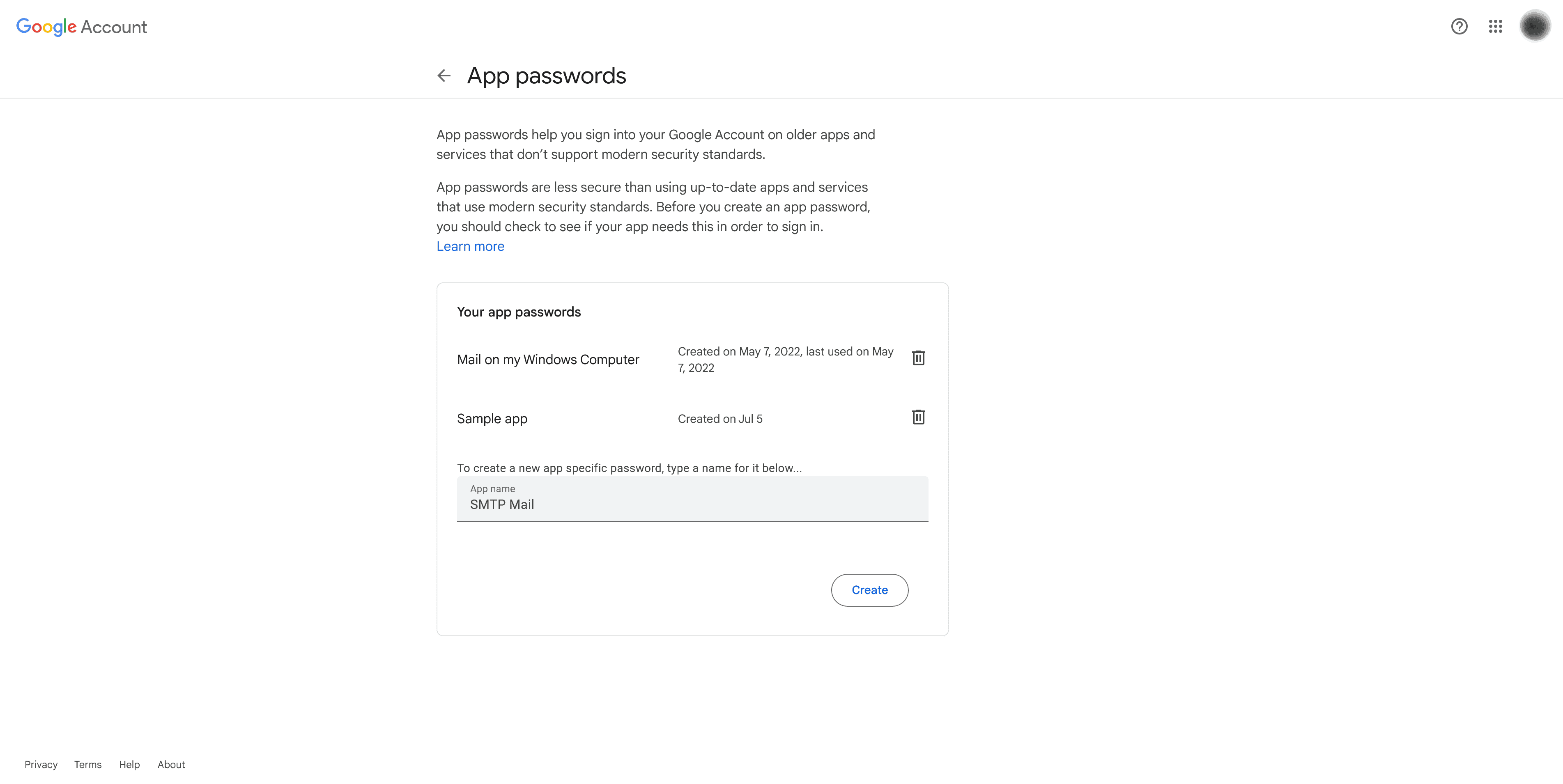
- Copy the 16-character App password and store it securely. You will paste it into UpForm as App password.
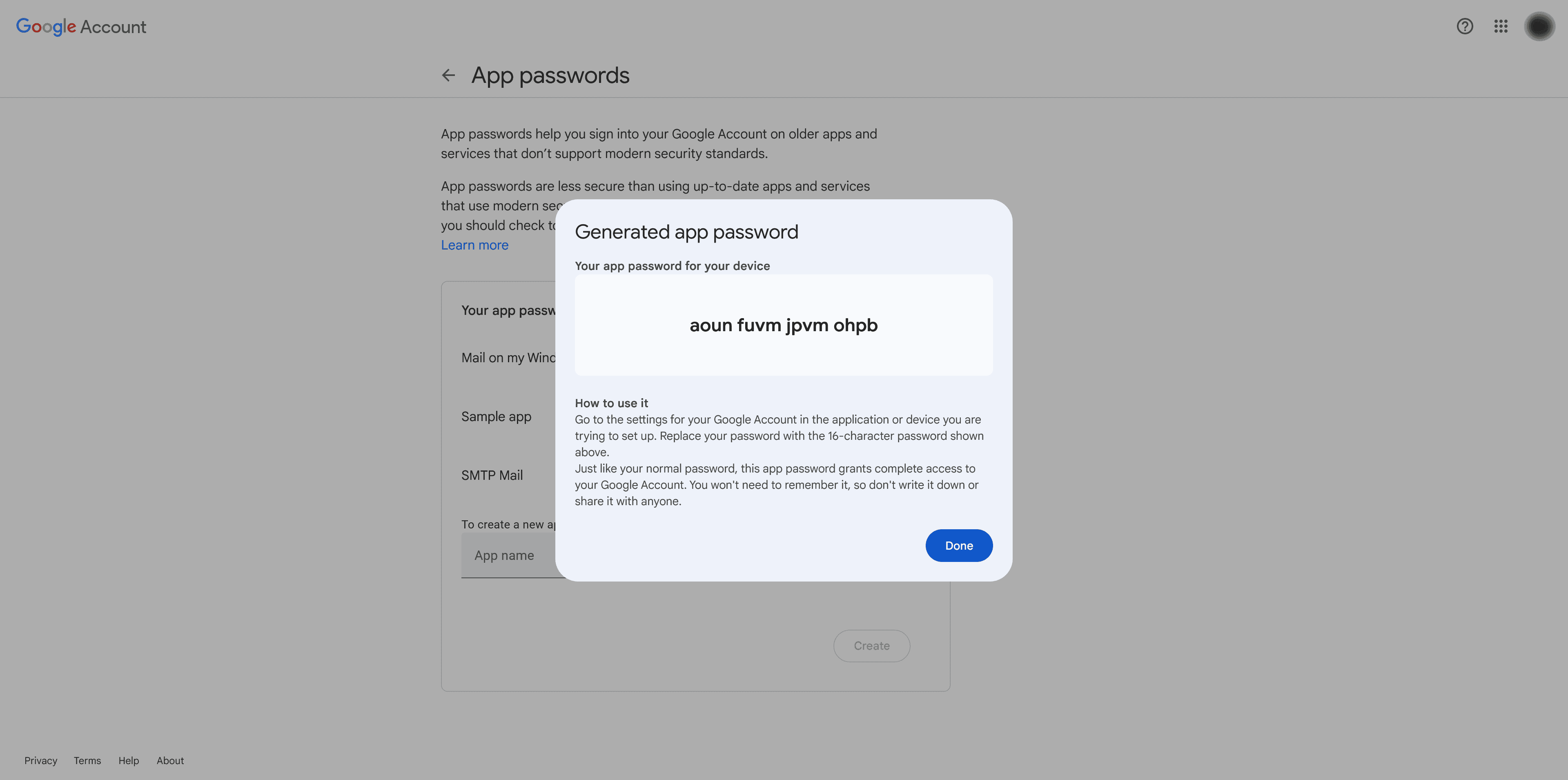
Watch the Gmail SMTP setup video.
Add Gmail SMTP in UpForm
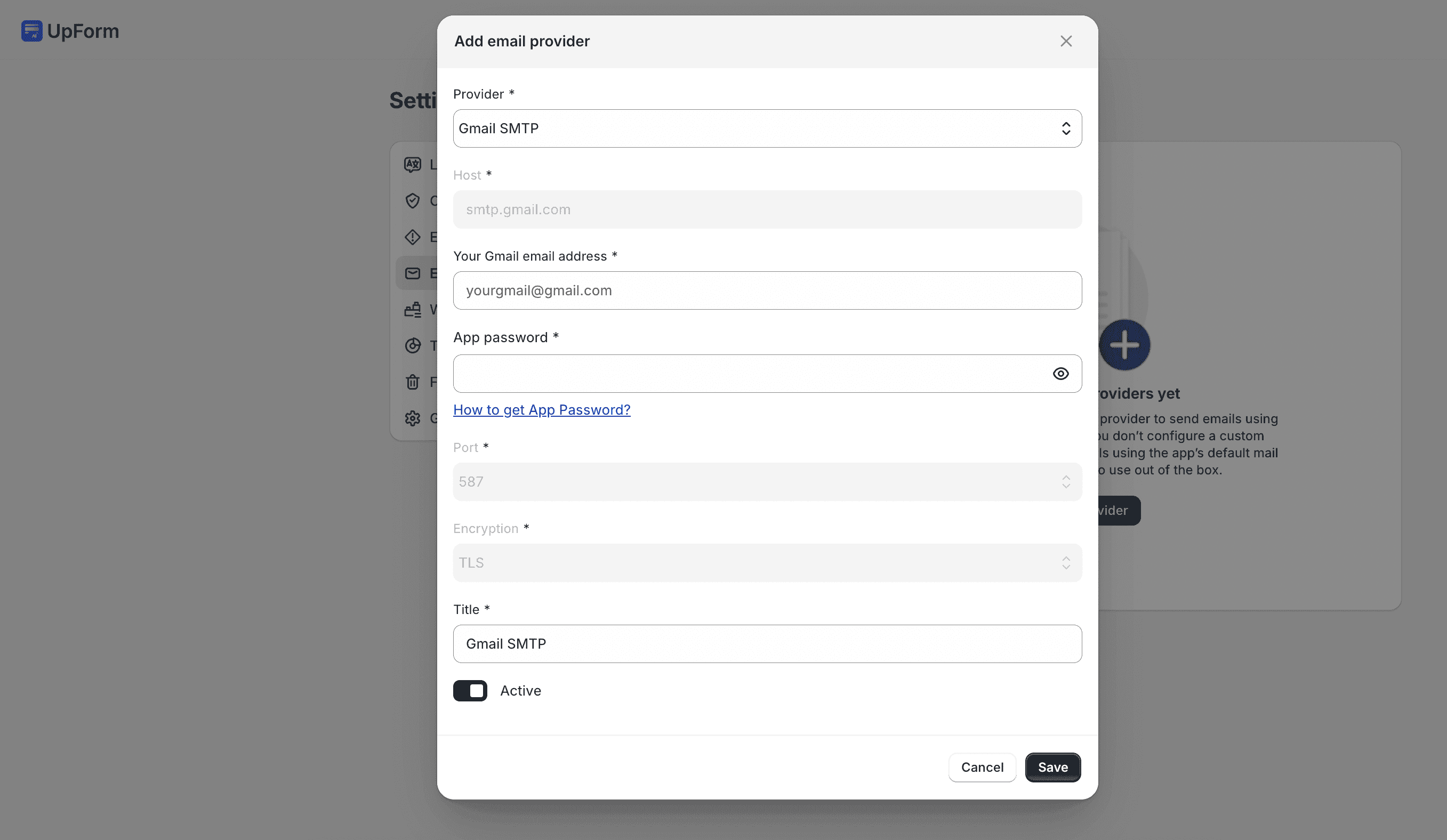
- In UpForm, go to Settings → Email configuration → Custom email providers.
- Click Add email provider.
- Under Provider, select Gmail SMTP.
- Enter:
- Host —
smtp.gmail.com(often filled for you) - Username — your full Gmail address (for example,
[email protected]) - App password — the 16-character App password from Google
- Port —
587with Encryption TLS (recommended), or465with SSL - Sender name — name shown as the sender (the field help notes you can leave it blank to use the store name by default)
- Sender email — usually your Gmail address (the field help notes you can leave it blank to use the username)
- Title — optional label for this provider in UpForm
- Host —
- Enable Active.
- Click Save.
You can use Send test email from Email configuration to confirm delivery after the provider is saved.
Use Gmail SMTP on a form
Adding the provider does not assign it automatically to every form.
- Open the form in the form builder.
- Open the Email tab → SMTP.
- Under Select provider to send emails, choose your Gmail SMTP provider.
- Save the form.
Also enable Save submission data in General, or emails will not send. See Email and General.
Test the configuration
- Publish the form (or use an already published form that uses this provider).
- Submit a test entry on the storefront, or send a test email from Email configuration.
- Confirm the message arrives in the recipient inbox (and check spam if needed).
If delivery fails, confirm 2-Step Verification is on, the App password is correct, Host is smtp.gmail.com, and Port / Encryption match (587 + TLS or 465 + **SSL`).
For other providers, see UpForm email provider and the other guides under Email providers.