

Appearance
Configure Brevo SMTP
Connect Brevo so UpForm can send admin notifications, customer emails, verification emails, and follow-ups through your Brevo account.
Create a Brevo API key, add Brevo as a custom email provider in UpForm, then select that provider on each form that should use it.
Watch the Brevo setup video.
Before you begin
- You need a Brevo account.
- In UpForm, the email provider is labeled Brevo.
- Custom providers are managed under Settings → Email configuration → Custom email providers. You can also start from a form’s Email → SMTP section with Add provider.
Create a Brevo API key

- Sign in to your Brevo dashboard.
- In the top-right corner, click your profile icon, then go to SMTP & API.
- Under the API Keys tab, click Create a new API key.
- Enter an API key name (for example,
UpForm Email Notifications). - Click Generate.
- Copy the API key immediately. Brevo typically shows it only once.
Add Brevo in UpForm
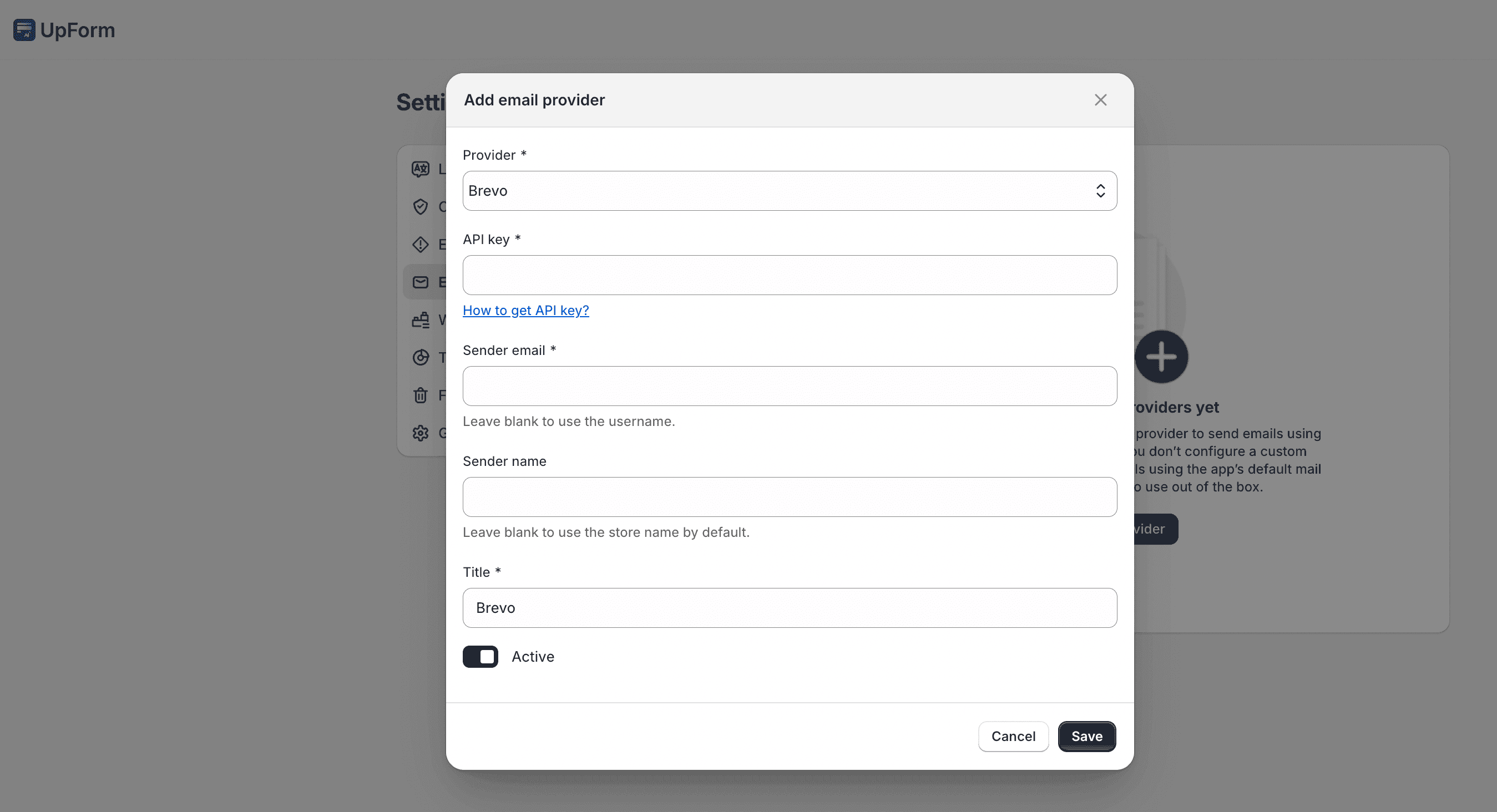
- In UpForm, open Settings → Email configuration → Custom email providers.
- Click Add email provider.
- Under Provider, select Brevo.
- Enter:
- API key — the Brevo API key you generated
- Sender name — name shown as the sender (for example,
Your Brand) - Sender email — a verified sender email or domain in your Brevo account
- Title — optional label for this provider in UpForm (for example,
Brevo)
- Enable Active.
- Click Save.
You can also open Add provider from a form’s Email → SMTP section.
Test the connection
- Use Send test email in UpForm if it is available for the provider.
- Confirm the test message arrives.
- Optionally check Transactional → Logs in your Brevo dashboard for delivery status.
Optional: Verify your sender email or domain
To improve deliverability:
- In Brevo, go to Senders & IP → Senders.
- Click Add a sender, or authenticate a custom domain under Domain → Authenticate a domain.
- Add the DNS records your provider shows, then wait until verification completes.
Related guides
If this does not work as expected, Contact for help.