

Appearance
Birthday email and coupon
This example collects a birth date with UpForm, saves it to a Shopify customer metafield, creates a birthday discount, and schedules a daily check that can send email through your email marketing app.
Enable Shopify Flow in UpForm before you build these workflows. See Shopify Flow.
Set up the form
Create a form with an Email field and a Date field for the birth date.
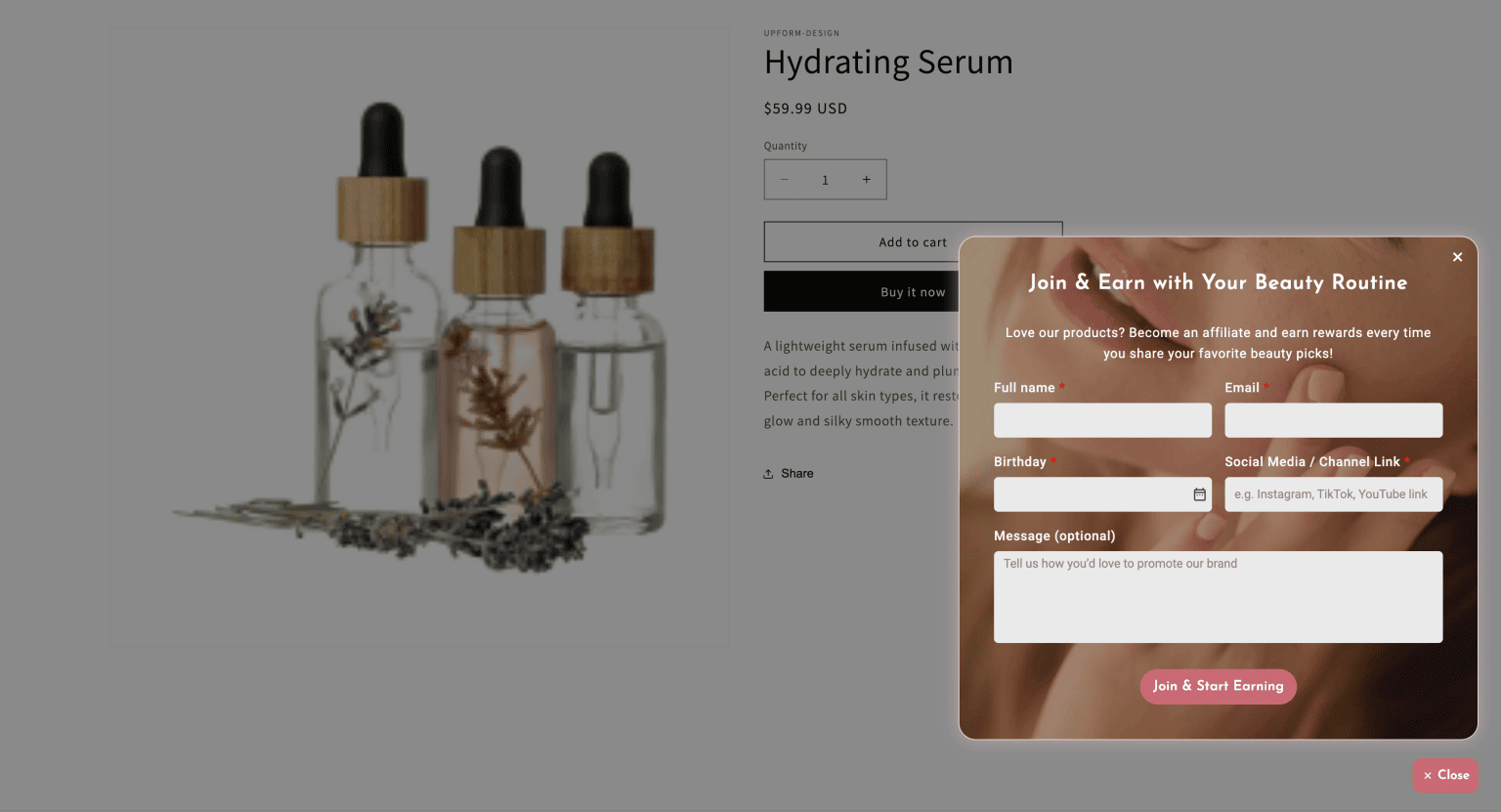
Set the field names to email-1 and date-1.

Create the birth date metafield and segment
- In Shopify admin, go to Customers → Segments.
- Click Create segment.
- Open Templates, search for
birthday, and select Customers with a birthday today.
- Click Add metafield. Shopify creates the standard facts.birth_date metafield.
- Select the template again, then click Run.
- Name the segment Birthday today and click Save. You will use this segment for the discount later.
Build the sync workflow
- Open Shopify Flow and click Create workflow.
- Click Select a trigger.
- Choose UpForm → New UpForm Submission.
Get customer data
- Click + under the trigger, then choose Action.
- Search for and select Get customer data.
- Open the action. Under Select a query to filter data, choose Advanced – Write a query for custom use cases.
- In Edit query, paste:
email:{{ submission.fields | where: "name", "email-1" | map: "value" | first }}
For each loop
- Click + under Get customer data, choose Action, and select For each loop (iterate).
- Open the loop. Under Items, open Select variable.
- Under Get customer data, select getCustomerData (list of customers).
Update customer metafield
- Click + under Repeat for each item (not under the main loop step), then choose Action.
- Select Update customer metafield.
- Confirm Customer is set to getCustomerDataForeachitem.id (usually filled automatically).
- Under Metafield, select Birth date (
facts.birth_date).
- In Value, paste:
{% for fields_item in submission.fields %}
{% if fields_item.name == "date-1" %}
{{ fields_item.value }}
{% break %}
{% endif %}
{% endfor %}
- Click Turn on workflow.
Create the birthday discount
- In Shopify admin, go to Discounts → Create discount.
- Choose Amount off order.
- Configure the discount, for example:
- Method: Discount code
- Discount code:
HAPPYBIRTHDAY10 - Discount value: Percentage,
10 - Eligibility: Customer segments
- Add the Birthday today segment, then click Add.
- Click Save.
Only customers in that segment can use the code on their birthday.
Schedule the birthday email workflow
Create a second Flow workflow that runs on a schedule and sends email through your email marketing app.
- In Shopify Flow, create a new workflow.
- Select the Scheduled time trigger.
- Set the Time zone, Start date/time, and Repeat (for example, every 1 Days).
- Add an Action for your email app (for example, Klaviyo, Omnisend, Mailchimp, Brevo, or Twilio SendGrid).
Exact email setup depends on the app you choose. Follow that app’s documentation to finish the template and include your discount code (for example, HAPPYBIRTHDAY10).
If this does not work as expected, Contact for help.