

Appearance
URL rules
The URL rules tab lets you create and manage redirects manually, and review broken links reported on your storefront.
For automatic destination rules when URLs break or change, see Auto redirects.
Before you begin
- SEOEngine is installed and open in your Shopify admin.
- You know the source paths that should redirect and the destination pages or URLs you want visitors to reach.
Browse URL rules
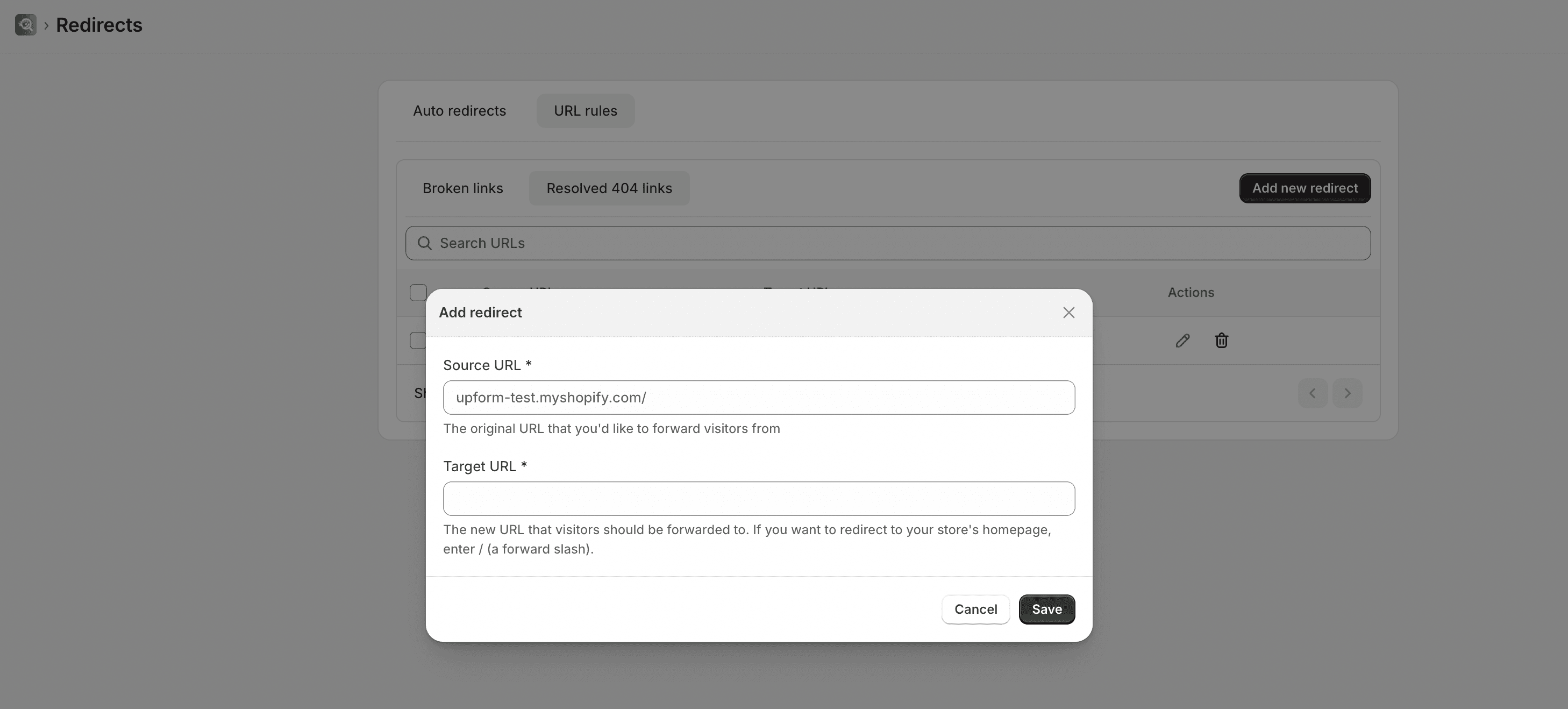
Use the filters at the top of the table to switch between:
- Broken links: 404 URLs tracked on your store
- Resolved 404 links: Redirects that are already set up
Create a manual redirect
- Open the URL rules tab and select the Resolved 404 links filter.
- Select Add new redirect.
- Enter the Source URL (the old path you want to redirect from).
- Enter the Target URL (the destination visitors should reach). Enter
/to send traffic to your store homepage. - Select Save.
You can also edit or delete an existing redirect from the table.
WARNING
Deleting a redirect is permanent and cannot be undone.
Monitor broken links
The Broken links filter lists 404 URLs reported on your storefront, including the URL path, traffic count, and when the error was first and last seen.
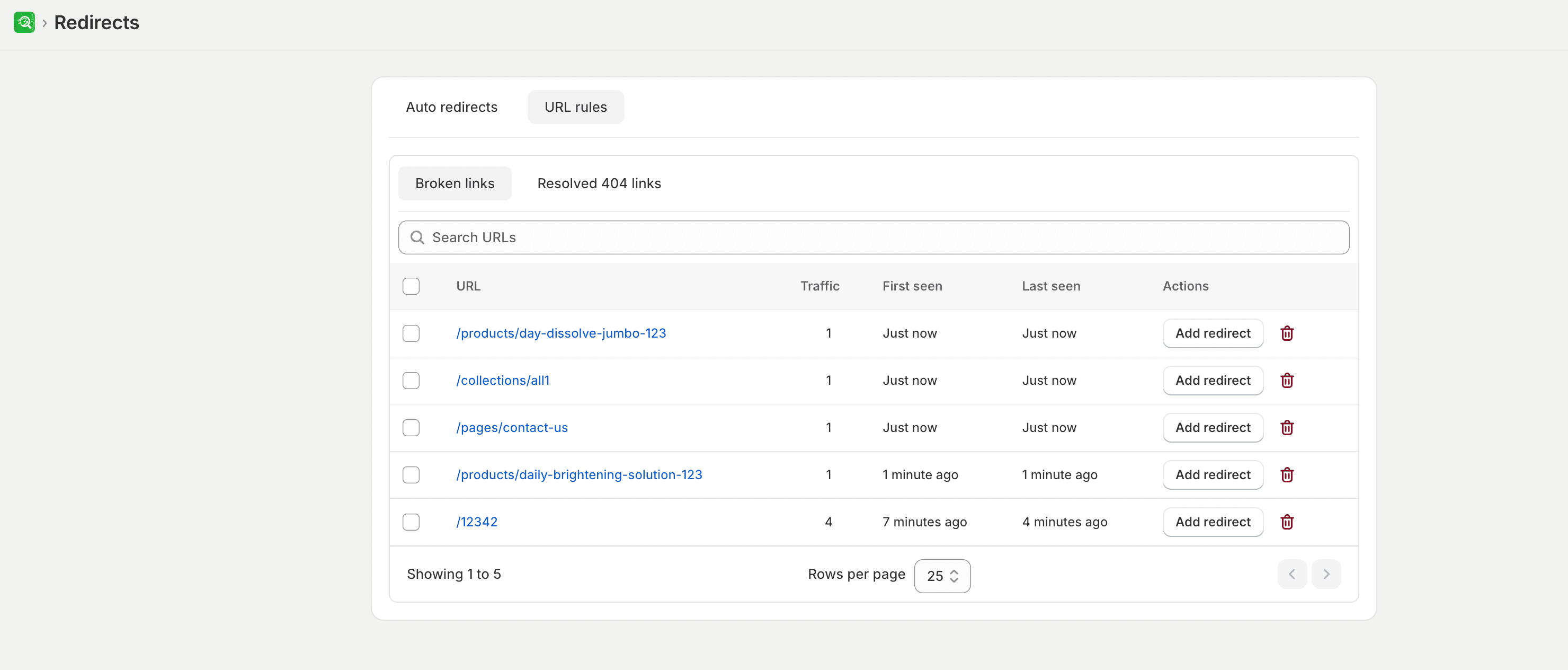
From a broken link row, you can:
- Select Add redirect to create a redirect with the broken path prefilled as the source URL. After the redirect is saved, that broken-link record is removed.
- Delete the broken-link record if you no longer need to track it.
You can search URLs, select multiple rows, and use bulk actions to delete selected items or delete all records.
NOTE
If a bulk delete is already running, wait for it to finish before starting another delete action.