

Appearance
Image compression
Use Image optimization → Optimize images to compress store images, track size savings, and restore backups when available.
Before you begin
- Open SEOEngine from your Shopify admin.
- Decide which image sources to process: Products, Collections, Blog posts, and other content images.
- If you want the option to restore compressed images later, plan to select Keep backup for restoration before you run optimization.
Configure image optimization
The Optimize images tab contains the compression settings, optimization progress, and Image optimization history.
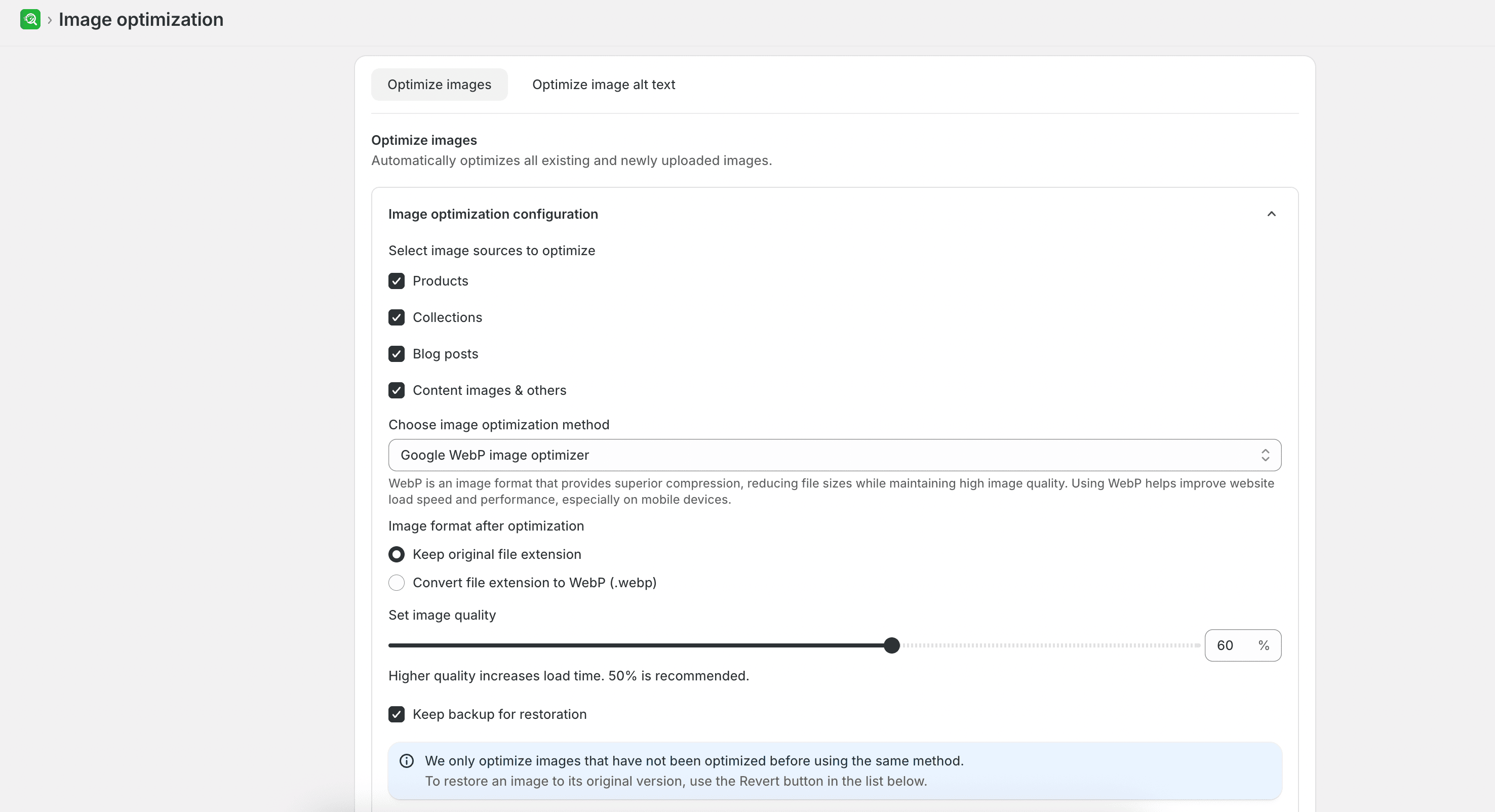
- From SEOEngine, open Image optimization, and then select Optimize images.
- Expand Image optimization configuration.
- Under Select image sources to optimize, choose one or more sources:
- Products
- Collections
- Blog posts
- Content images & others
- Under Choose image optimization method, select:
- Google WebP image optimizer: Compresses images using WebP optimization.
- Original format compression: Compresses images while preserving their JPG, PNG, or other original format.
- If you selected Google WebP image optimizer, choose whether to Keep original file extension or Convert file extension to WebP (.webp).
- Use Set image quality to choose a value from 10% to 90%. The app recommends 50%. Higher quality can increase loading time.
- Optional: Select Keep backup for restoration so that optimized images can be restored later.
- Select Optimize now.
Expected result
The app displays progress while optimization runs and shows the date and time of the last completed run. You can cancel an optimization that is still in progress.
The app processes only images that have not previously been optimized using the same method.
Image optimization history
Image optimization history appears below the configuration and progress controls on the same Optimize images tab. It lists images that the app has compressed.
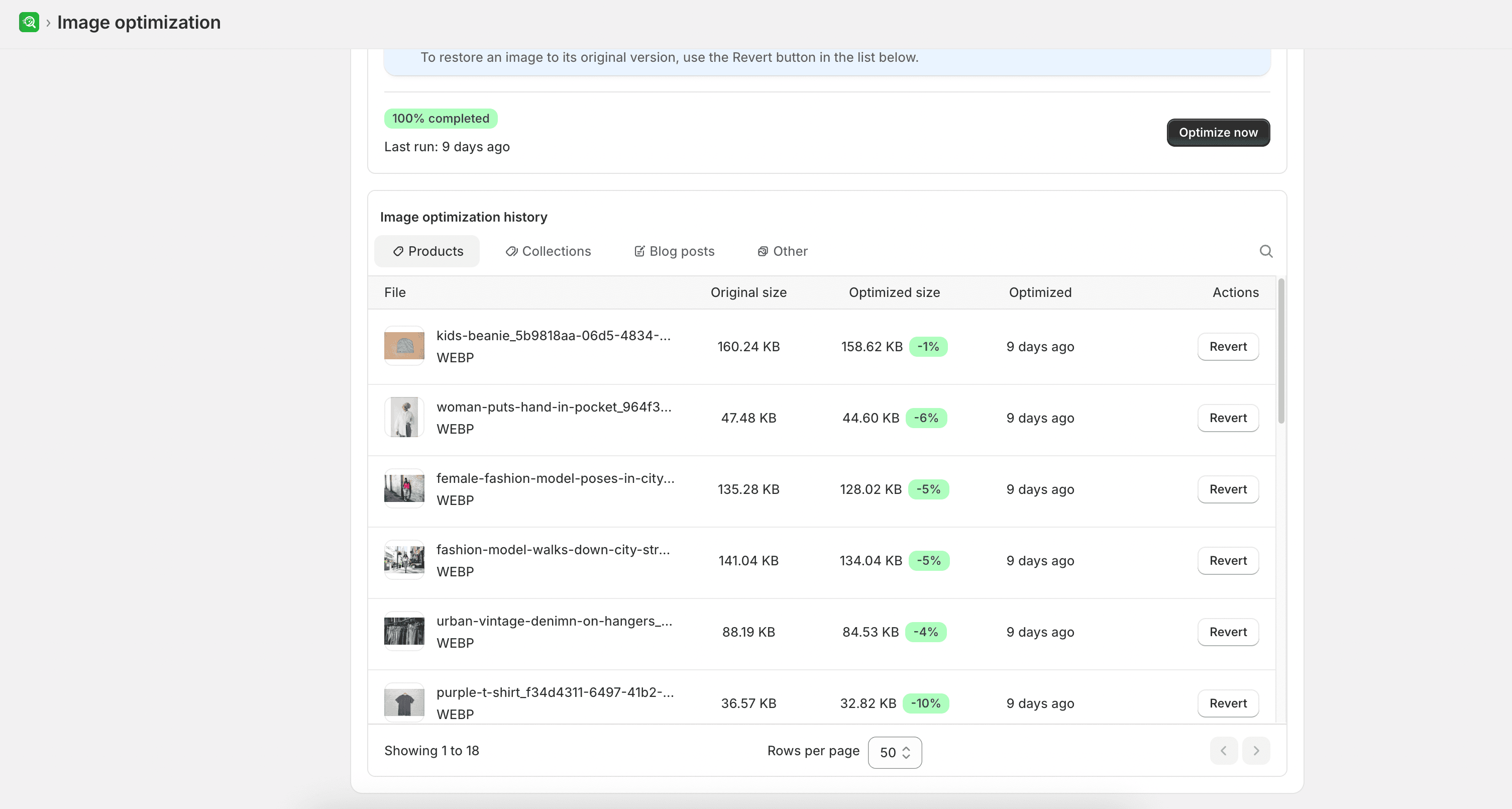
- Filter the history by Products, Collections, Blog posts, or Other.
- Optionally search by file name.
- Review each optimized image entry for:
- File name and file type
- Original size
- Optimized size and size reduction percentage
- Optimization date and time
- Revert, when a backup is available
- Select an image thumbnail to open Image preview and review its dimensions, original size, optimized size, and size reduction percentage.
- To restore an image, select Revert.
Expected result
History entries show the compressed size and reduction for each processed image. Revert restores an image only when a backup is available.
WARNING
Revert is available only when the image has a backup. Select Keep backup for restoration before running an optimization if you want to retain this option. Revert actions are unavailable while an image optimization is running.
Limitations
- The app processes only images that have not previously been optimized using the same method.
- Revert requires a backup created with Keep backup for restoration, and is unavailable while an image optimization is running.