

Appearance
Indexing
When you add new products or update details on your store, it can take days or weeks for search engines to crawl and display those updates. Indexing lets you submit new or modified URLs directly to Google and Bing for priority crawling. You can also request urgent removal of outdated URLs from search results.
Before you begin
- SEOEngine is installed and open in your Shopify admin.
- For Google indexing: a Google Service Account JSON key file, with indexing access granted for your verified shop domain in Google Search Console (follow the in-app setup guide).
- For Bing indexing: a Bing Webmaster API key.
Credential safety
Treat Google Service Account JSON keys and Bing API keys as sensitive credentials.
- Upload credentials only through SEOEngine’s documented connection flow on Indexing.
- Do not paste credentials into support messages, documentation, tickets, or chat.
- If a credential may have been exposed, revoke or replace it through the provider, then reconnect in SEOEngine.
Connect Google and Bing indexing APIs
To submit URLs, connect the app to your Google and Bing webmaster accounts using API credentials.
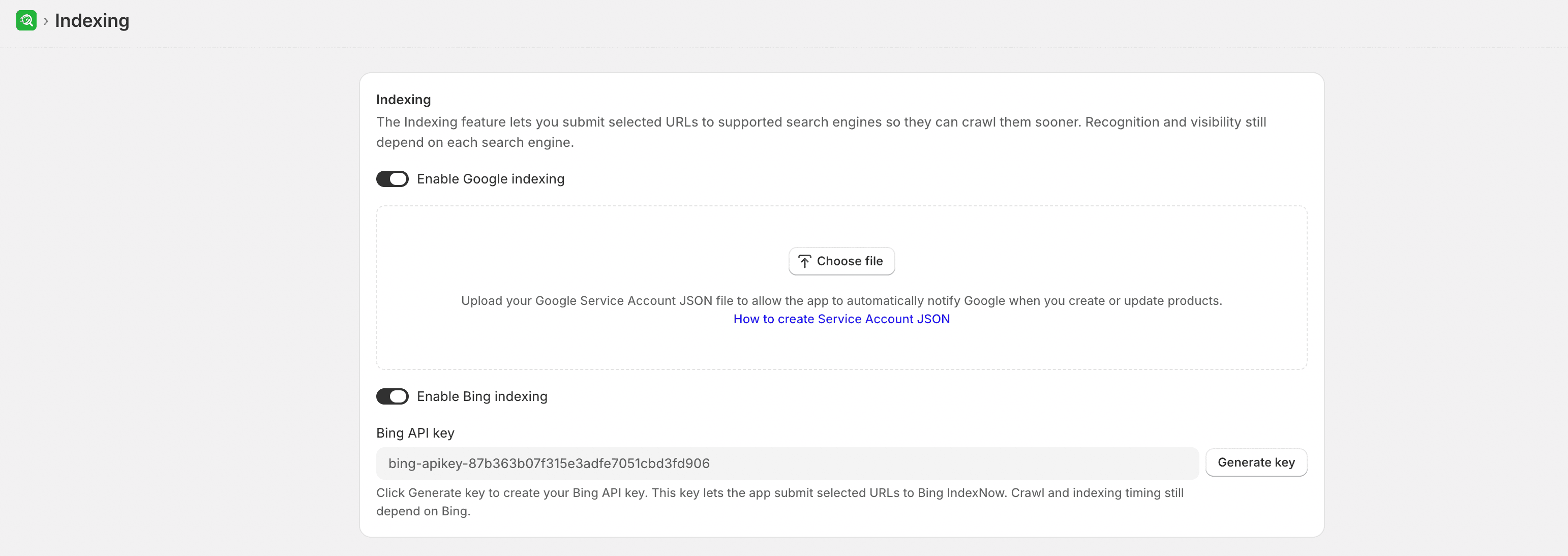
- From SEOEngine, open Indexing.
- To set up Google indexing:
- Turn on Enable Google Indexing.
- Upload the JSON key file from your Google Service Account. Follow the in-app setup guide to create a service account and grant it indexing access in Google Search Console.
- To set up Bing indexing:
- Turn on Enable Bing Indexing.
- Enter your Bing Webmaster API key, or select Generate key if prompted by the app.
- Select Save.
NOTE
If you encounter submission errors, verify that your credentials are valid and that your service accounts have appropriate permissions for your verified shop domain.
Request priority URL indexing
After your search engine connections are enabled, send crawling requests for newly created or updated pages.
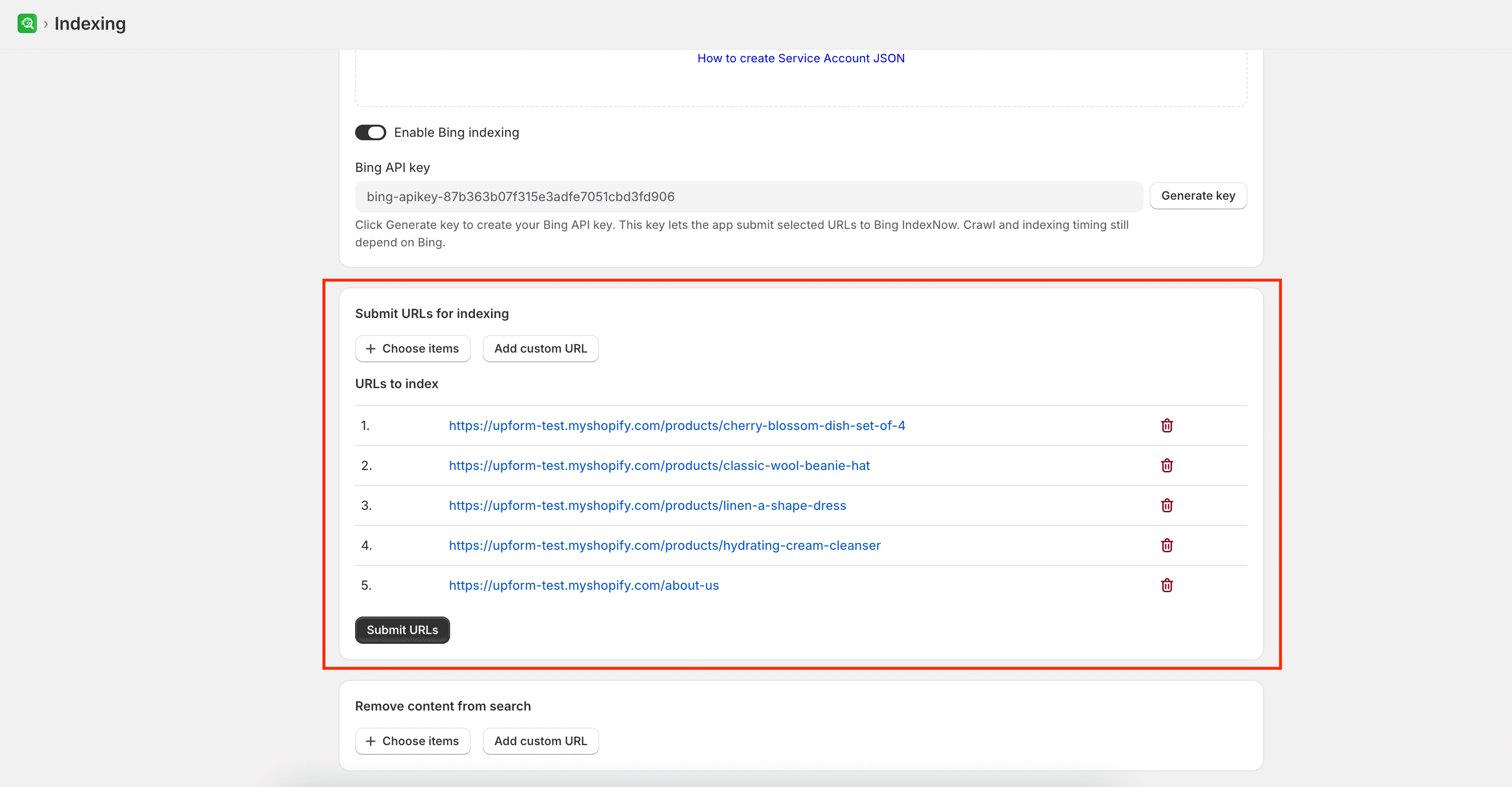
- Under the Submit URLs for Indexing section, select the pages you want to submit:
- Select Choose items to browse and select products, collections, pages, or blog posts.
- Select Add custom URL to enter paths. Custom paths must start with a slash
/(for example,/products/summer-tshirt), must be internal links on your store's primary domain, and can be entered with one URL per line.
- Review the list under URLs to index.
- Select Submit URLs.
The app forwards the request immediately to the connected search engines. The exact time it takes for search engines to crawl and index your URLs is subject to their own queue processing times.
Remove URLs from search results
If you have deleted a product or made a page private, you can submit an urgent request to remove the URL from Google and Bing search index listings.
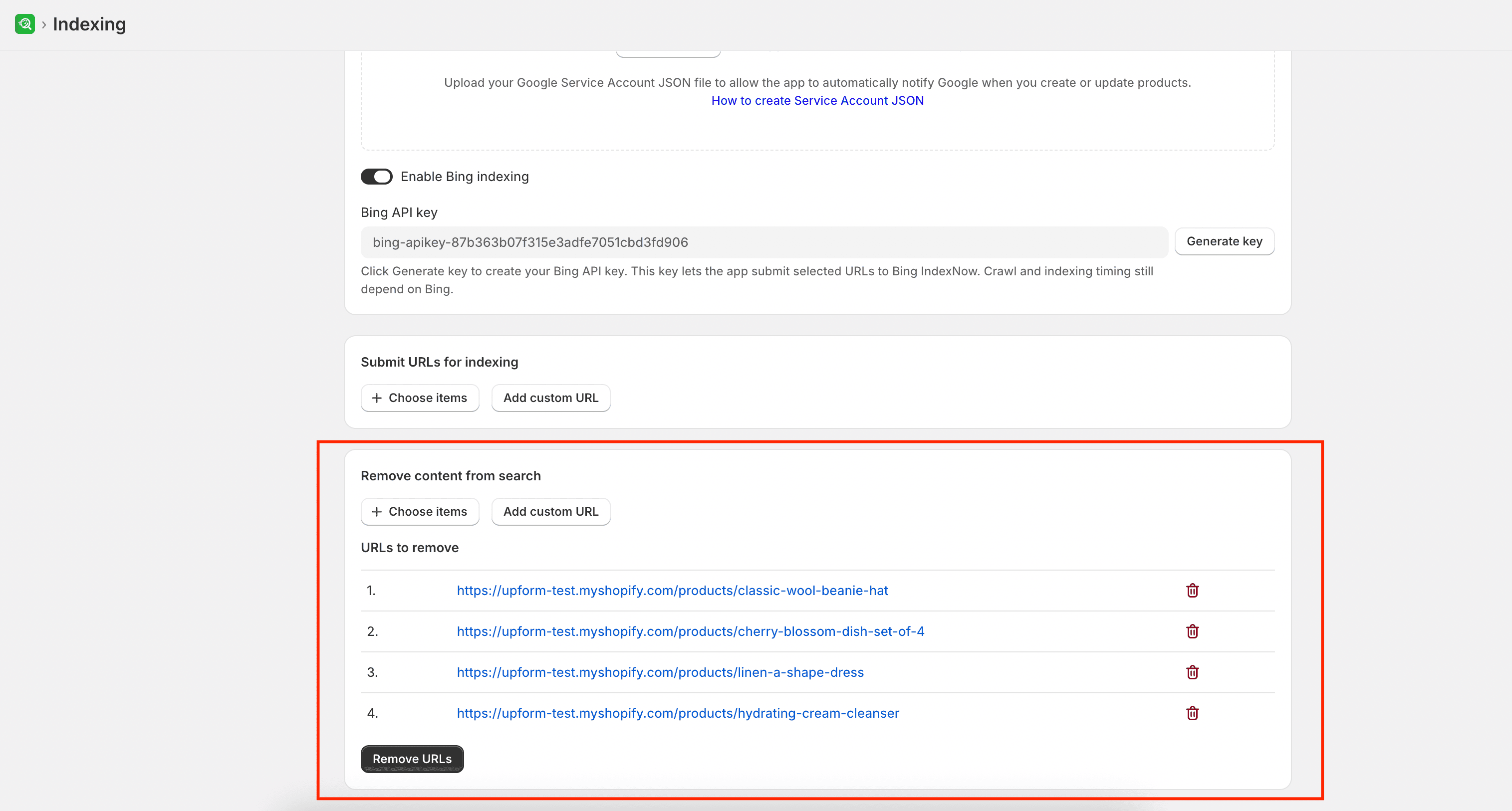
- Under the Remove Content from Search section, select Choose items or enter custom URLs.
- Select Remove URLs to send the removal request.
If connection, submission, or removal requests fail, see Common issues.