

Appearance
Robots.txt
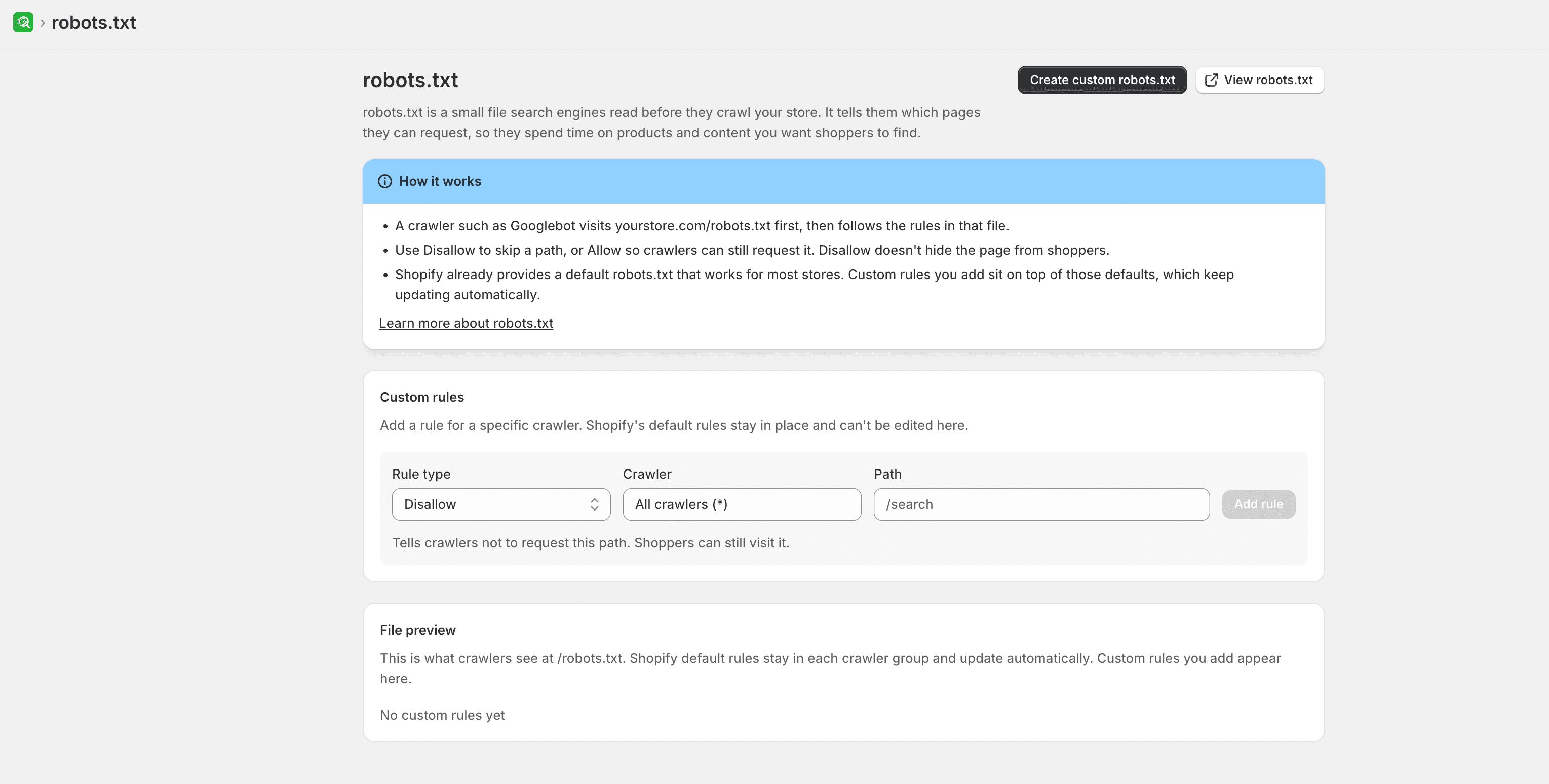
robots.txt is a small file at the root of your store. Search engine crawlers read it before they request other pages, so they know which paths they may fetch.
Shopify already provides a default robots.txt that works for most stores. Use robots.txt in SEOEngine only when you need extra crawl instructions.
Before you begin
- SEOEngine is installed and open in your Shopify admin.
- Your store has a published theme. SEOEngine writes the custom file to that theme.
- You know which extra crawl rules you need. Most stores can keep Shopify’s default file.
How it works
When a crawler such as Googlebot reaches your store, it requests /robots.txt first. It then follows the rules in that file for later requests. Shoppers never see this file as part of browsing, and they can still open any storefront URL that exists.
Shopify maintains the default rules for your store and keeps them up to date. SEOEngine does not replace that file. When you create a custom robots.txt, your rules are added on top of Shopify’s default groups.
| Rule type | What it tells crawlers | What it does not do |
|---|---|---|
| Disallow | Do not request this path. | It does not password-protect the page or hide it from shoppers. The URL can still appear in search if other sites link to it. |
| Allow | You may request this path, even when a broader Disallow rule would skip it. | It does not force a page to be indexed or ranked. |
| Sitemap | Here is another sitemap URL to discover. | It does not replace the sitemap Shopify already includes. |
A rule can apply to All crawlers (*) or to one crawler you choose, such as Googlebot. Crawlers that are not in Shopify’s default file get their own group in the custom file.
Leave the default file in place unless you have a clear reason to add a rule. Avoid blocking product, collection, or other pages you want search engines to crawl.
Custom rules
Custom rules is where you add extra crawl instructions. Shopify’s default rules stay in place and cannot be edited here.
- From SEOEngine, open robots.txt.
- Under Rule type, choose one of:
- Disallow — tells crawlers not to request this path. Shoppers can still visit it.
- Allow — tells crawlers they may request this path, even if a broader Disallow rule exists.
- Sitemap — adds another sitemap URL. Shopify already includes your store sitemap.
- For Disallow or Allow, choose a Crawler. Search the list, or type a name to add one. Use All crawlers (*) when the rule should apply to every crawler in Shopify’s default groups.
- Enter a Path (for Disallow or Allow) or a Sitemap URL (for Sitemap). Paths that do not start with
/get a leading slash automatically. - Click Add rule.
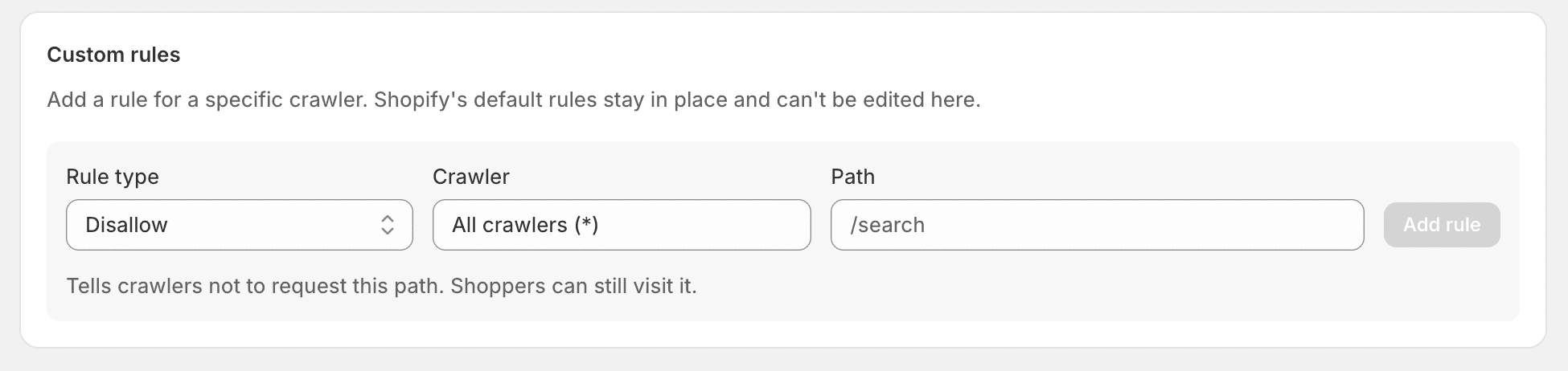
A duplicate rule is not added. After you add, edit, or remove a rule, use Save on the save bar to publish, or Discard to undo unsaved changes.
If you have not created a custom file yet, click Create custom robots.txt instead. That publishes your current custom rules to the live theme.
File preview
File preview shows the custom rules grouped by crawler. Shopify default rules stay in each crawler group and update automatically. Only the custom rules you add appear here for editing.
Expand a crawler group to:
- Change Disallow and Allow between each other
- Edit the Path or Sitemap URL
- Click Remove rule to delete a custom rule
Extra sitemap URLs appear in a Sitemap group.
This preview is not a full copy of Shopify’s default file. The live file at /robots.txt still includes Shopify’s default rules plus your custom rules.
View robots.txt
Click View robots.txt to open the live file on your storefront at /robots.txt. You can do this whether you are using Shopify’s default file or a custom file.
After you save, confirm the live file includes the custom rules you added.
Restore default
If you no longer need custom crawl rules, return to Shopify’s system-managed file.
- Open robots.txt.
- Open the more actions menu, then click Restore default.
- In Restore default robots.txt, confirm that you want to restore Shopify’s default file.
Restoring removes your custom rules from the published theme. This cannot be undone.