

Appearance
Dashboard
Use the SEOEngine Dashboard to check your store’s search engine health, sync status, app embed status, and configuration alerts before you open feature pages to make changes.
Before you begin
- SEOEngine is open in your Shopify admin
- The SEOEngine app embed is enabled in your theme if you want storefront SEO features and speed optimizations to run
- If the online store is password-protected, you have the storefront password ready for the Dashboard password field
App Embed status
To allow storefront SEO features and speed optimizations to run on your store, the SEOEngine app embed must be enabled in your Shopify theme settings.
From the App Embed status card, you can view whether the embed is currently:
- Active — enabled and running
- Inactive — disabled
If the status is Inactive, select the activation option to open your Shopify theme editor, enable the SEOEngine app embed, and save your changes.
Monitor your store's SEO health
The SEO overview card displays a breakdown of the results from your latest search audit.
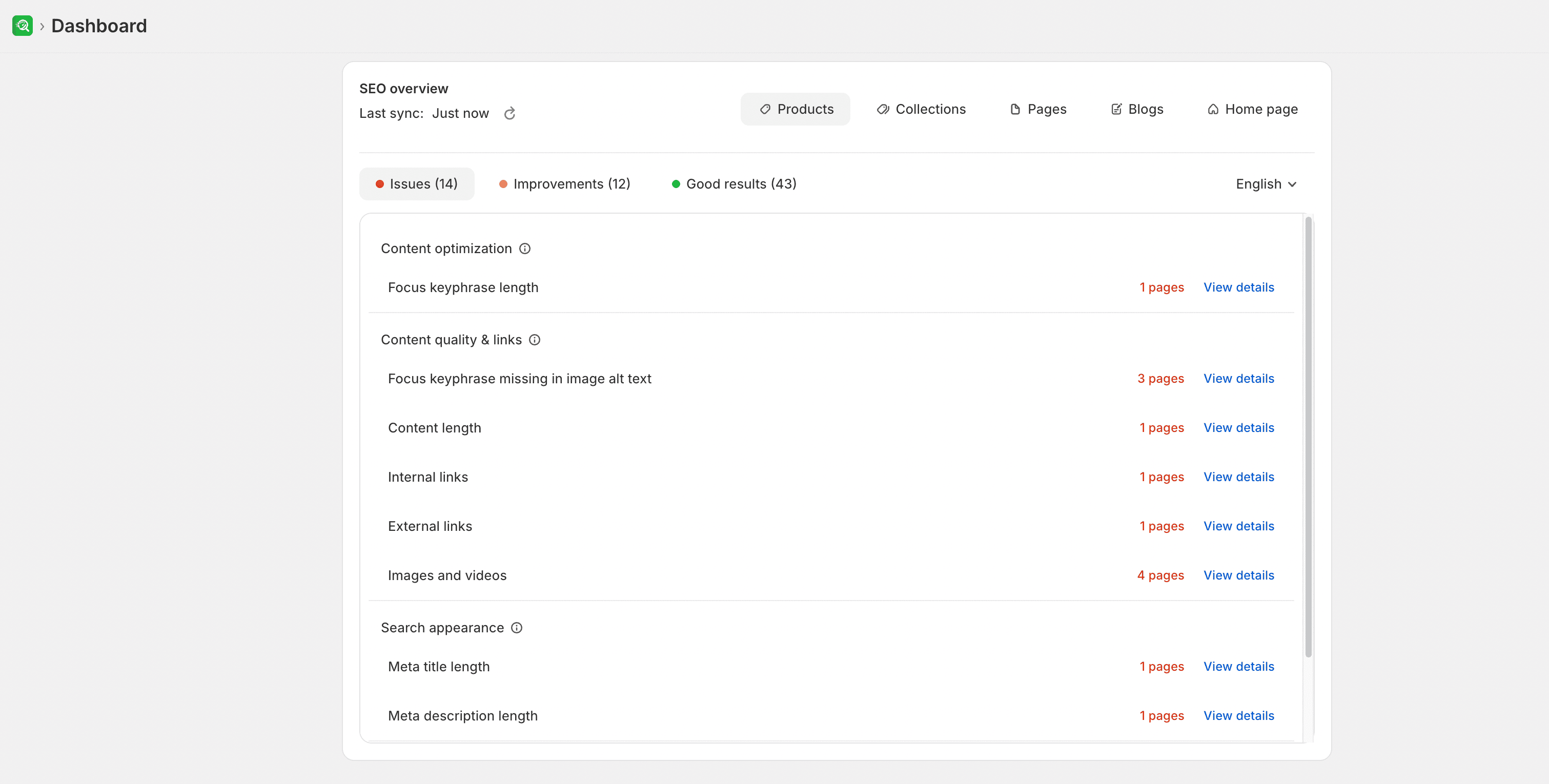
You can review items grouped by their current status:
- Issues — problems that need attention, such as a missing focus keyphrase or a meta title that is too long
- Improvements — areas that work but can still be refined
- Good results — checks that already meet the recommended range
You can filter these results by page type, including products, collections, pages, blogs, or your home page. Select View details to open the matching pages in SEO Audit.
Checks are grouped into Search appearance, Content quality & links, Content optimization, Readability, and Indexing and visibility. For what each criterion means and recommended ranges, see SEO analysis criteria.
If you make updates to your store's catalog or content in Shopify, select Sync now to refresh the app's data, then Re-scan to update the overview counts. Depending on the size of your store, syncing may take a few minutes.
Manage storefront password protection
If your online store is password-protected, SEOEngine cannot scan page performance or apply certain storefront optimizations. If the dashboard displays a password warning, enter your storefront password in the provided field and select Verify to authorize access.
Expected result
After you use the Dashboard:
- You can confirm whether App Embed status is Active or Inactive
- You can interpret SEO overview counts by status and page type, then open matching pages with View details
- You can refresh catalog data with Sync now and update overview counts with Re-scan
- If a password warning appears, you can verify the storefront password so performance scanning can run