

Appearance
Performance
Storefront performance affects customer experience and search visibility. Slow pages can increase bounce rates. Use Performance to measure your store's loading speed with Google Lighthouse metrics and apply automatic technical optimizations that adjust script and asset loading without manually editing theme code.
Before you begin
- SEOEngine is installed and open in your Shopify admin.
- If your store is password-protected, verify your storefront password on the app Dashboard before performance scanning can run.
Review storefront speed scores
The app uses Google Lighthouse metrics to evaluate storefront performance on mobile and desktop.
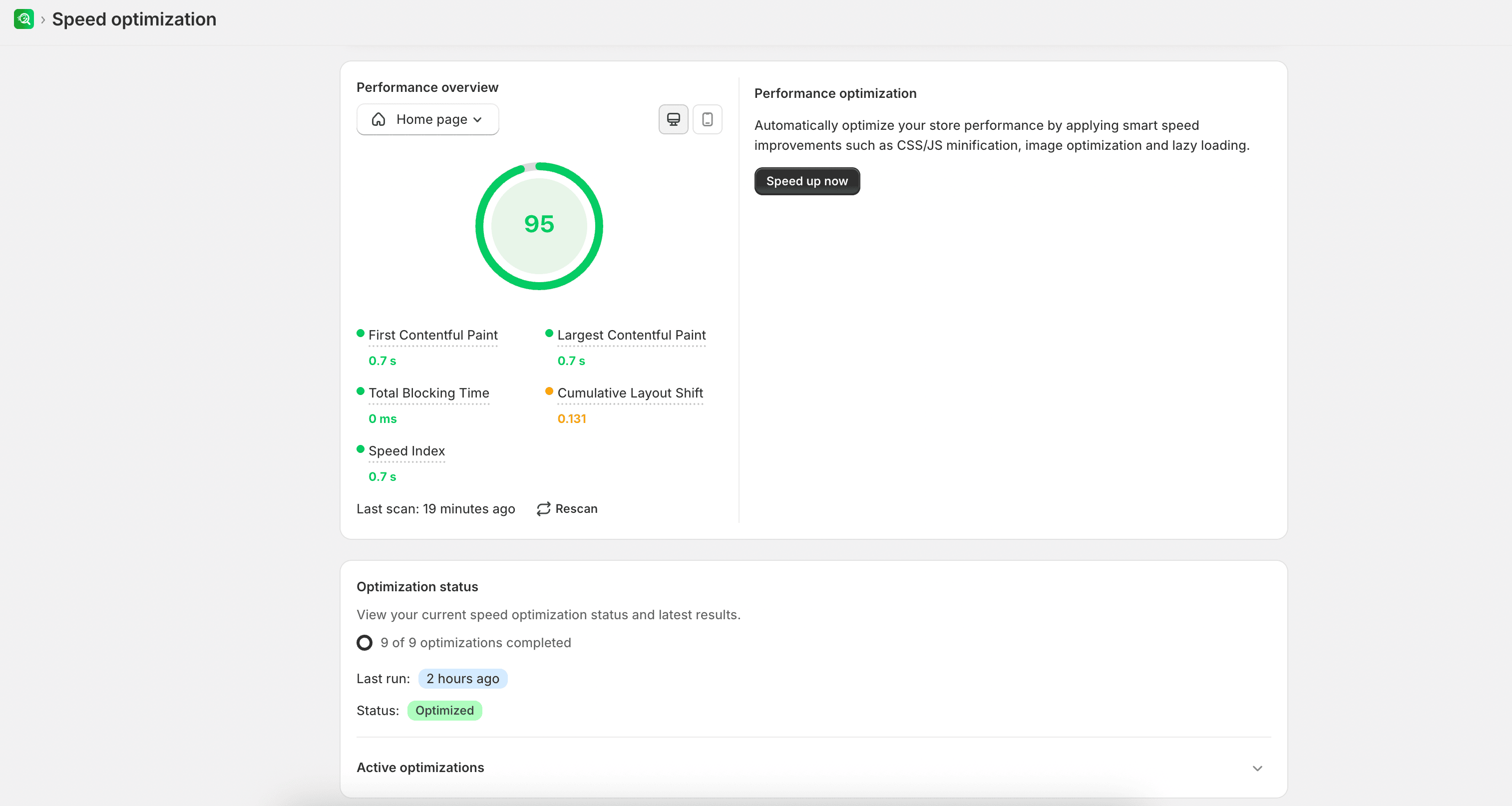
- From SEOEngine, open Performance.
- Select the page type you want to analyze (such as Home, Product, Collection, Page, or Blogs).
- Switch between the Desktop and Mobile tabs to see the corresponding scores.
- Review the core performance metrics:
- Speed Index (SI): Shows how quickly the contents of a page are visibly populated.
- First Contentful Paint (FCP): The time it takes for the browser to render the first piece of DOM content.
- Largest Contentful Paint (LCP): Measures when the main content of a page has likely loaded.
- Total Blocking Time (TBT): Measures the total amount of time between FCP and interactive state where the page is blocked from responding to user input.
- Cumulative Layout Shift (CLS): Measures the visual stability of the page layout.
- Select Rescan to update scores after applying changes or theme updates.
NOTE
If your store is password-protected, you must verify your storefront password on the app Dashboard before performance scanning can run.
Apply speed optimizations
You can enable and run automated optimizations from Performance. These settings adjust script and asset loading behaviors without requiring you to manually edit your theme code.
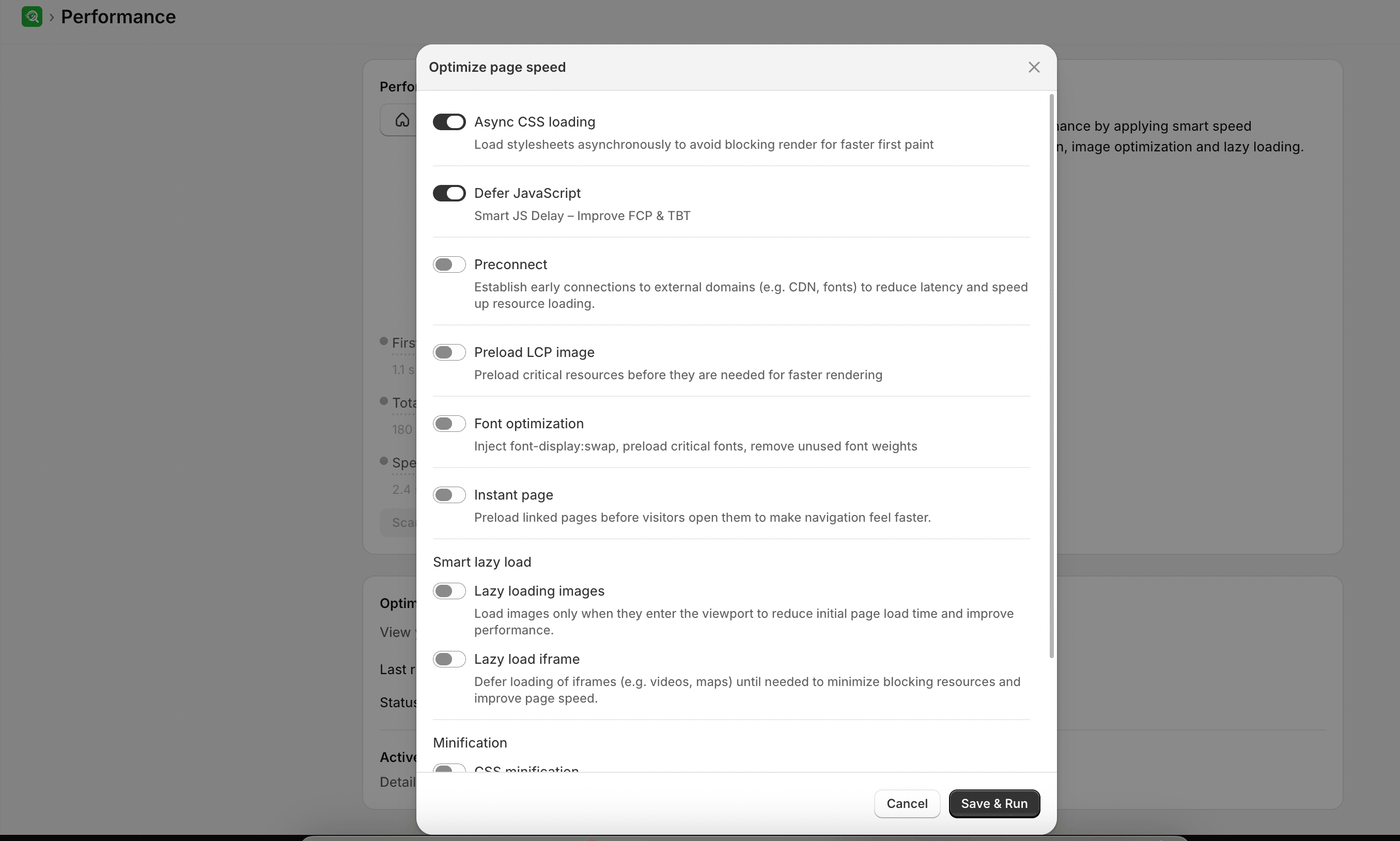
- In the Performance settings, select Speed up now.
- Review and turn on the optimizations you want to apply to your store:
- Async CSS Loading: Loads style sheets asynchronously so they do not block the initial page render.
- Defer JavaScript: Delays the execution of JavaScript files, helping to improve First Contentful Paint and Total Blocking Time.
- Preconnect: Establishes early connections to external domains, such as Google Fonts or CDNs.
- Preload LCP image: Identifies and loads the main above-the-fold image sooner.
- Font Optimization: Applies font-display swap rules, preloads font files, and removes unused font weights.
- Instant page: Preloads destination pages in the background when a visitor hovers over a link, speeding up click transitions. You can add specific URLs (one per line) to exclude them from preloading.
- Smart Lazy Load: Delays loading off-screen images and iframes until the user scrolls near them.
- Minification: Compresses CSS, JavaScript, and HTML files by removing unnecessary whitespace and formatting.
- Select Accept to apply the configuration.
- Monitor the status screen to confirm which optimizations succeeded or failed.
If any individual optimization fails or causes visual display issues on your storefront, you can adjust your selections and re-run the optimization wizard, or revert applied settings from the active optimizations list.
If scans do not run, password verification fails, or optimizations report failures, see Common issues.